Updating MagicINFO Server
This guide explains how to upgrade an existing MagicINFO Server installation in place. The screenshots show an upgrade from version 7 to version 8, but the procedure is the same for other version steps.
Before you begin
- Make a backup or snapshot of the current installation. Do not start an upgrade without one.
- Check that the server meets the system requirements of the MagicINFO Server version you are upgrading to.
- If you are coming from a much older version and only a few users or devices are registered, consider whether a fresh installation would be faster and cleaner than an in-place upgrade.
Step 1: Stop the MagicINFO service
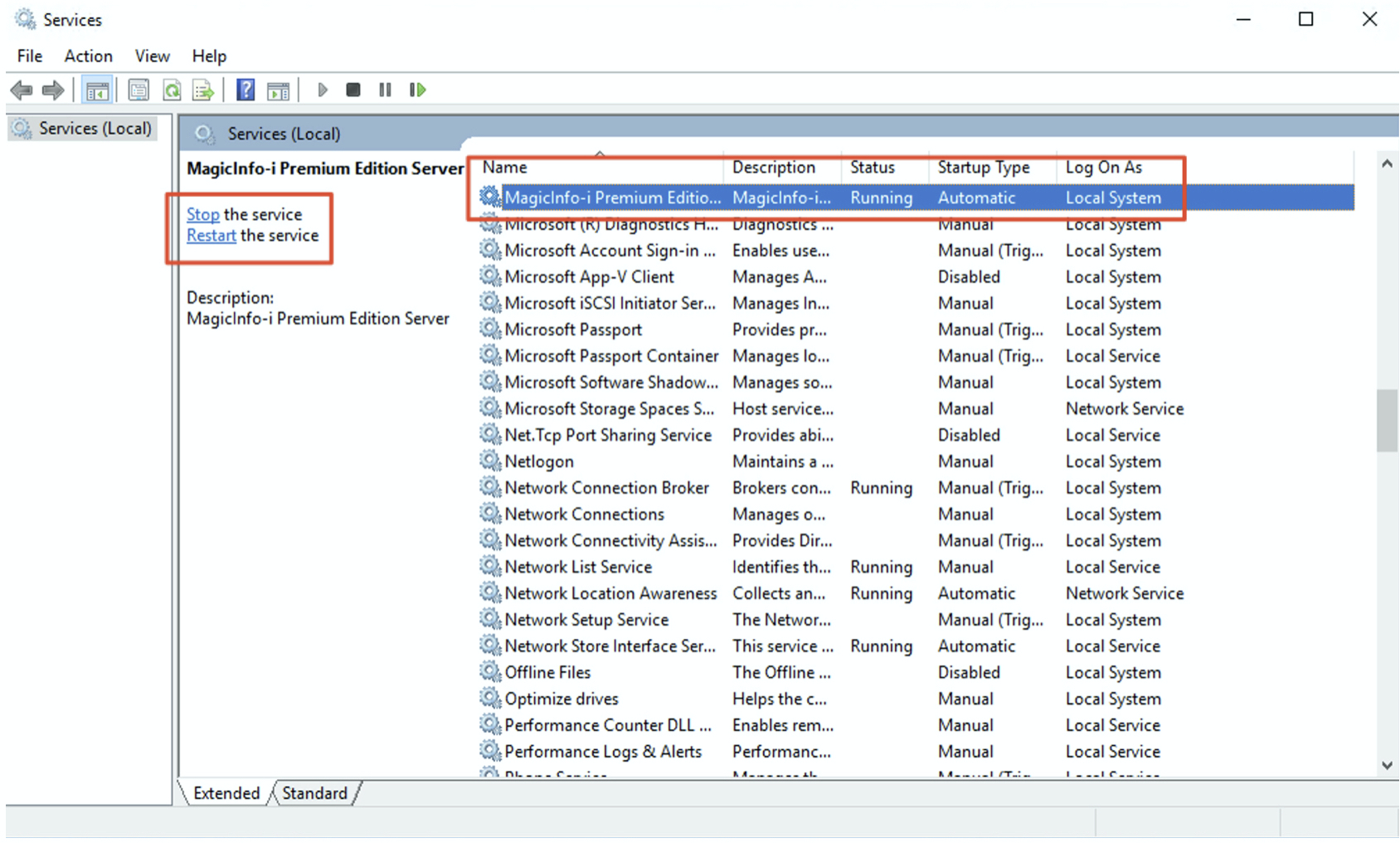
- Press the Windows key and open the Services application.
- Type
MagicINFOto locate the server service. - Stop the MagicINFO service(s).
Step 2: Back up the database
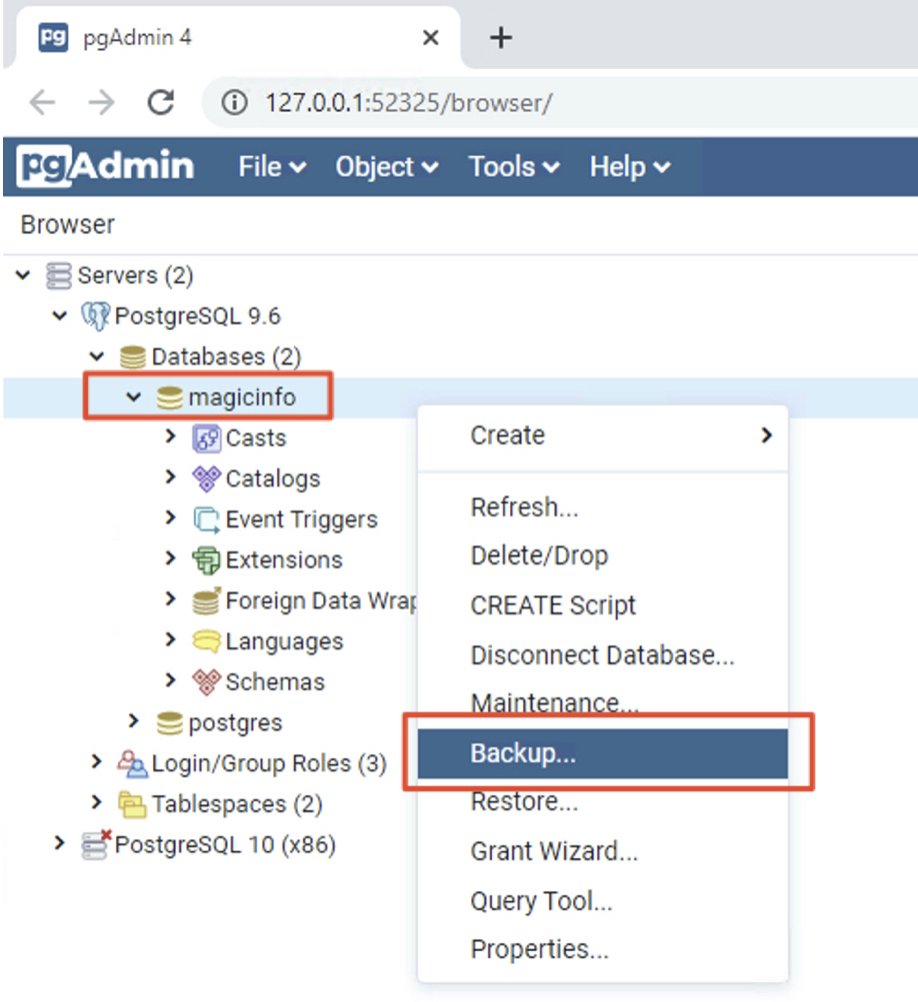
MagicINFO stores its data in a PostgreSQL database named magicinfo. Back it up with pgAdmin (installed together with PostgreSQL — see PostgreSQL and MagicINFO):
- Open pgAdmin.
- Log in with the database password that was set during the original installation.
- Expand the server tree, right-click the
magicinfodatabase, and choose Backup.
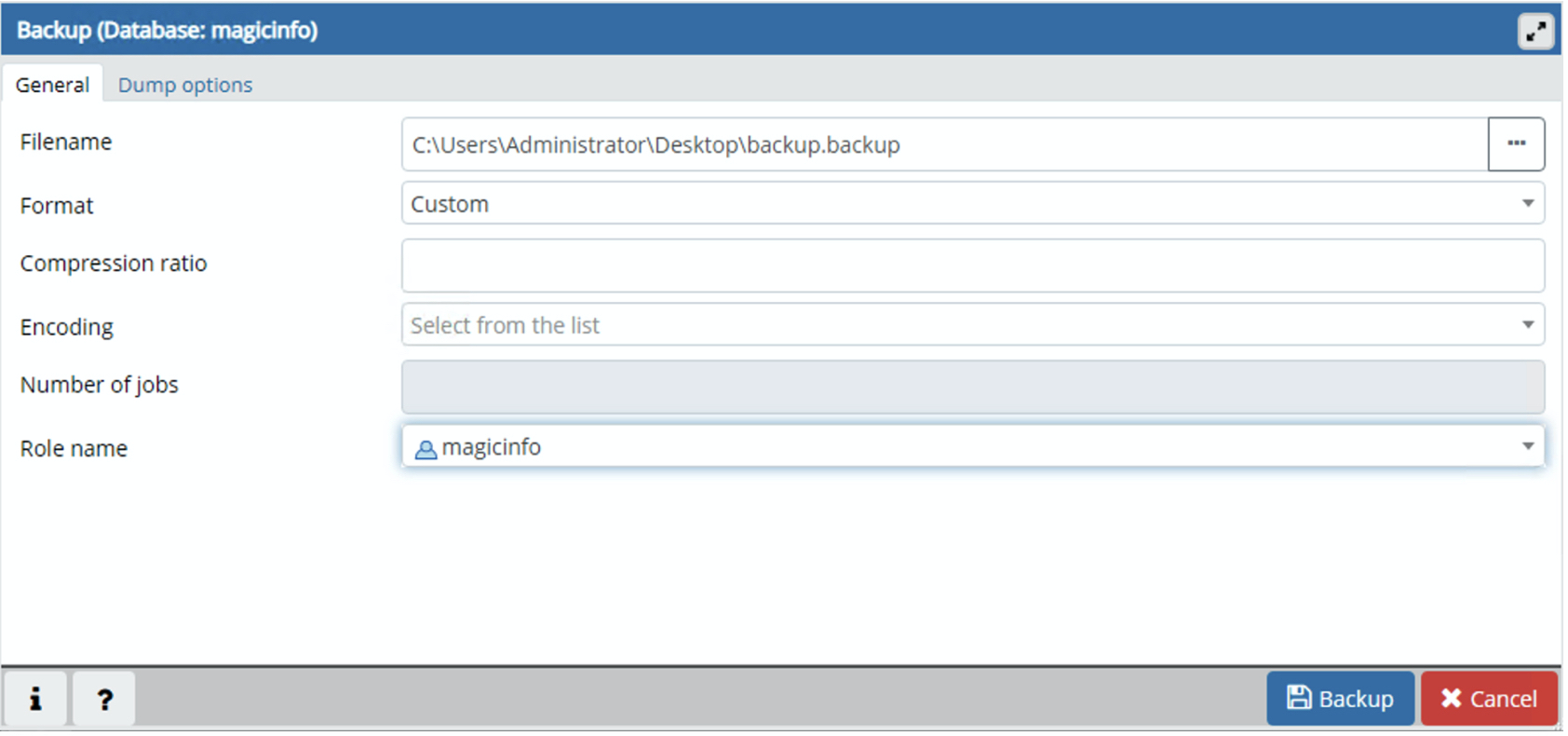
- Enter a file name for the backup and click Backup.
Step 3: Back up the configuration folders
Open Windows Explorer and copy the following folders to a safe backup location:
C:\MagicInfo Premium\confC:\MagicInfo Premium\runtimeC:\MagicInfo Premium\tomcat
Step 4: Run the new installer
Run the installer of the new MagicINFO Server version and click Proceed. The installer upgrades the existing installation and restarts the services.
The Windows Services window may report the services as running while MagicINFO is still initializing. Allow roughly 10 minutes before the web interface becomes fully operational.
When the upgrade completes, log in to the web interface and confirm that your settings, content, and devices are present as they were before the upgrade.