Manage LED Displays and Cabinets
You can check for the information of LED device that is connected to MagicINFO Server or manage the cabinet that is connected to LED.
- Click
 (Device) on the main menu bar.
- The device with the
 icon in the device list is the LED device. Click icon.
A list of cabinets appears.
Changing the cabinet status of LED device
- Select the cabinet to change from cabinet list and then click Edit.
- The Edit window appears.
- Check and modify information and then click Save.
To refresh the current cabinet status, click Current Status.
You can change the following items on the Edit window.
| Item | Description |
|---|---|
| Cabinet Settings | ALB: Automatically adjust brightness if the display is too bright. Click ON to enable or OFF to disable. Gamut: Change the input source for the cabinet from the drop down box. Backlight: Adjust the brightness of cabinet (0 ~ 10 levels). |
| Cabinet Calibration | Calibrate the resolution of cabinet connected to S-Box. Click ON to enable or OFF to disable. Pixel RGB CC: Apply pixel RGB CC adjustment value as cabinet resolution. Module RGB CC: Apply module RGB CC adjustment value as cabinet resolution. Edge Correction: Apply border adjustment value as cabinet resolution. |
Search cabinet
You can search for the cabinet that is connected to LED device.
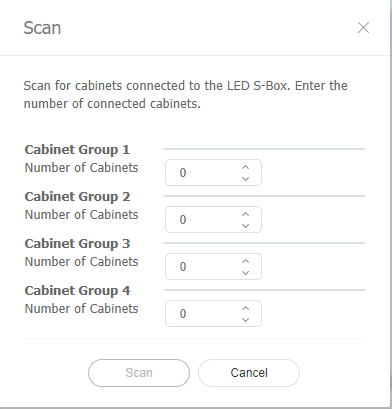
- Select the cabinet you wish from cabinet list and click Edit Connection.
- Enter the number of cabinets connected for each group.
- Click Search.
Configuring cabinet layouts
Use this to configure the layout of cabinets that are connected to the LED device.
- Click Edit Layout in the cabinet list.
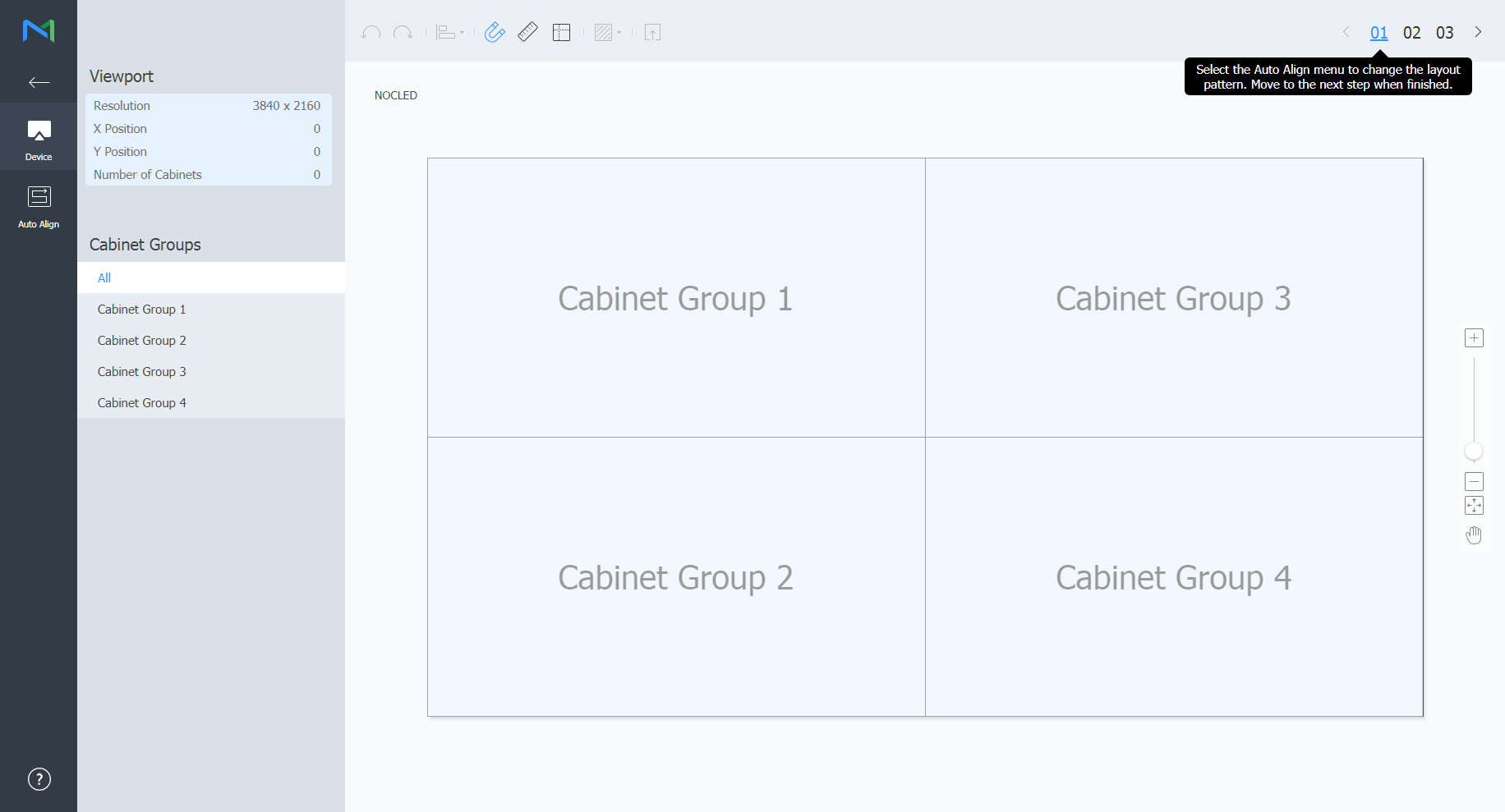
- When the LED Layout Manager runs, select a desired group from the cabinet groups for the Device and then click Auto Align.
| Item | Description |
|---|---|
| Viewport | Review the Viewport resolution and the number of cabinets that are connected to the LED device, along with their position. |
| Cabinet Group | Search and select from the list of cabinet groups that are connected to the LED device. After selecting the group, you can adjust the position of individual cabinets in that group. |
- Select a layout file and click Next.
Click  icon to apply a test pattern to the cabinet.
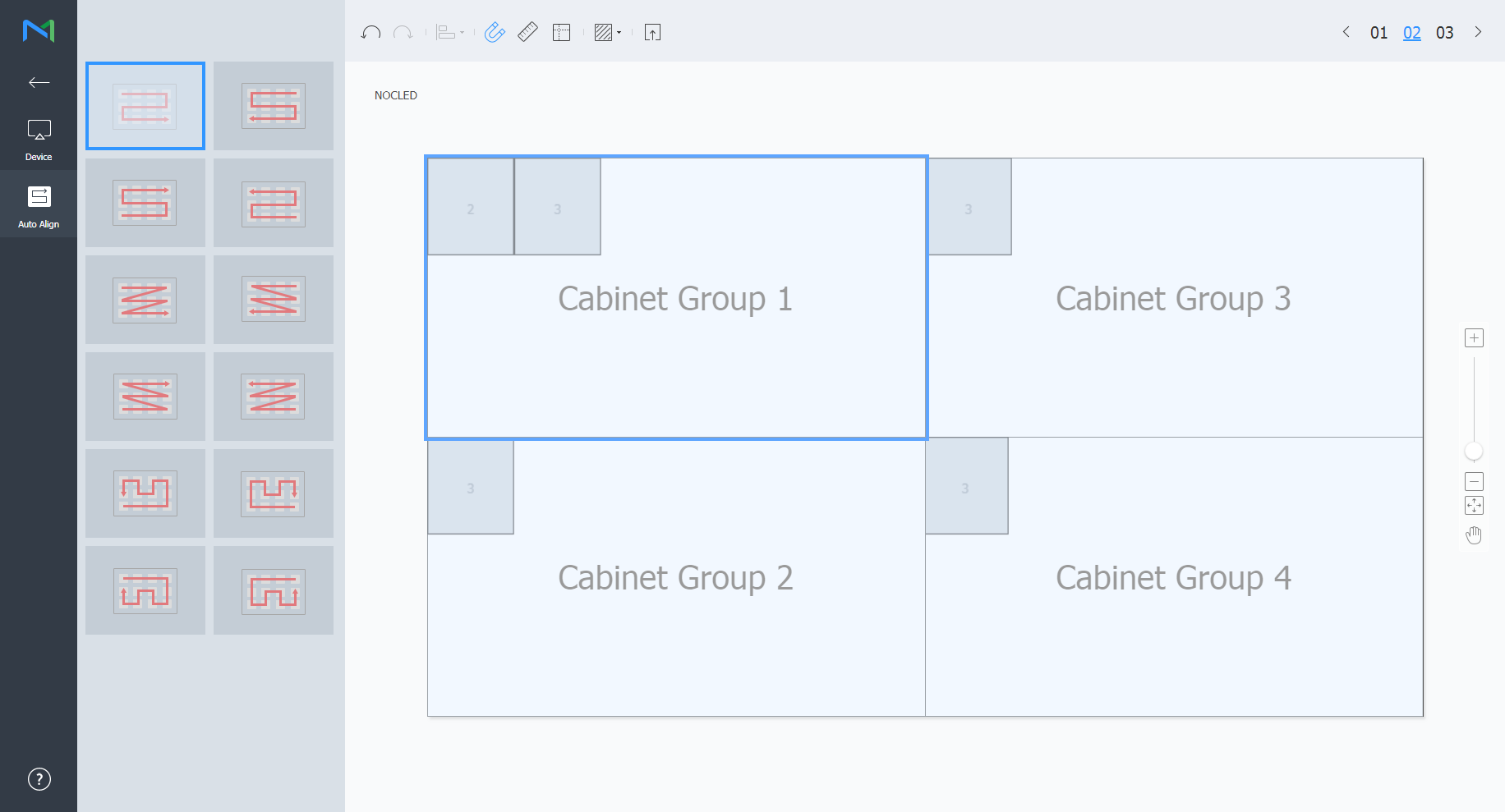
- Adjust the cabinet position and click Next.
- After editing the layout, click Yes.
The cabinet layout will be saved to the server.
The tools that can be used by the LED Layout Manager are as follows:
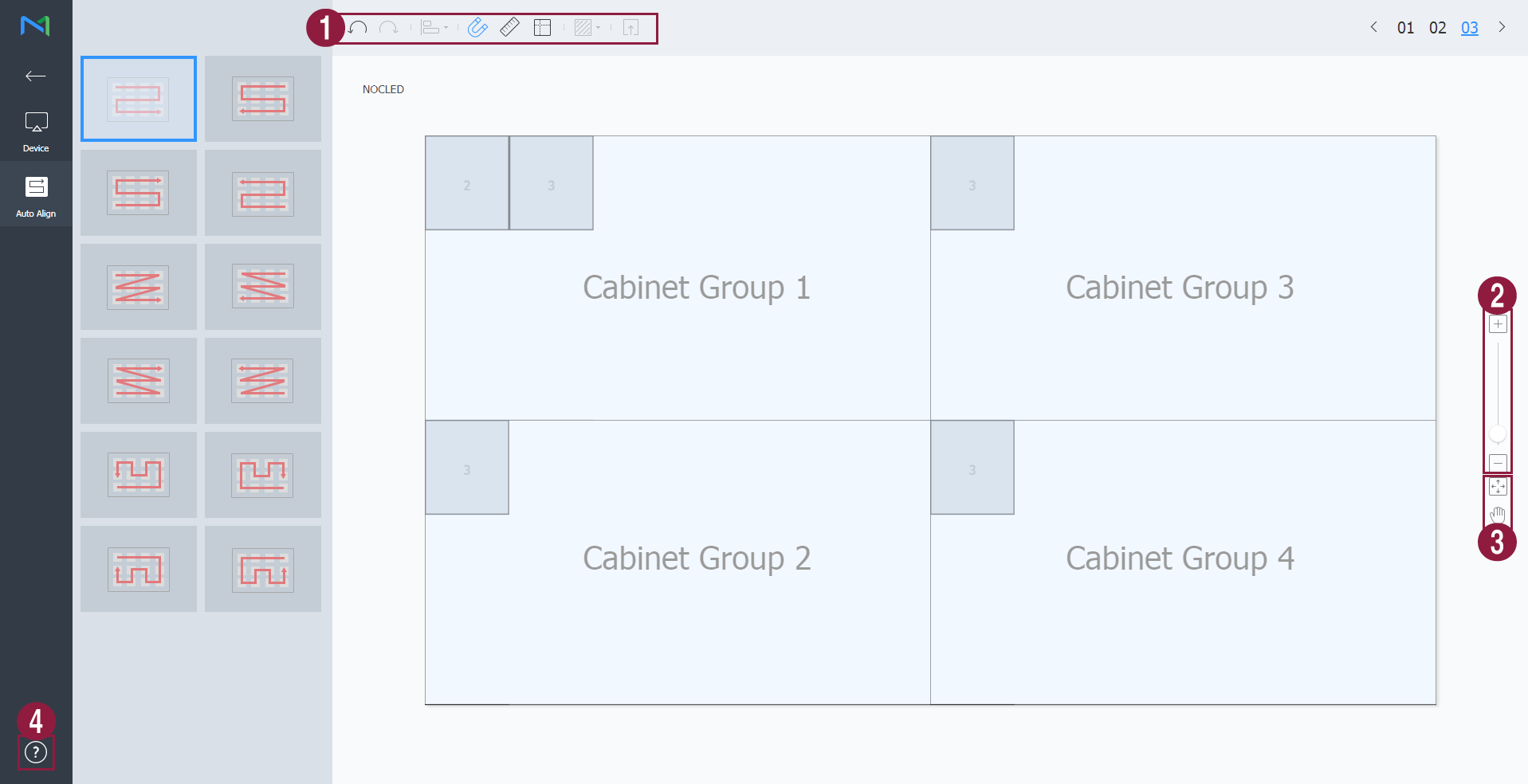
| Icon | Description |
|---|---|
 | Undo the last command to revert back to the previous state. |
 | Redo a command that has been undone. |
 | Align several cabinets based on desired alignment criteria. |
 | Automatically arrange cabinets to fit the grid. |
 | Display the ruler. |
 | Display the guides. |
| Select the test pattern to display on the cabinet. |
 | Preview the cabinet with the layout applied. |
| Zoom slider | Zoom in or out the editor screen view. Use the slide bar to adjust the zoom level. |
 | Adjust the aspect ratio and position of the editor to fit the window for an overview of cabinets. |
 | Move the selected cabinet. |
| Version info | Review the Layout Manager version and the open source license information. |
Configuring the cabinet dehumidification function settings
Turn on or off the dehumidification function on LED devices.
Managing external power supply for the cabinet
View the external power sources connected to LED devices. Set the number of connected external power sources. You can also view external power source-related errors for each connected device in real time.