Controlling device remotely
The devices registered in MagicINFO Server can be connected remotely for control.
Click  (Device) on the main menu bar. Remote control can be performed in the following ways. Select a desired method.
- Select a device from the device list for remote control and then click Quick Control > Remote Control.
- Among the items of the device for remote control in the device list, click
 icon. When the device information window appears, click Remote Control.
In practice
- For the live view, the display opens its own HTTPS connection to the server's remote-management (RM) service and uploads about one frame a second. The display must reach the server's public address, and the browser gives up if no frame arrives within roughly 6 seconds, so the live view can fail on a jittery link while everything else works.
- Some models, such as the OH55A-S, show "Session expired, try reconnecting to RM Server" unless the WS-Addressing URLs in
config.propertiesinclude the port explicitly (for example:443). Keep the port if you edit those lines. - In the REST API, Quick Control's
remotemenu is this remote-control function, not a restart.
About the Remote Control window
The remote control pop-up window appears to display the device status.
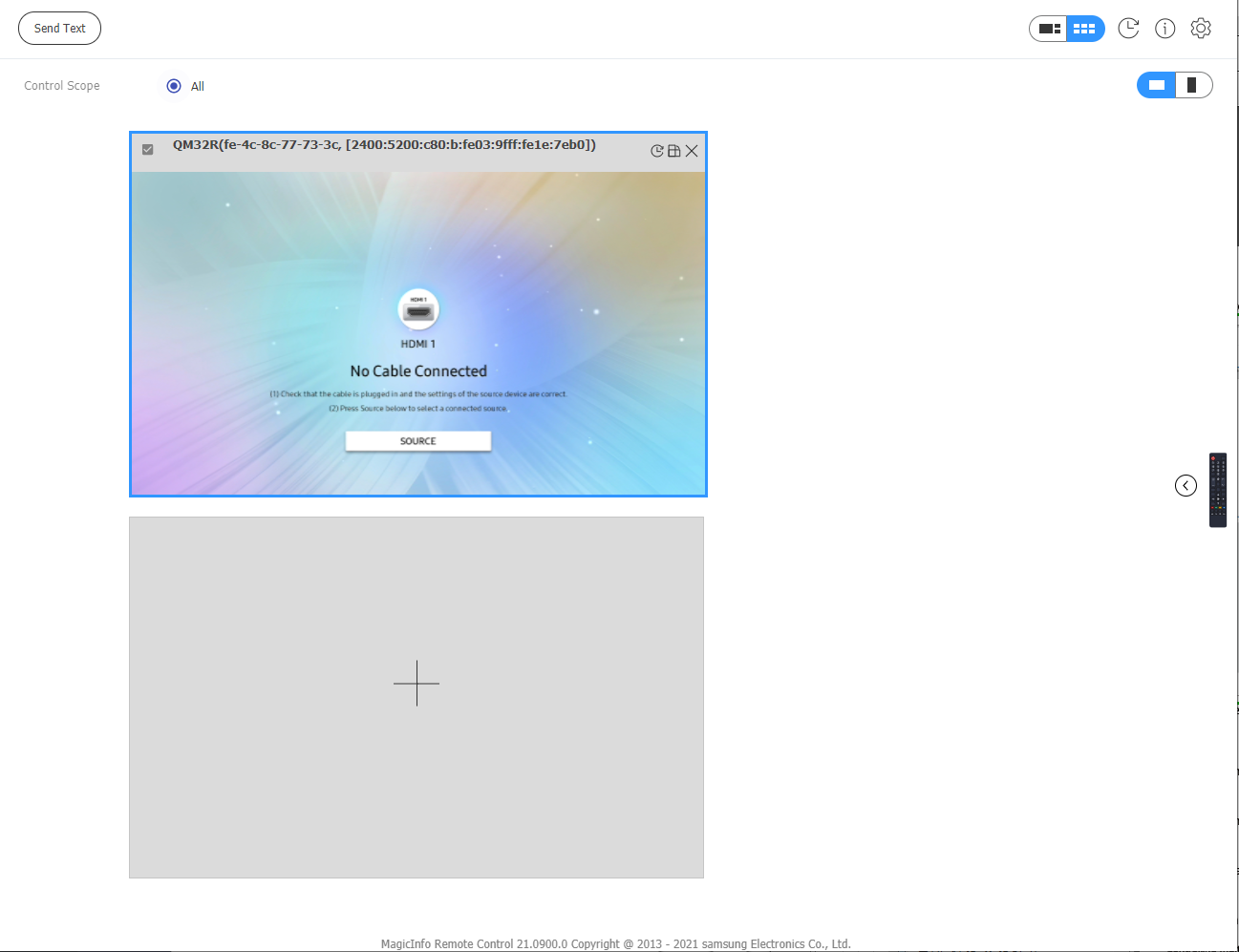 In the remote control window, the following device information can be viewed by clicking
 .
- MAC View the device’s MAC address.
- IP View the device’s IP address.
- HDD Hardware specifications of the connected device(s)
- F/W Firmware Version
Controlling multiple devices
- Control multiple devices simultaneously. Select two or more devices connected to the server, and then click Quick Control > Remote Control.
- During control of multiple devices, only main devices that are currently active can be controlled with the remote control. This mode is activated in PIG mode only.
Control device
- Using the remote control button on the left of the window, you can control the device.
- Send Text Send the device messages. Enter only the alphanumeric values.
- Controlling the activation windows by clicking
 The control range can be set only when the screen is set to zoom in.
- Viewing history by clicking
 View log files that were recorded in the device during control with the remote control, mouse or text.
- Configuring settings by clicking
 Configure the frame rate and picture quality settings.
 Switch the remote control window orientation between landscape and portrait mode.
Adding or deleting devices for control
Add devices easily by clicking the + icon from the remote control window, without using MagicINFO Server. Note that devices of the same type are only supported.