Backup Play: Redundant Playback on a Second Device
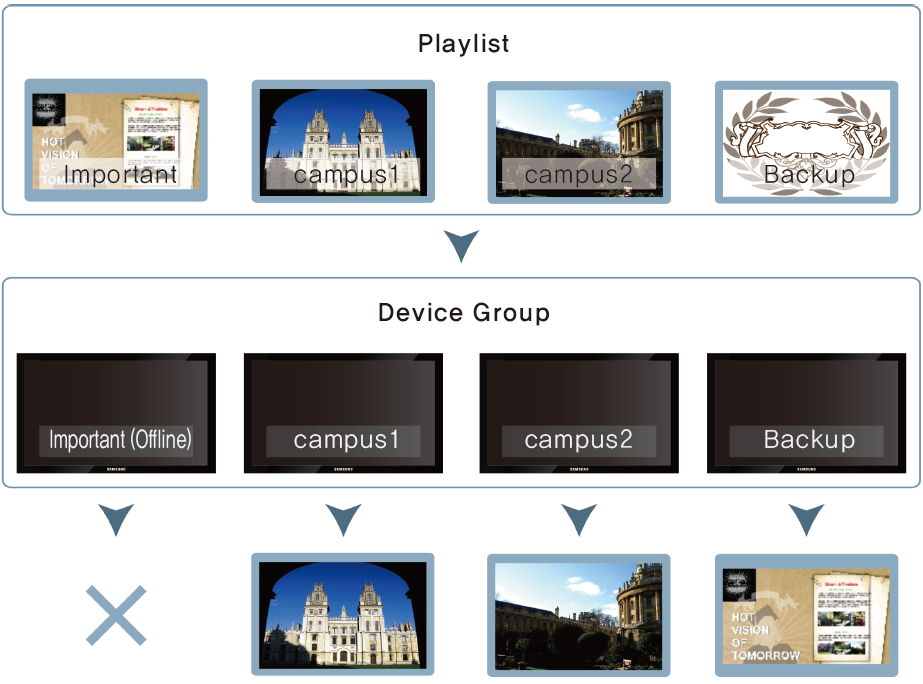
You can set to play content on the backup player instead by automatically detecting situations like when the primary device that has important content is disconnected from the network.
- The primary and secondary devices must exist in the same device group.
- Each of the primary and secondary devices must have a tag assigned.
Normal playback: the primary device plays the content.
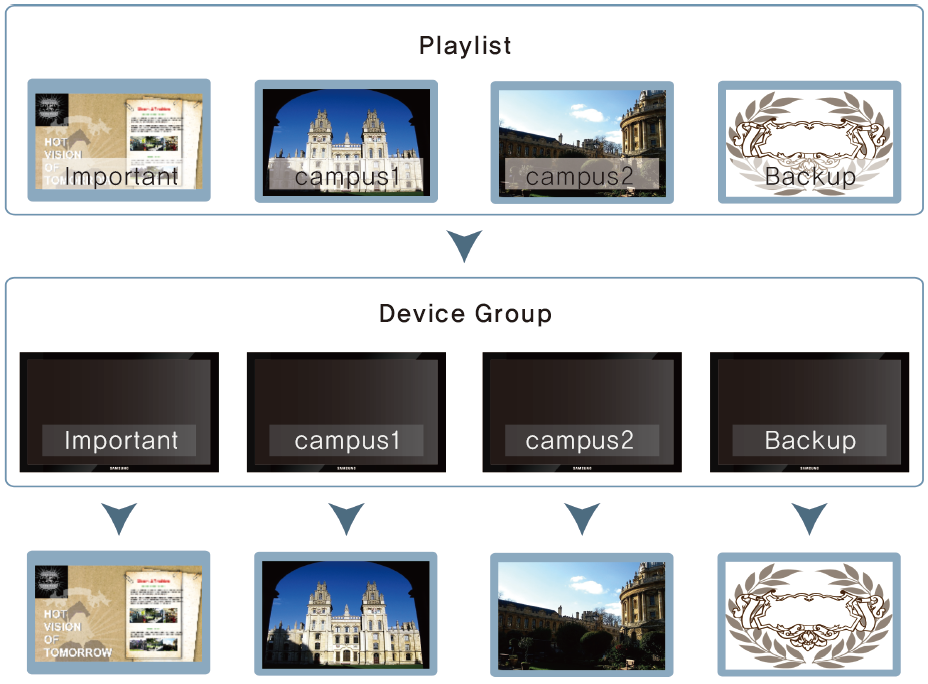
Backup Play: when the primary device loses its network connection or its input source changes, the secondary device takes over.
Activating the backup player function
- Click
 (Setting) > Server Management on the main menu bar.
- Click Server Settings.
- In General, check in Backup Play.
- Click Save.
Configuring the backup player settings
- Click
 (Device) > By Group on the main menu bar.
- Assign the primary device that is to play important content and the backup player to the same group.
- Select the primary and secondary devices for redundant playback and then click Assign Tag.
- Assign tags to each of the devices and then click Save.
- Click Device > By Group and then click the device group for backup playback.
- Select the backup player from the device list. The Backup Play menu appears.
- Click Backup Play > Setting.
- When the Backup Play settings window appears, assign a tag to a device in the group.
- After setting, click Next.
- Configure the settings for a backup player and then click OK.
- When Auto Backup is selected, the backup player is automatically selected.
- When Custom Backup is selected, you can select any backup player from the drop-down list. Create the backup playlist and schedule and then publish them to a desired device group.
Creating a playlist for backup playback
The backup device plays the content that carries the tag of the primary device.
- Click Playlist > New Playlist, configure the initial settings and click Create. See Creating a playlist.
- Add the content that the primary device and the backup device should play.
- Select the content for the primary device and click Setup.
- Click Select Tag.
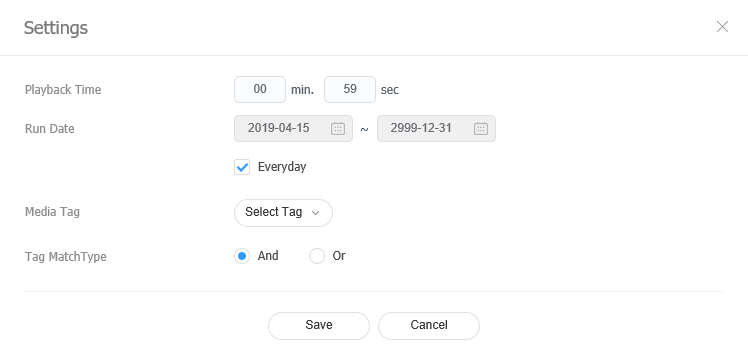
- Select the tag assigned to the primary device and click Add.
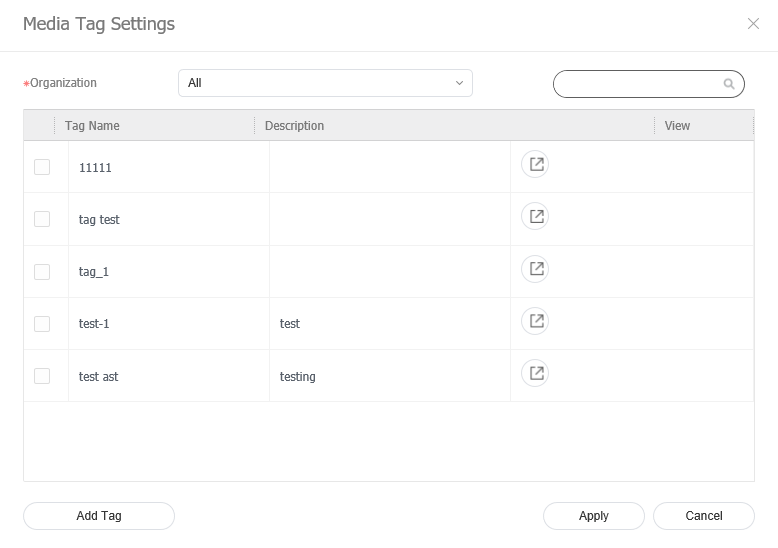
- Click Save.
Creating a schedule for backup playback
Create a content schedule that contains the backup playlist and publish it to the device group that holds the primary and backup devices. See Step 3: Publish Content to a Display with a Schedule.