Creating a RuleSet Based on Screen Size and Time
A RuleSet plays content automatically when defined conditions are met — for example the time of day, the date, the device model, the screen size, or the screen orientation. This makes it possible to publish one schedule to a mixed group of devices and still control exactly what plays where.
This guide builds a RuleSet with two branches as a worked example:
- Content A1 plays on all QB-model devices on workdays from 08:00 to 23:59.
- Content B1 plays on the 13-inch QB device during the same hours.
For the full reference of available condition and play rules, see RuleSets: Play Content Automatically by Conditions.
Example device group
The example device group contains three S6 devices:
| Device | Model | Screen size |
|---|---|---|
| 13inch_Touch | QB13R-T | 13 inch |
| 43inch_S6 | QB43N | 43 inch |
| 85inch_S6 | QM85N | 85 inch |
Two of the three devices are QB models; the third is a QM model, which the RuleSet should exclude.
Step 1: Create a new RuleSet
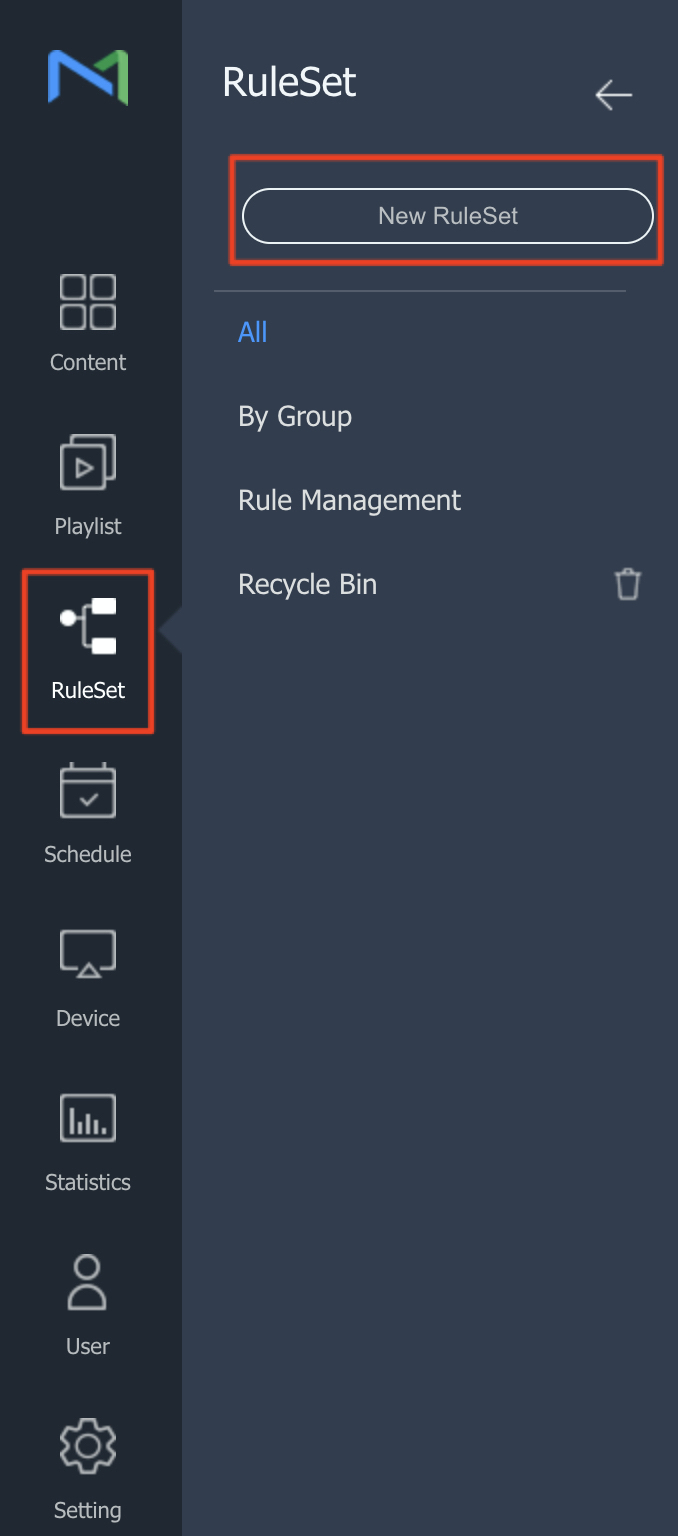
In the left menu, open RuleSet and click New RuleSet.
In the New RuleSet dialog, select the supported device type and click Create.
Step 2: Add the first condition rule
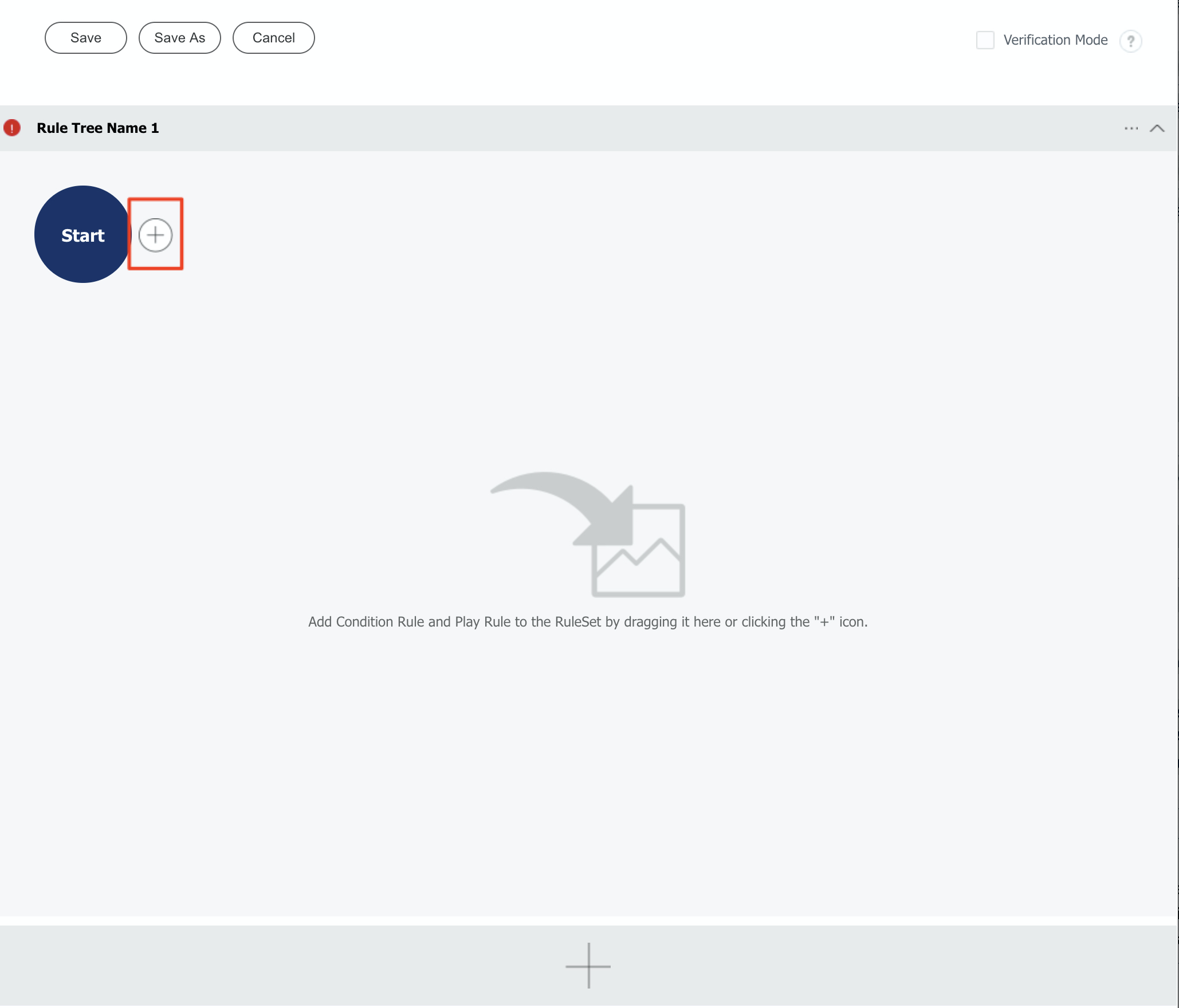
The rule editor opens with an empty rule tree. Click the + icon next to Start to add the first rule.
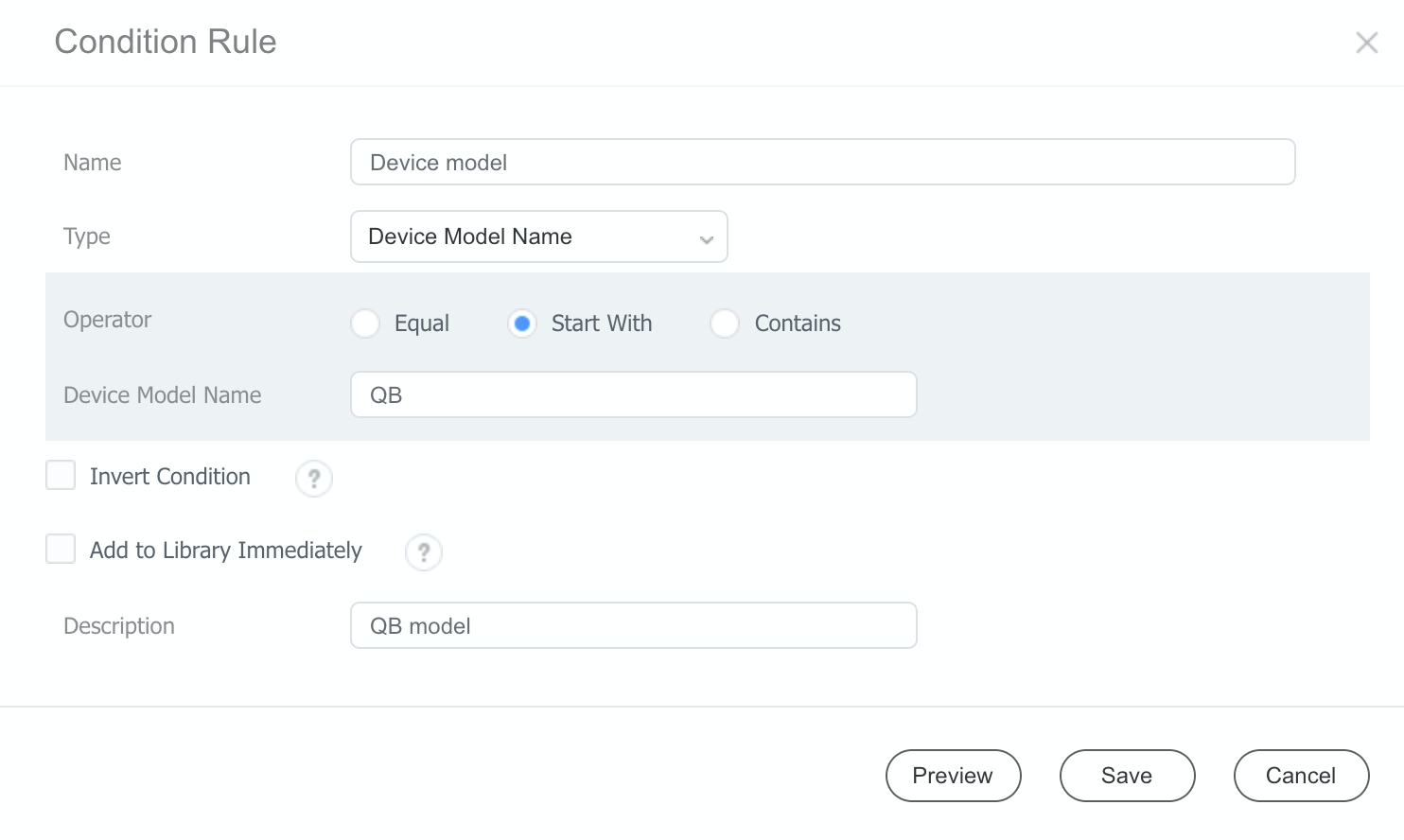
The first condition restricts playback to QB models. Create a Condition Rule with:
- Type: Device Model Name
- Operator: Start With
- Device Model Name:
QB
Step 3: Chain a time condition
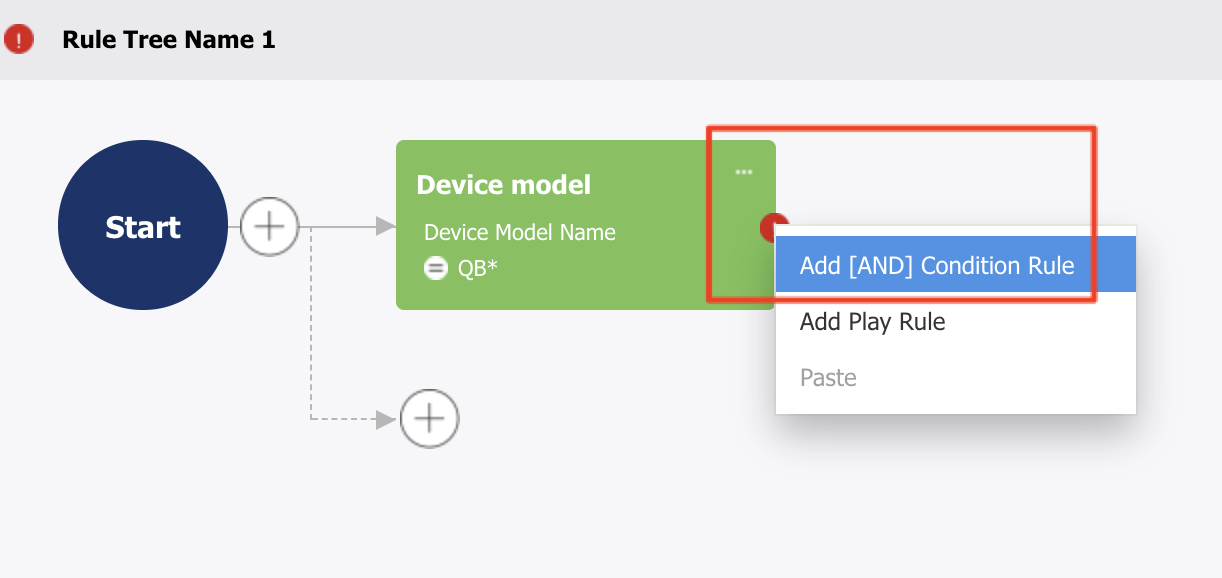
Conditions can be combined with a logical AND so that content only plays when all of them are true. Click the three-dots menu on the rule you just created and choose Add [AND] Condition Rule.
Create a Time condition covering 08:00:00 to 23:59:59.
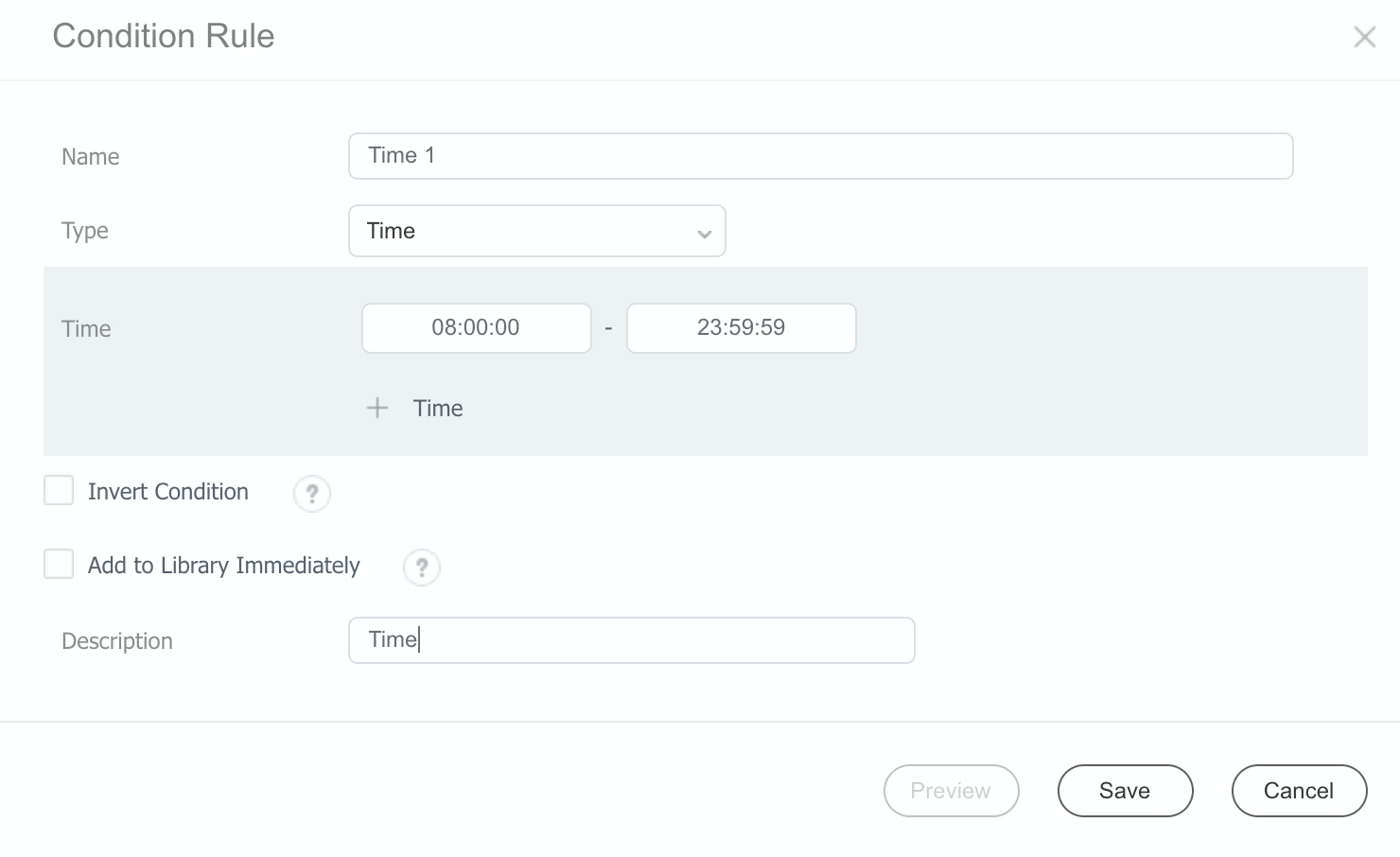
Step 4: Chain a date condition
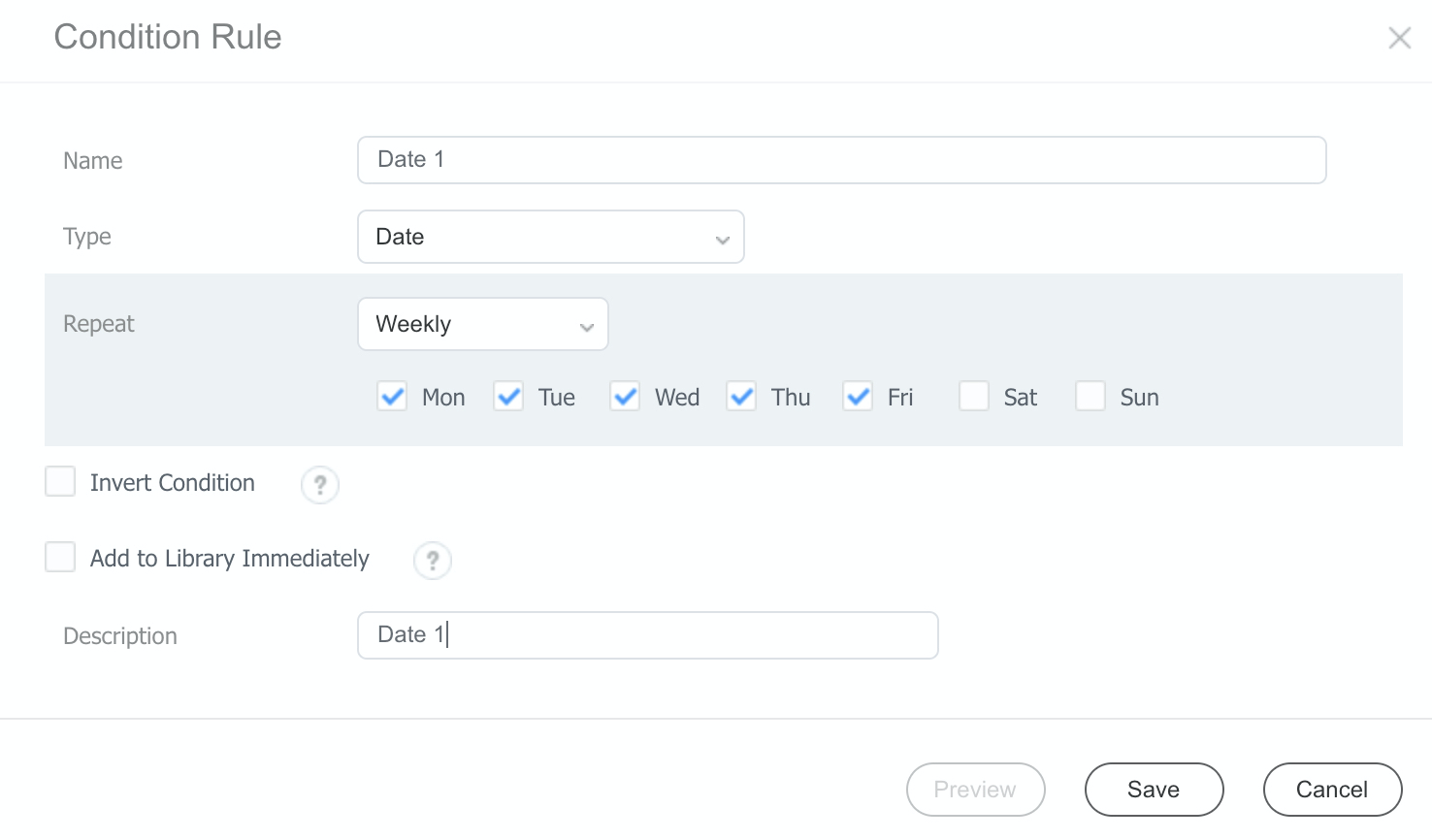
Add another [AND] condition of type Date. Set Repeat to Weekly and select the days on which the content should play — in this example Monday through Friday.
Step 5: Add the play rule for the default content
On the last condition in the chain, open the three-dots menu and choose Add Play Rule. Select the content item A1 and set a default duration.
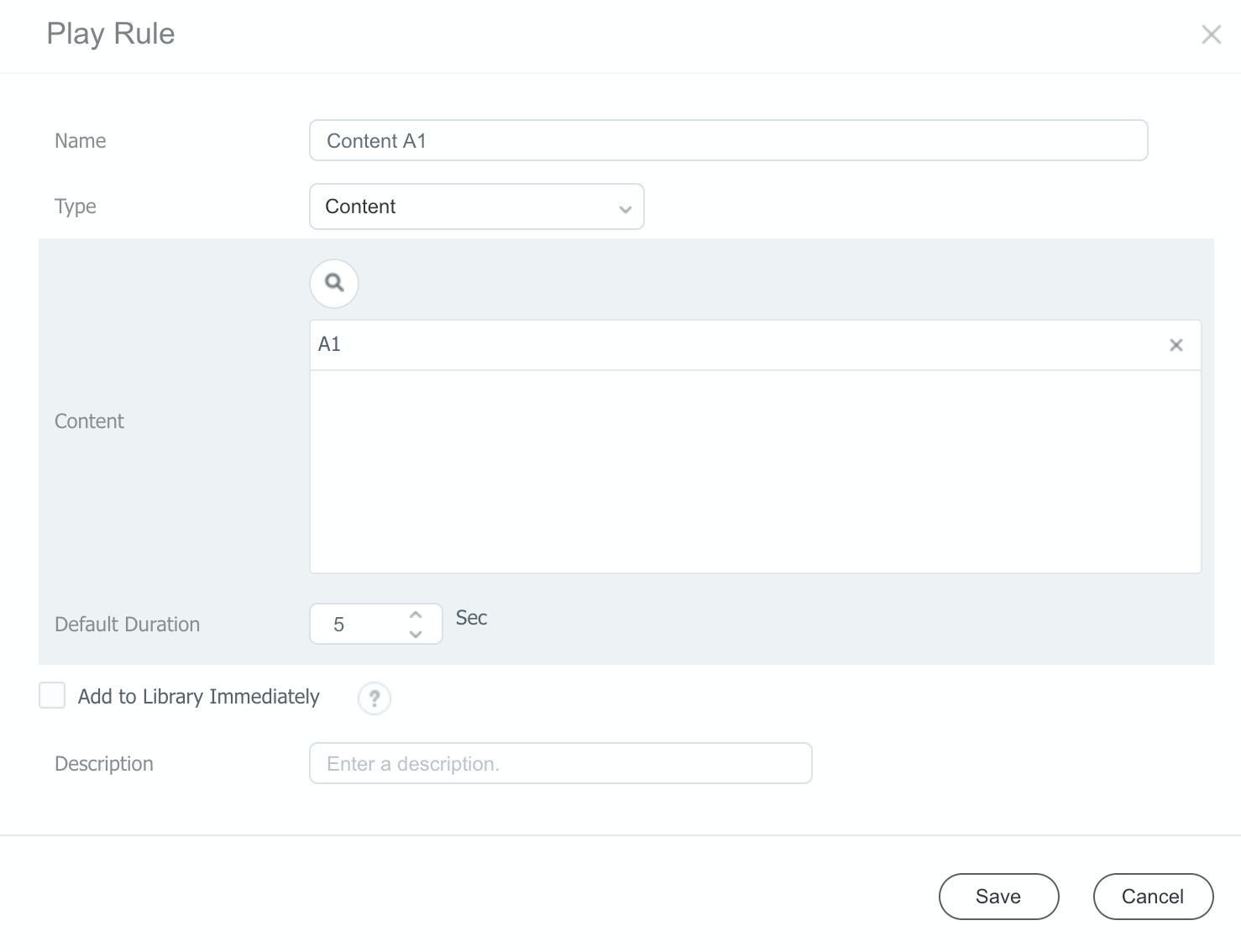
The first branch is now complete: on QB models, on workdays between 08:00 and 23:59, content A1 plays.
Step 6: Add a screen-size branch
To treat the 13-inch device differently, add a second branch after the model condition. Click the + icon on the dashed connector below the first branch, then create a Condition Rule with:
- Type: Screen Size
- Operator: Equal to
- Value:
13inch
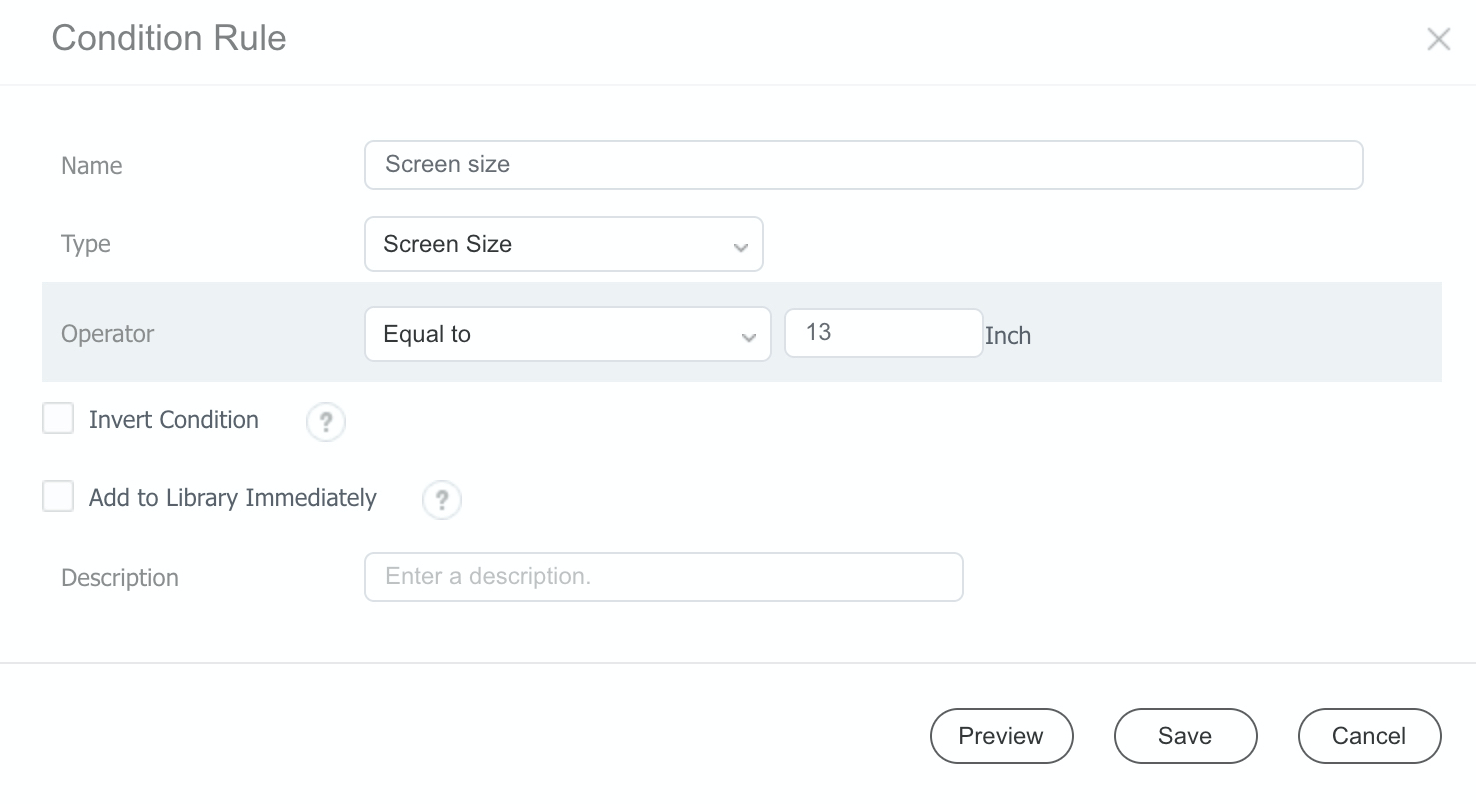
Chain the same Time and Date conditions onto this rule as in steps 3 and 4, and finish the branch with a Play Rule that selects content item B1.
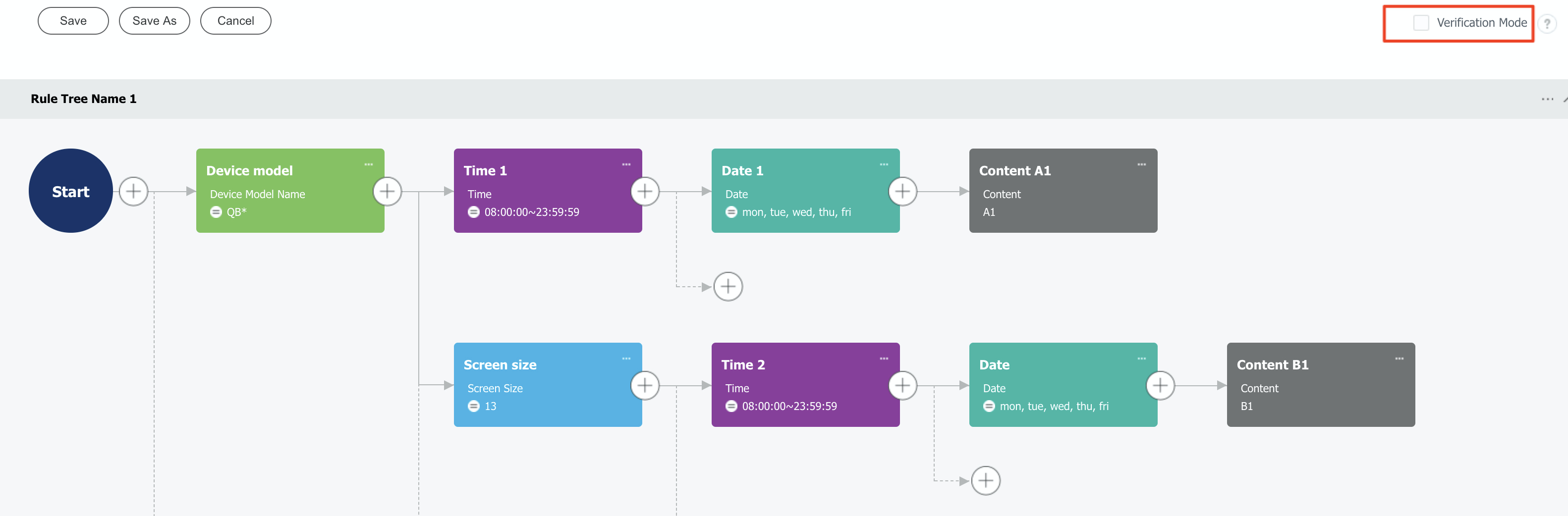
The completed tree contains two branches leading to two different content items:
Step 7: Verify the RuleSet
Before publishing, test the logic with Verification Mode — the checkbox in the top-right corner of the rule editor.
Enable it, choose a device group, date, and time to simulate, and click Run. Each node in the tree then shows how many devices in the group match it.
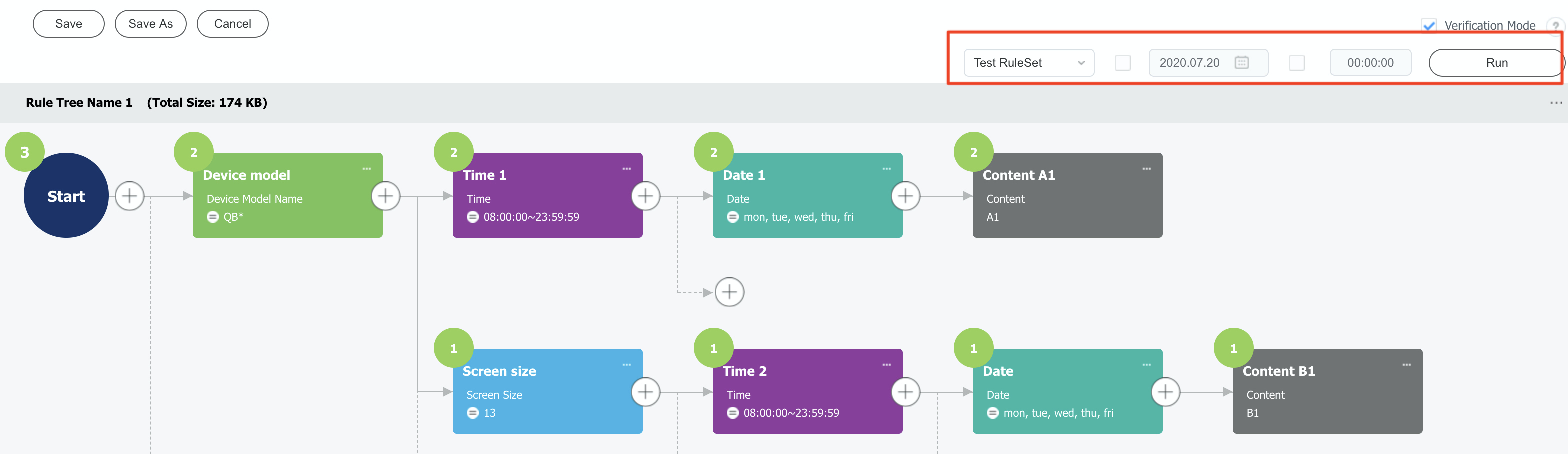
In the example, 3 devices enter at Start, 2 pass the QB model condition and play content A1, and 1 device — the 13-inch model — also matches the screen-size branch and plays content B1.
Step 8: Publish through a schedule
A RuleSet reaches devices through a content schedule:
- Save the RuleSet.
- Create a new schedule (or edit an existing one) for the target device group. See Create a Message Schedule (Text Overlay).
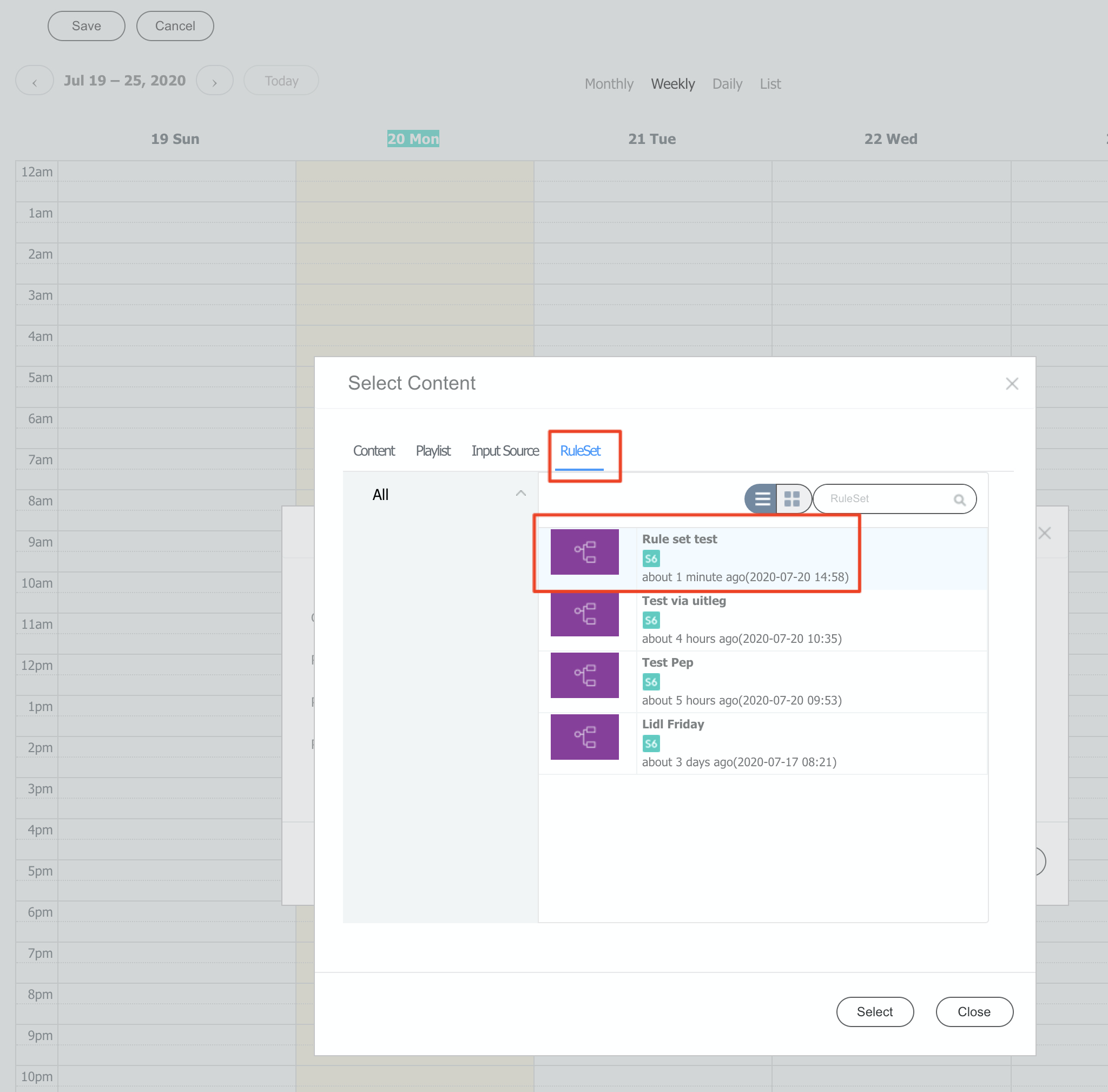
- Click an empty time slot, open the RuleSet tab in the Select Content dialog, and select your RuleSet.
- Save and publish the schedule as usual.