Adding an RSS Newsfeed
An RSS newsfeed is added to a display by creating a piece of Web Author content that contains the RSS widget. The server only delivers the feed URL to the display — the device itself retrieves the feed data.
The display must have internet access. Without it, the device cannot fetch the feed and the newsfeed stays empty.
Step 1: Create Web Author content
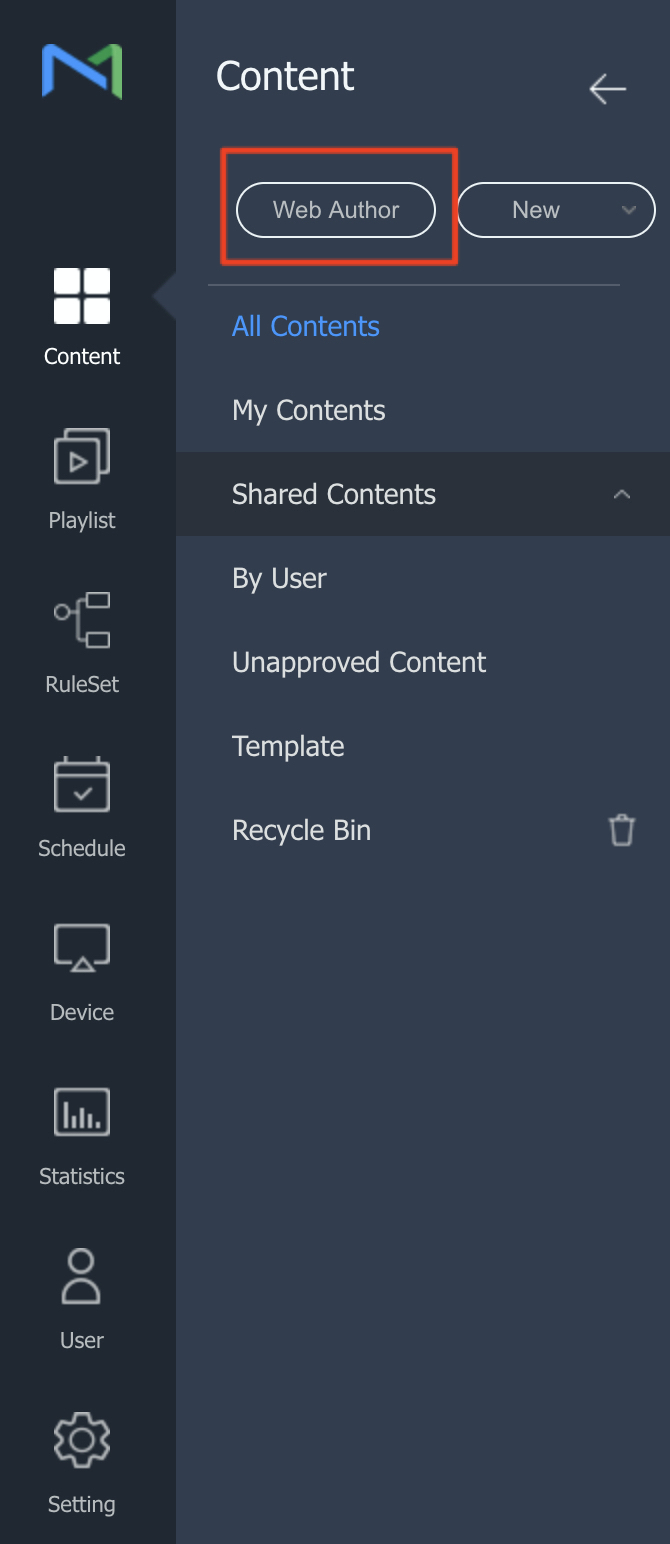
Sign in to the MagicINFO Server web console and open Content > Web Author.
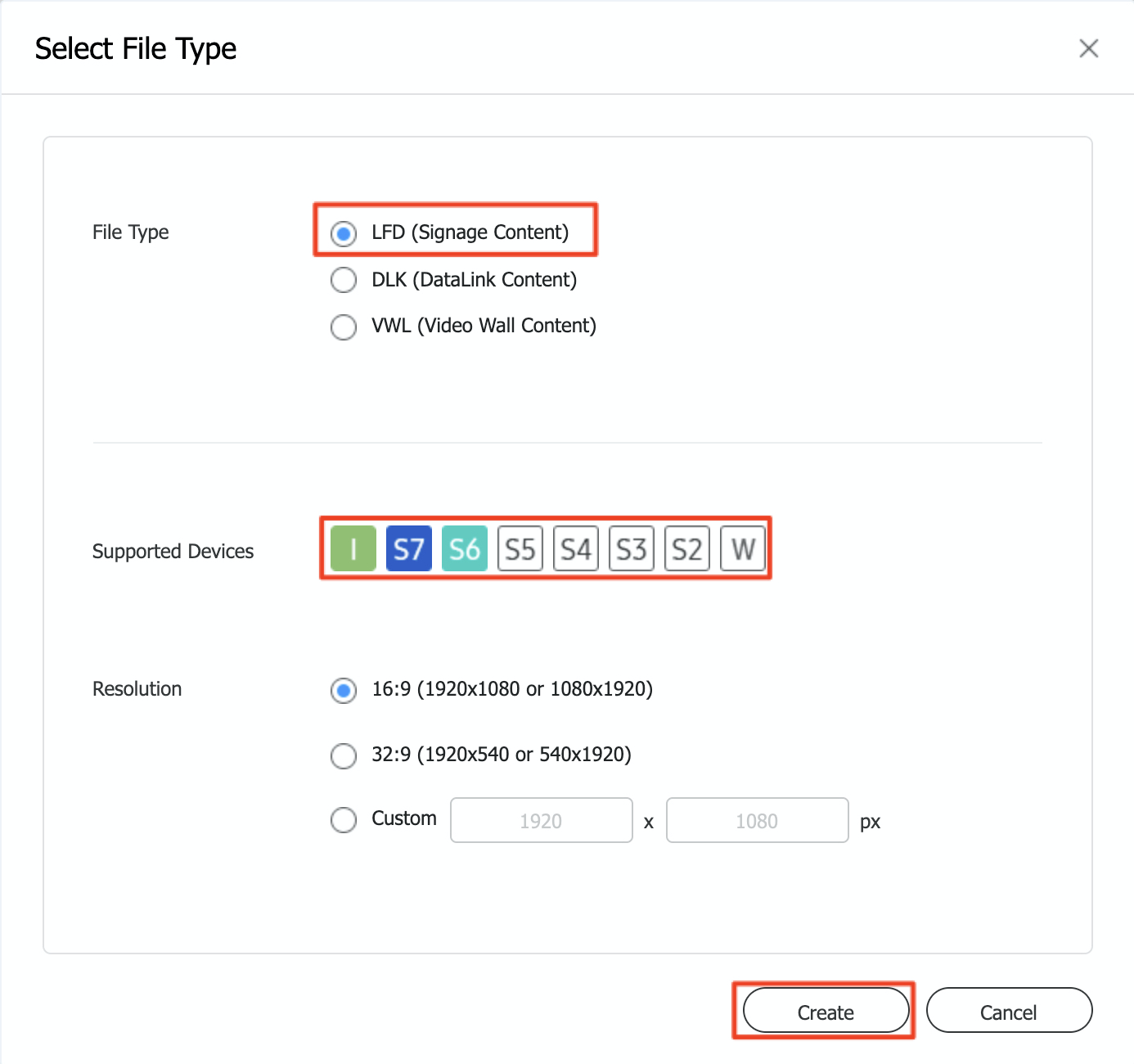
Select LFD (large format display) and the player type of your device, then click Create.
For a general introduction to the editor, see Starting Web Author.
Step 2: Add the RSS widget
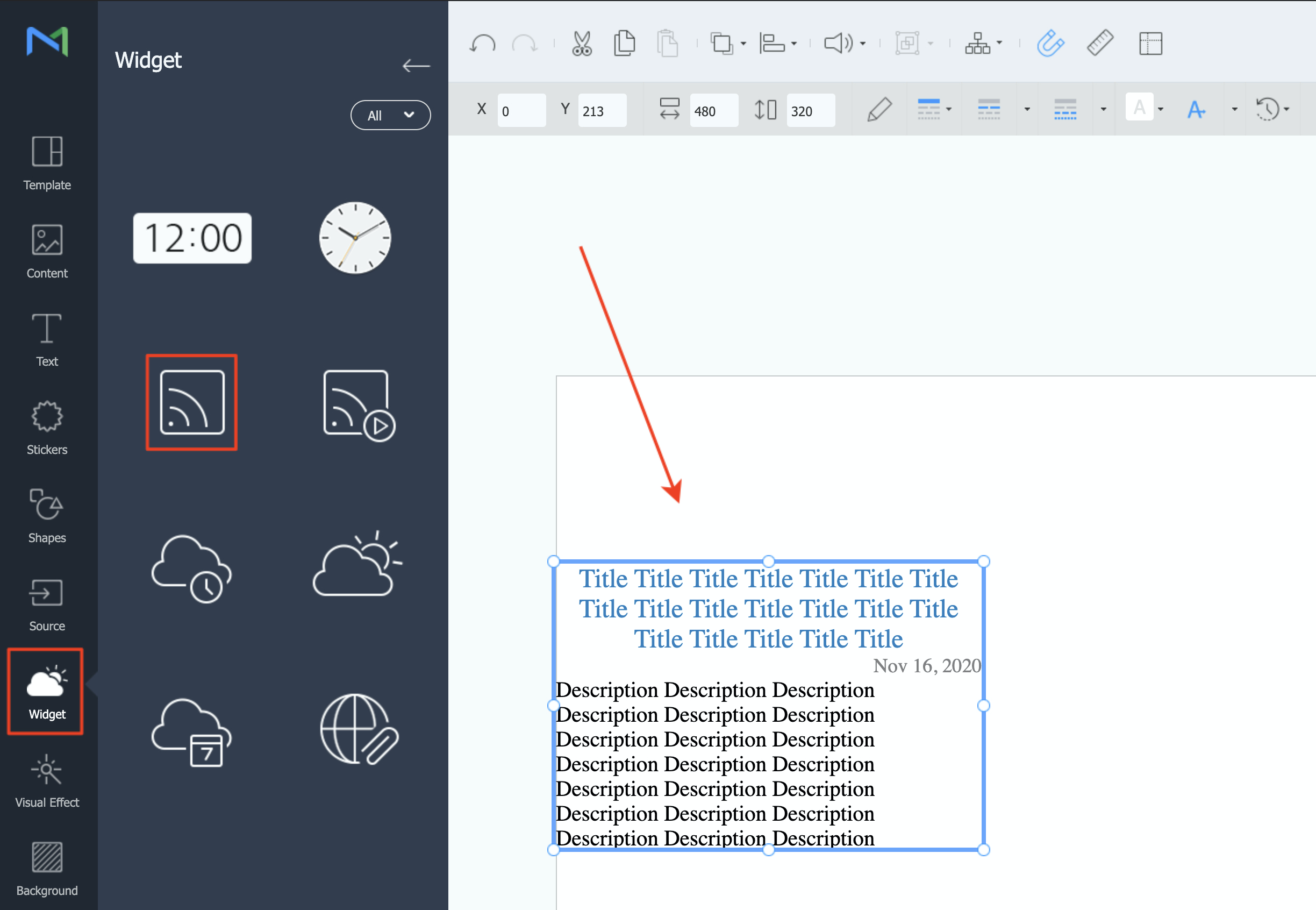
Open the Widget menu in the editor and drag the RSS feed element onto the page.
Step 3: Configure the widget
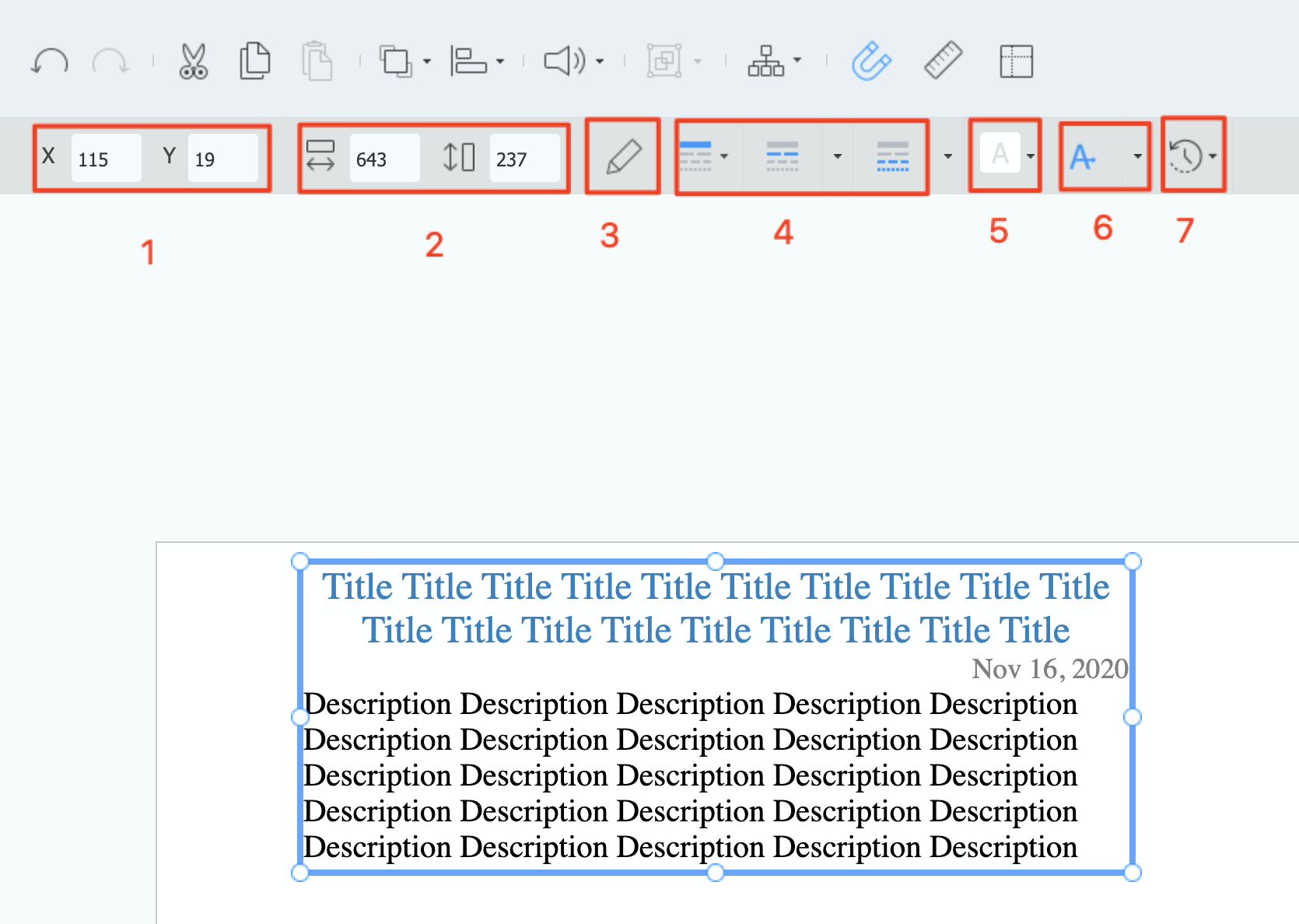
Select the RSS element on the page to open its settings:
- Position of the element on the page.
- Size of the element.
- The feed URLs to retrieve data from.
- Which text fields to show: title, date, description.
- Background fill color of the element.
- Text animation speed and direction.
- Refresh interval — how often the display reloads the feed.
Step 4: Finish and publish
Add any other content to the page, then save the Web Author content. Place it in a playlist or schedule and publish it to your display — see the media publishing quickstart. The newsfeed then plays as part of the page.