Adjusting Time Settings
Correct time matters for schedules, on/off timers, and clock content. MagicINFO offers three places to control it: a server-wide default, a per-device setting, and the clock widget's own configuration in Web Author. Check each level that applies to your setup.
Option 1: Server-level default
This option requires the server administrator account on your own installation.
A server-wide time zone default is useful when all connected screens are in the same time zone. Do not rely on it when your screens span multiple time zones — use the per-device setting instead.
-
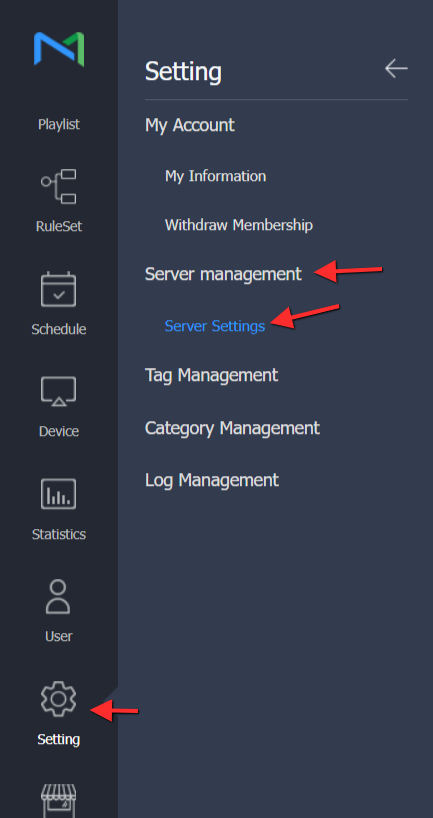
Log in with the server administrator account and go to Settings > Server Management > Server Settings.
-
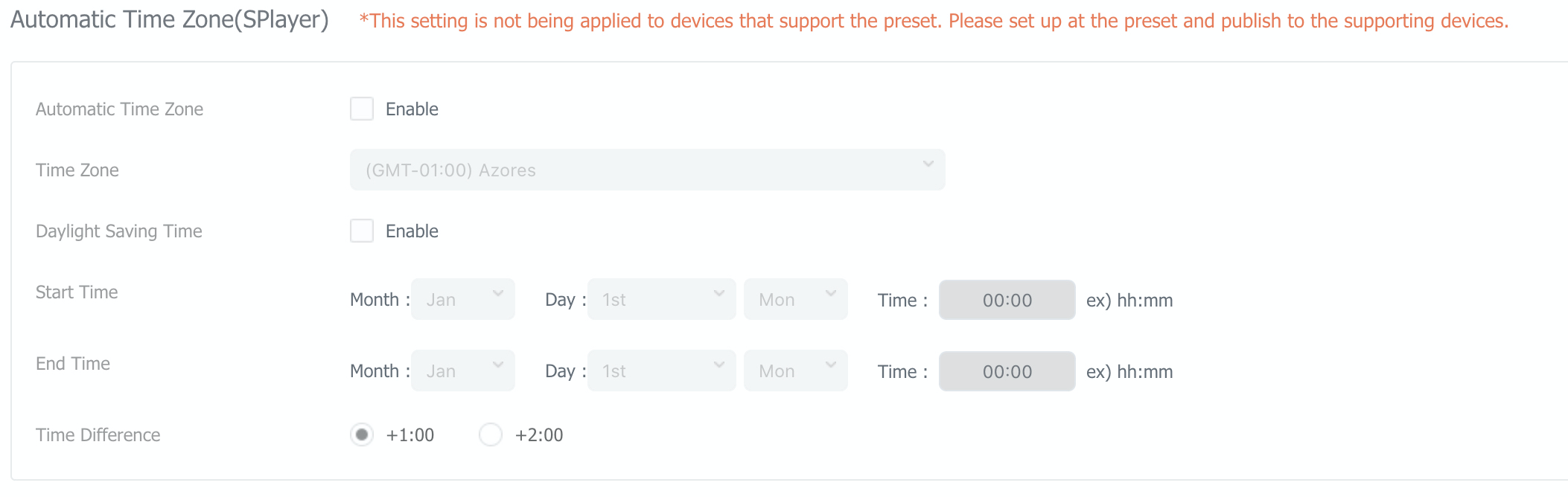
Scroll down to Automatic Timezone (S-Player) and choose the default time settings. All connected S-Players inherit these values; any presets you apply take precedence over the default.
Option 2: Per-device setting
When devices sit in different time zones, configure the time on each device individually.
-
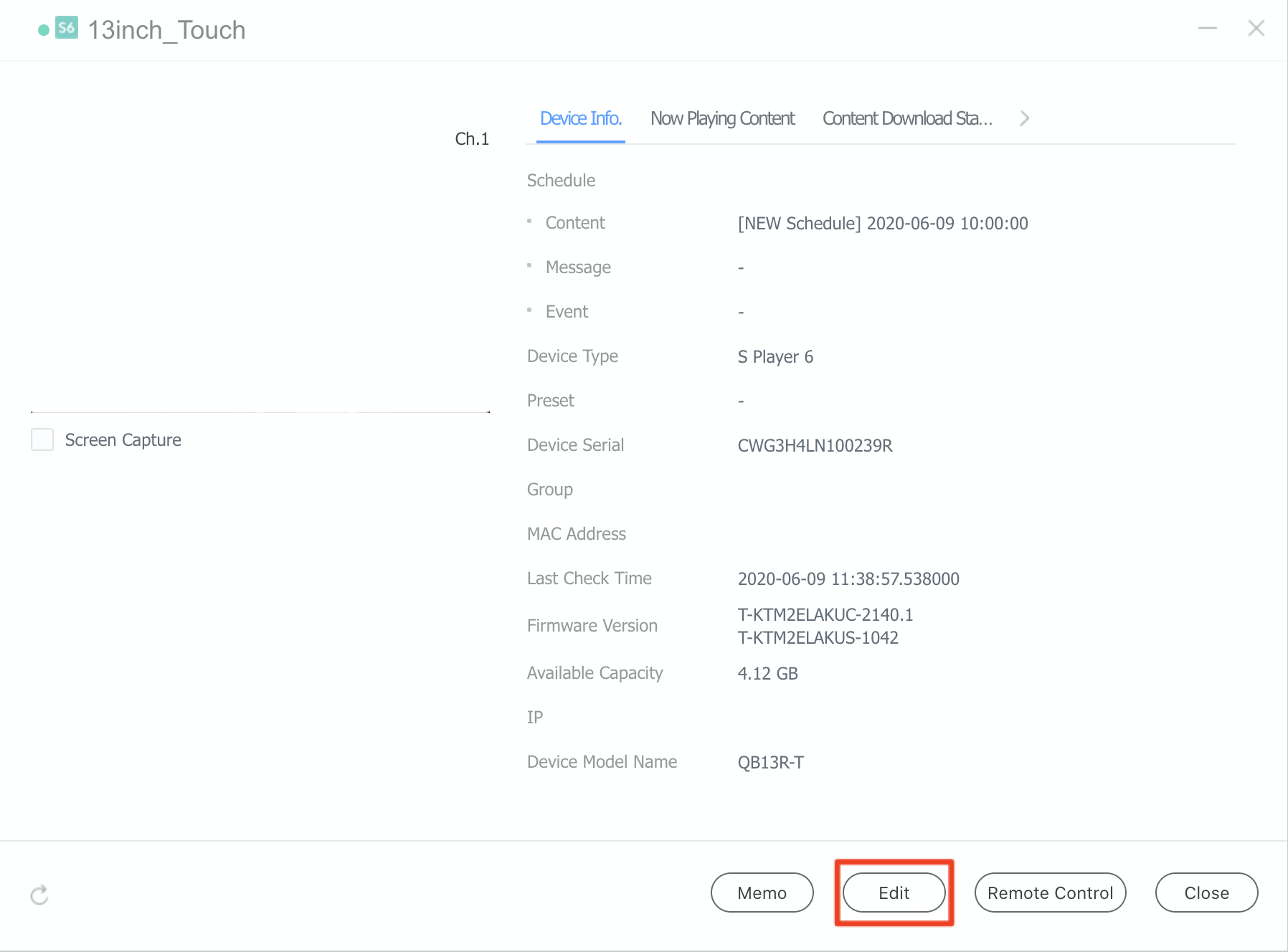
Open the Device tab, click the device's i (information) icon, then click Edit.
-
Go to Setup and set the time zone for the device.
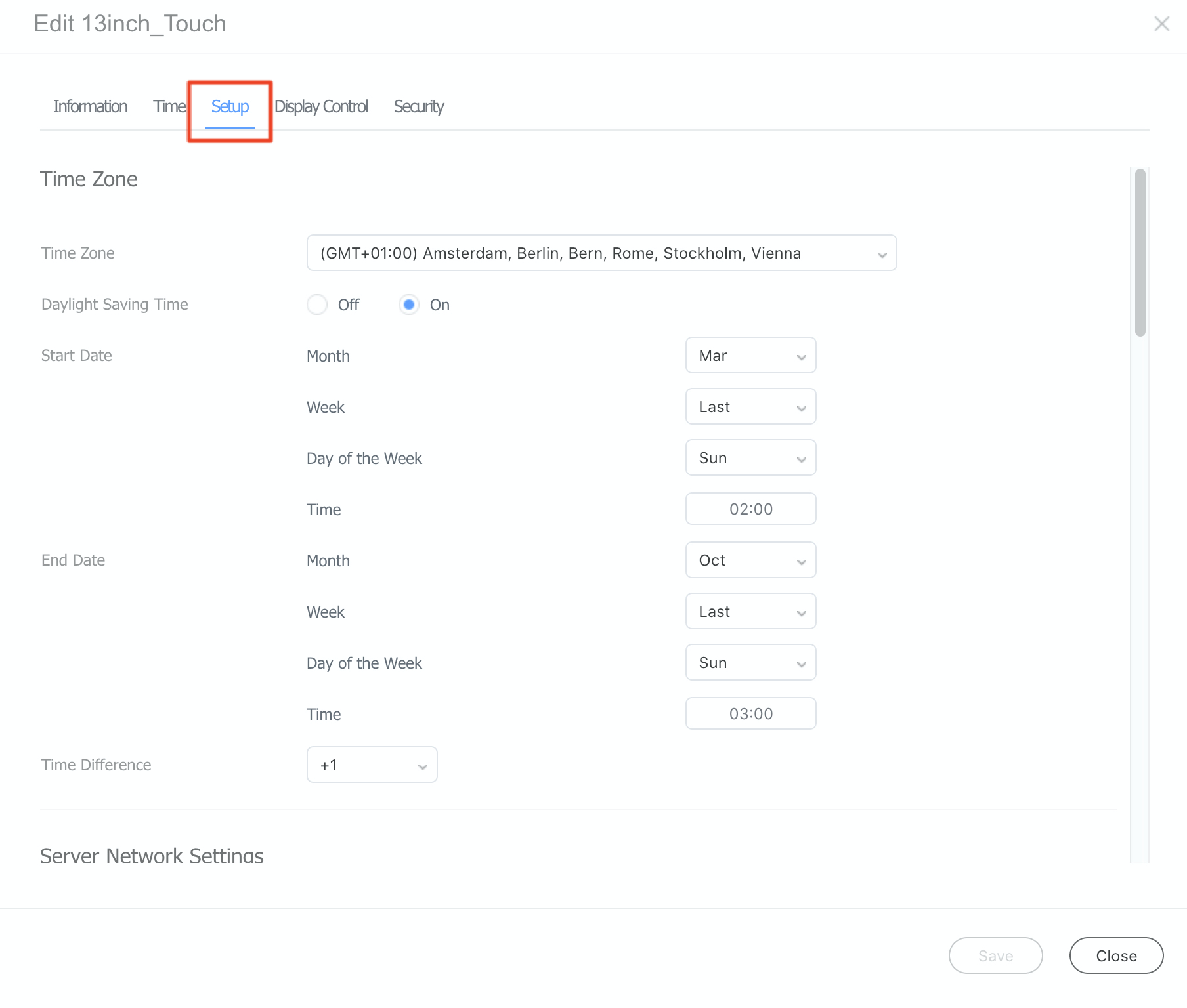
To verify the device's current time, open the Time tab and click Current Status. If the message The current time cannot be set for the equipment now. You should set the timezone appears, no time zone has been configured yet — set one as described in Option 1 or in the steps above.
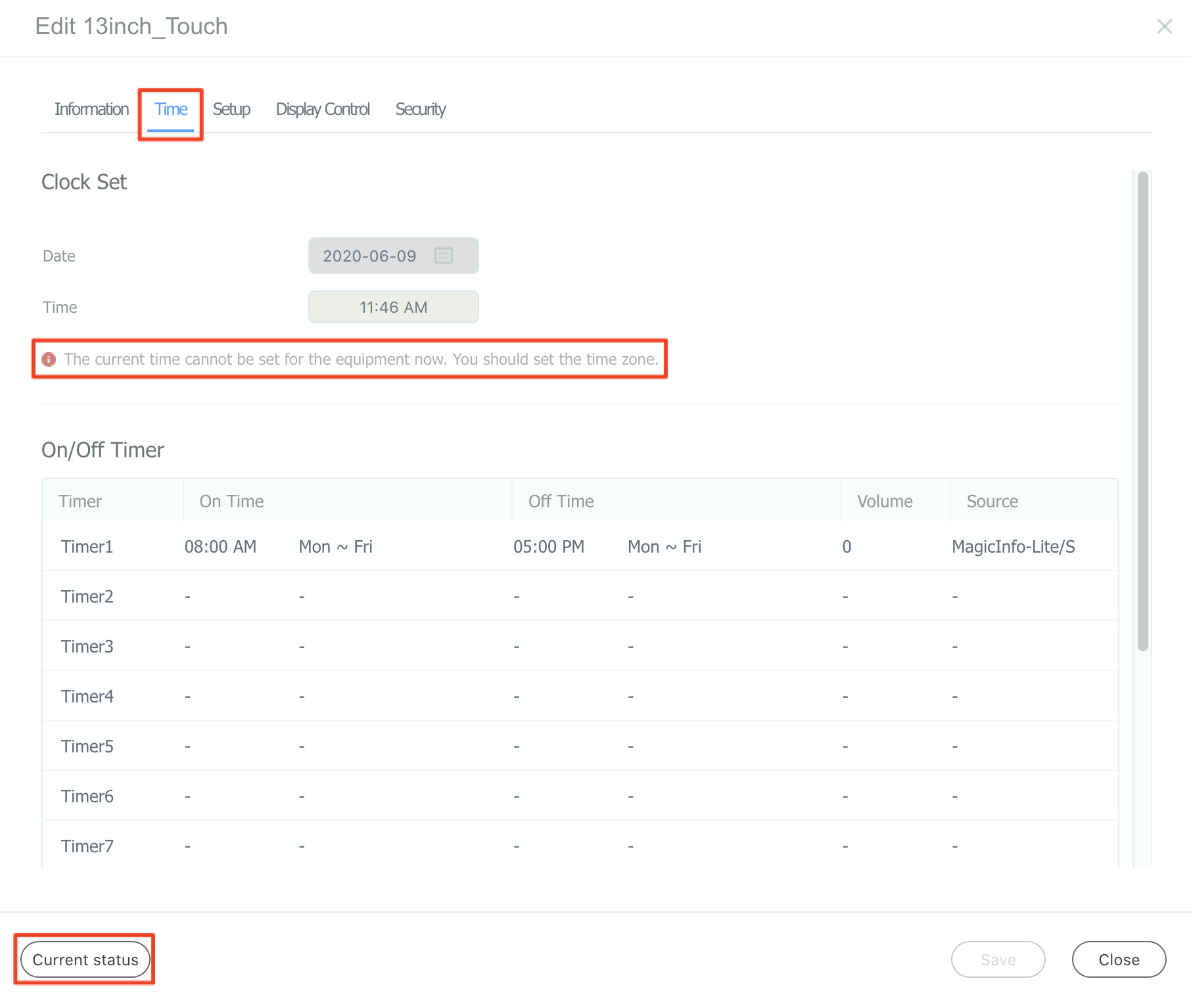
For the full device time options, see the device time settings reference.
Option 3: Clock widget in Web Author
A clock widget carries its own time configuration, independent of the server and device settings.
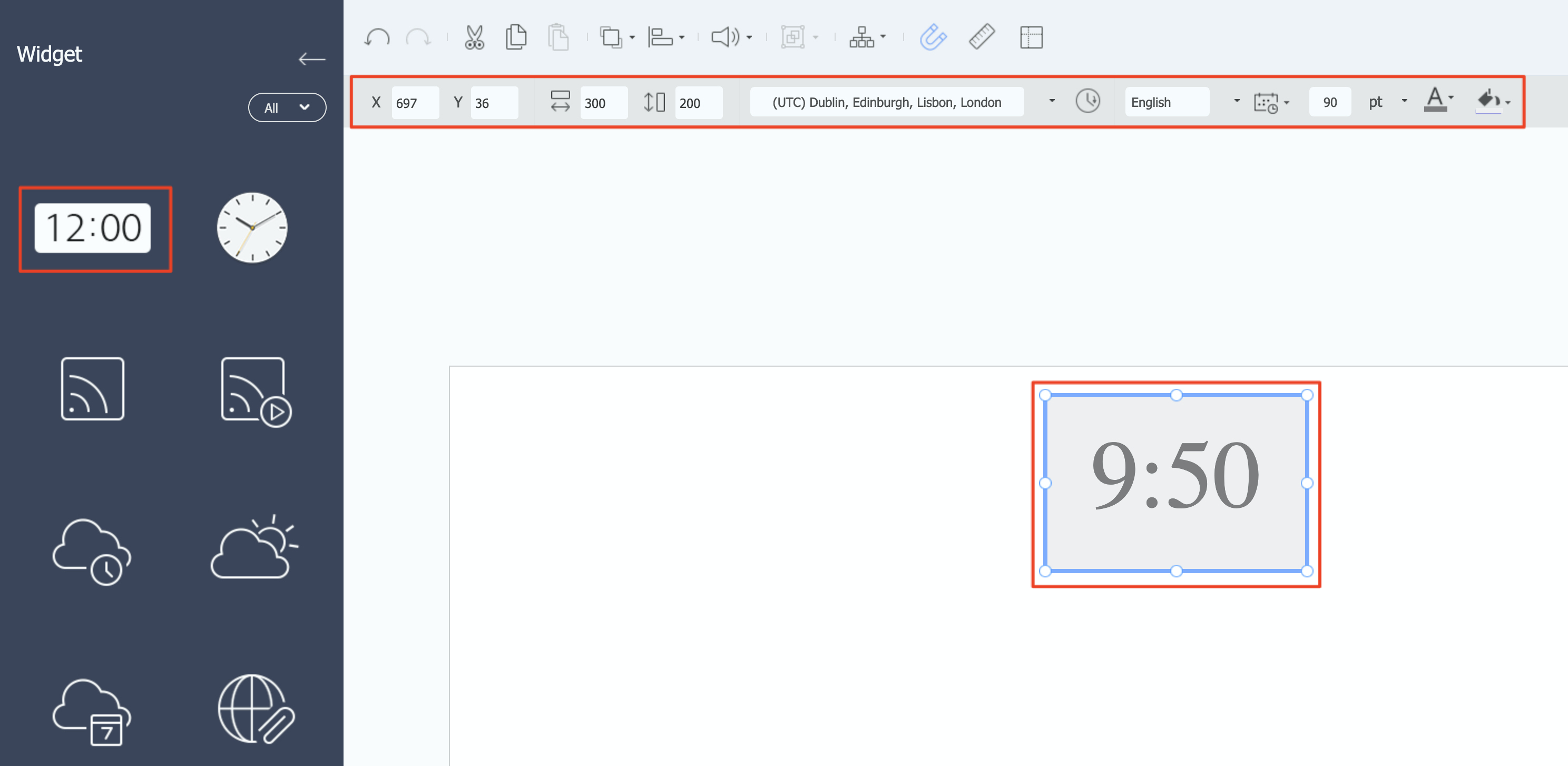
Open the Content tab, launch Web Author, drag the clock widget onto your page, and fill in the time details at the top of the widget settings.