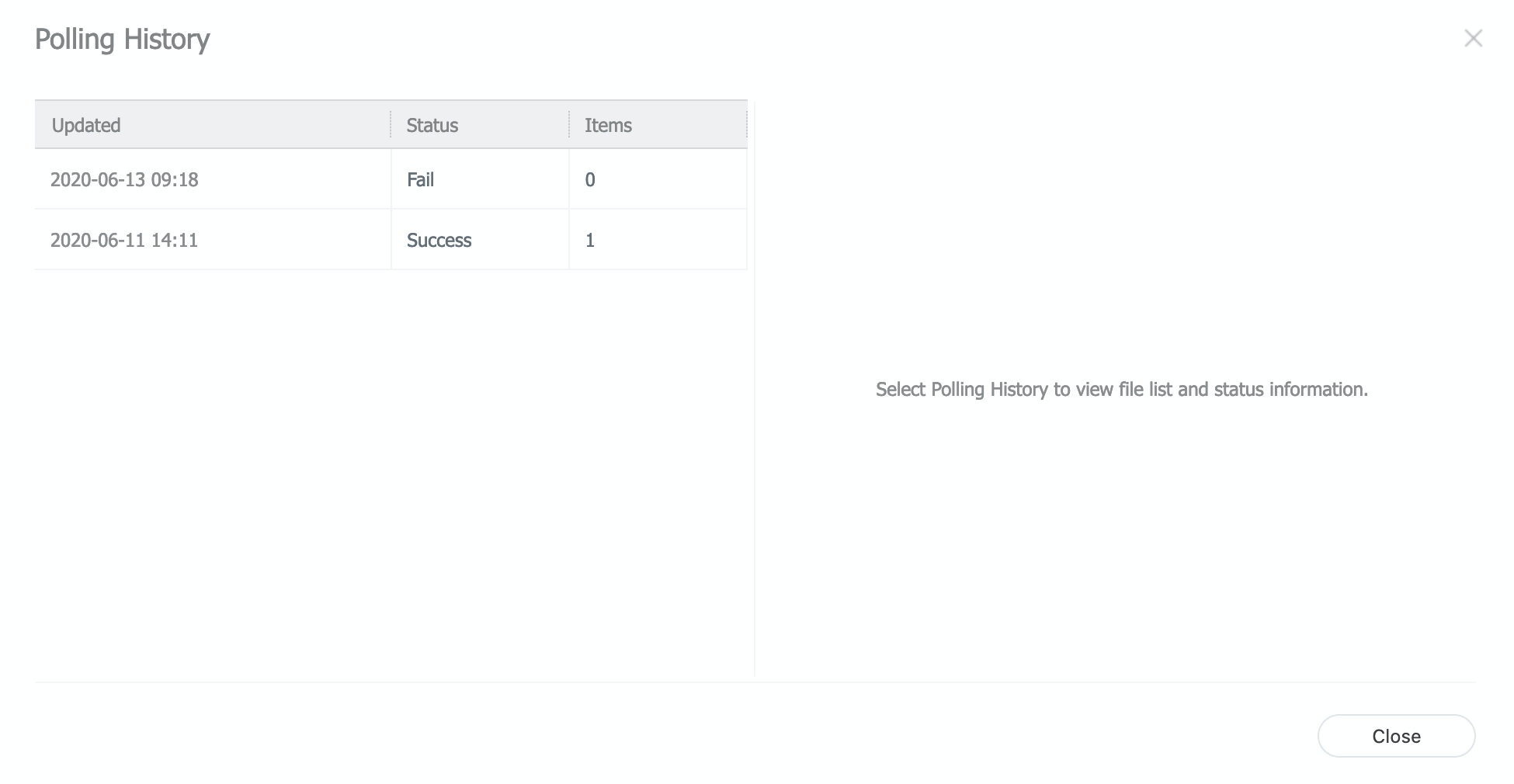
Connecting an FTP Folder
MagicINFO Server can monitor an FTP folder and automatically download the files it contains. This is useful when documents or media are maintained in an FTP location and should appear on displays without manual re-uploading: whenever a new file lands in the folder, the server picks it up and the displays show it.
In MagicINFO version 8 and later, avoid spaces in filenames on the FTP server. Spaces are replaced with a + character, which can prevent the display from playing the retrieved content.
Step 1: Create the FTP content item
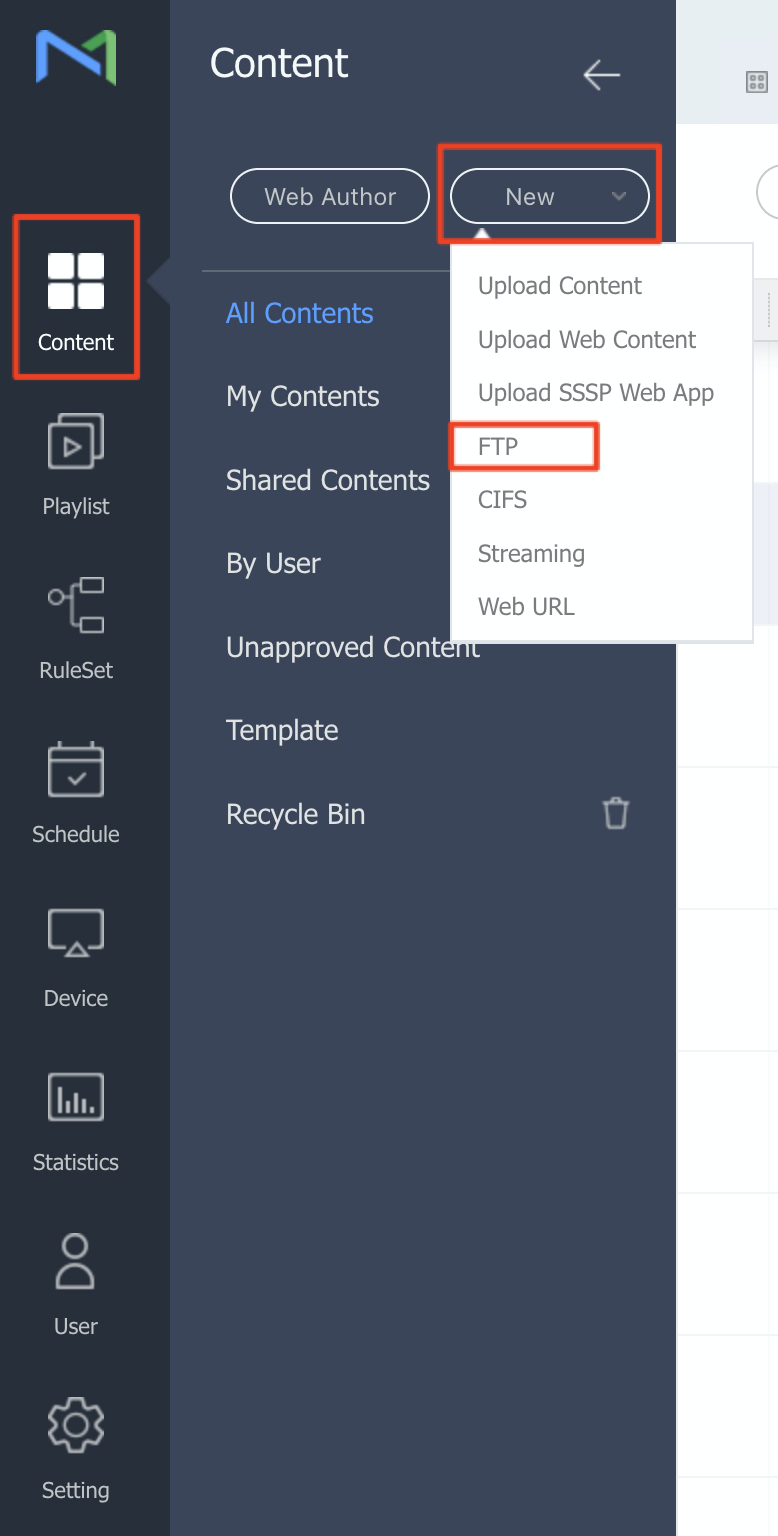
Sign in to the MagicINFO Server web console, open the Content page, click New, and select FTP.
Step 2: Enter the FTP connection details
Fill in the connection details for your FTP location.
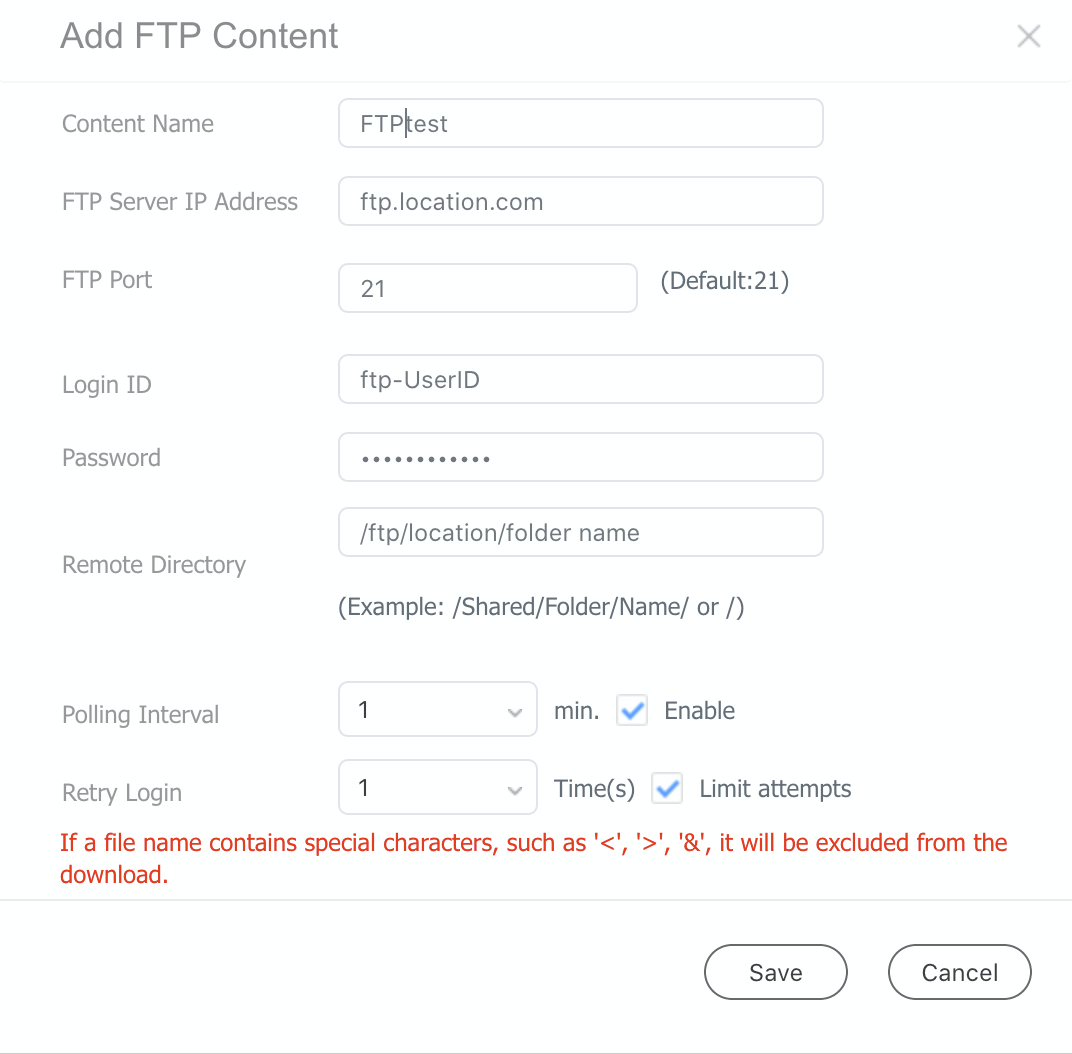
Two settings deserve attention:
- Polling interval — how often the server checks the FTP folder for new items.
- Retry login — how many times the server retries a failed login to the FTP location before giving up.
Step 3: Schedule the FTP item
Add the FTP item to a playlist or place it directly in a schedule, then publish — see the media publishing quickstart. From then on, any new file added to the FTP folder is downloaded automatically and shown on the screen.
The display duration of the individual files is controlled separately — see Setting the slide time for FTP content.
Verifying the downloaded files
To check which files the server has retrieved from the FTP folder, click the name of the FTP item in the content list, then click File list.
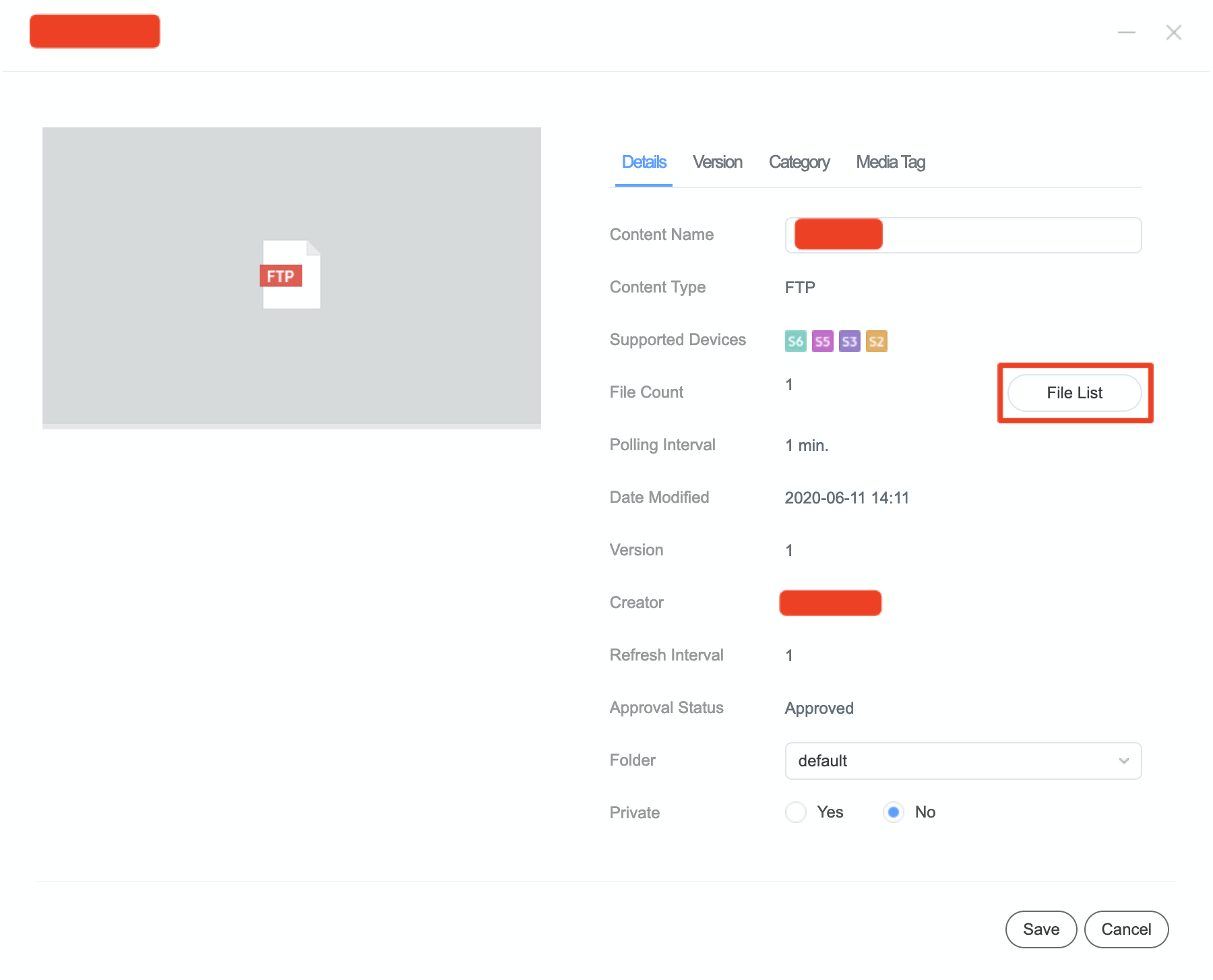
The list shows every file downloaded from the FTP location.