Resetting a Password
As long as you can still sign in, you can change your own MagicINFO Server password from the My Account page.
Change your own password
-
Sign in to the MagicINFO Server web interface.
-
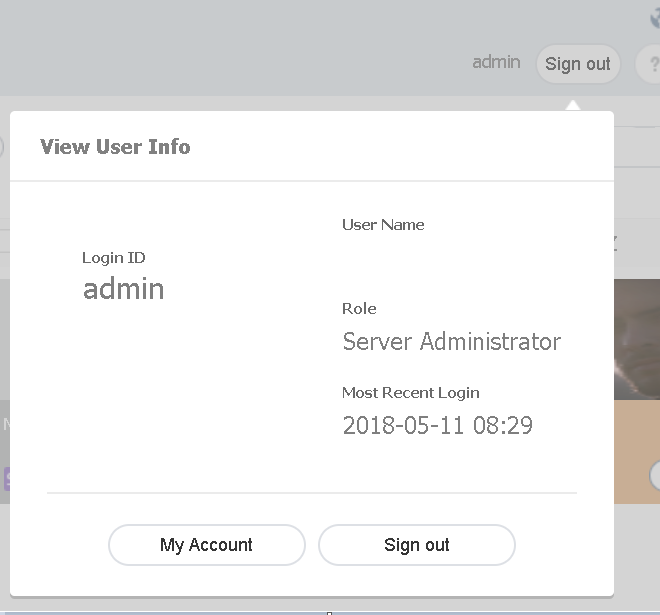
Click your user name in the upper-right corner of the screen. The View User Info panel opens, showing your login ID, role, and most recent login.
-
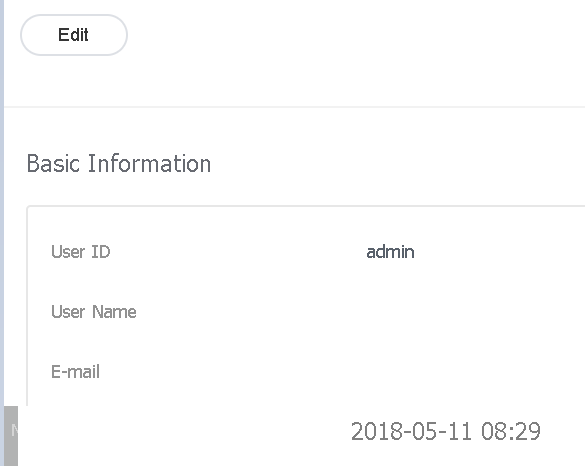
Click My Account. On the account page that opens, click Edit.
-
Enter your current password to confirm your identity, then click OK.

-
On the edit page that follows, enter the new password and save the change.
Lost passwords
If a regular user has forgotten their password, an administrator can assign a new one by editing the user's account. Depending on the server's password policy, the user is then prompted to choose their own password at the next sign-in — see Password policy.
If the server administrator password itself is lost and nobody can sign in, the password cannot be recovered through the web interface. Contact your MagicINFO supplier or Samsung representative for assistance.