Setting Up a Device for Remote Management
A display can be registered with a MagicINFO server for its remote control features only, without using MagicINFO for content management. The device is then fully controllable from the server (power, inputs, settings, monitoring), while content can still come from your own application through the URL Launcher.
This mode requires a Remote Management (RM) license instead of a full player license, and works with S4 players or higher. To obtain an RM license, contact your MagicINFO supplier or Samsung representative.
Step 1: Switch to the HDMI source
Set the device to the HDMI source. All menu items are accessible from there.
Step 2: Set the play mode to URL Launcher
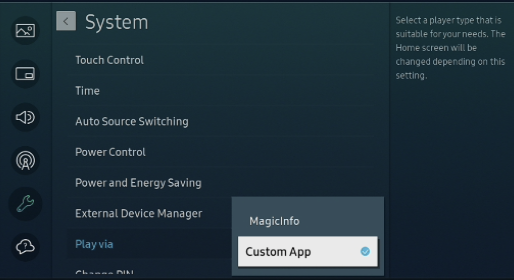
Open the device Menu and go to System > Play Via. Select URL Launcher.
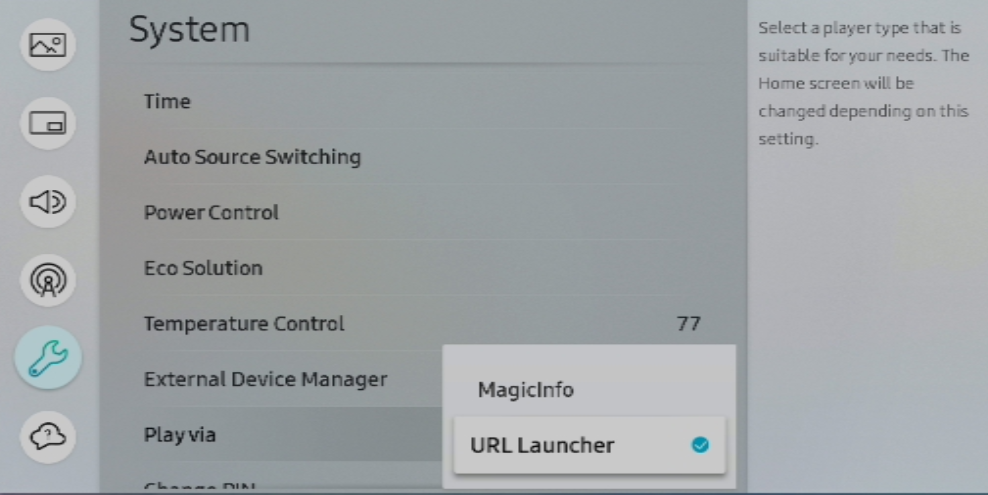
On newer models the same setting offers Custom App instead of URL Launcher.
Step 3: Connect to the server
In the device Menu, go to Network > Server Network Settings > Connect to Server.
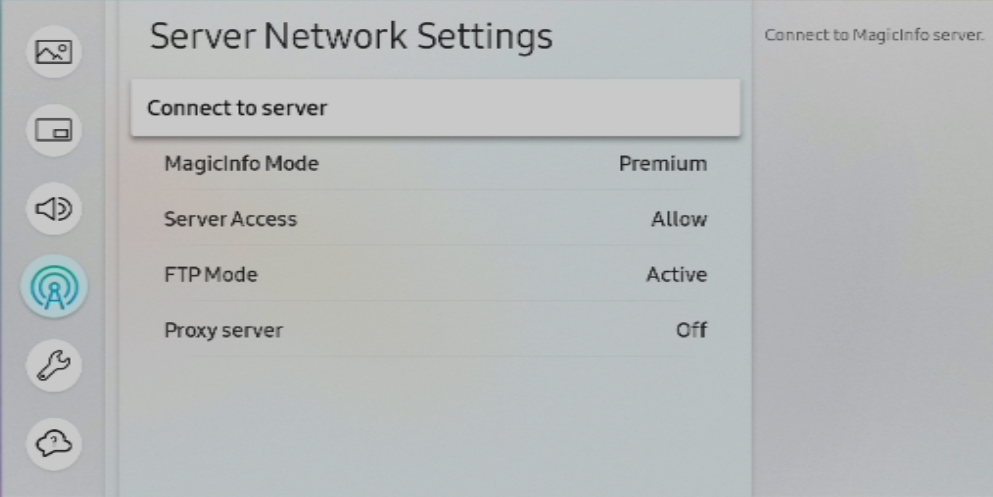
Fill in the MagicINFO server details (server address and port).
Step 4: Approve the device on the server
The device now appears in the server's unapproved device list, marked with an RM icon.
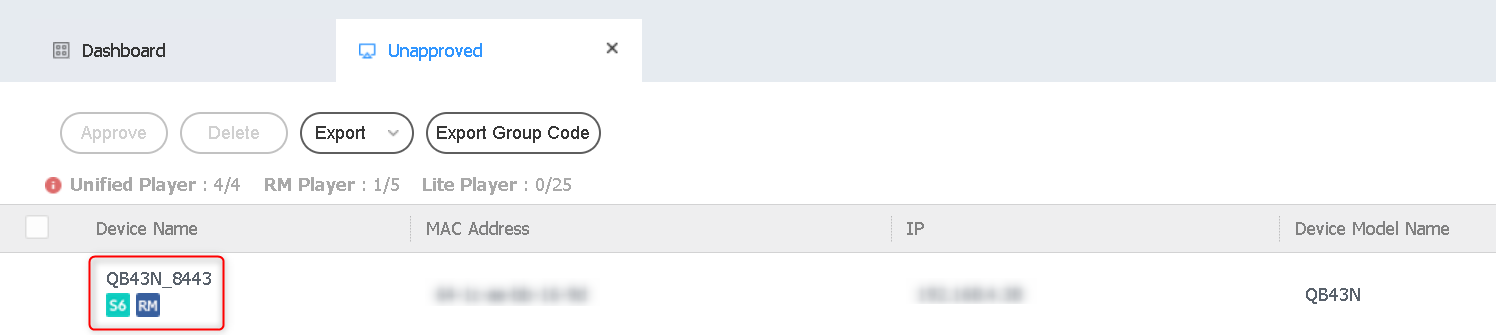
Select the device and click Approve to complete the registration. For details on the approval flow, see Approve New Devices from the Unapproved List.