Sync Play
Sync Play coordinates content playback across multiple displays so that all screens change content at the same moment — for example, a scene split across a row of displays, or several screens telling one story in step. The setup has three parts: tag the devices, build a Sync Play playlist, and publish it with a Sync Play schedule.
- All participating devices must be S3 players or later.
- All devices must be connected to the same access point, on a network with the snooping protocol enabled.
Step 1: Assign a media tag to each display
Media tags tell the server which sync group's content goes to which display, so every screen taking part needs one.
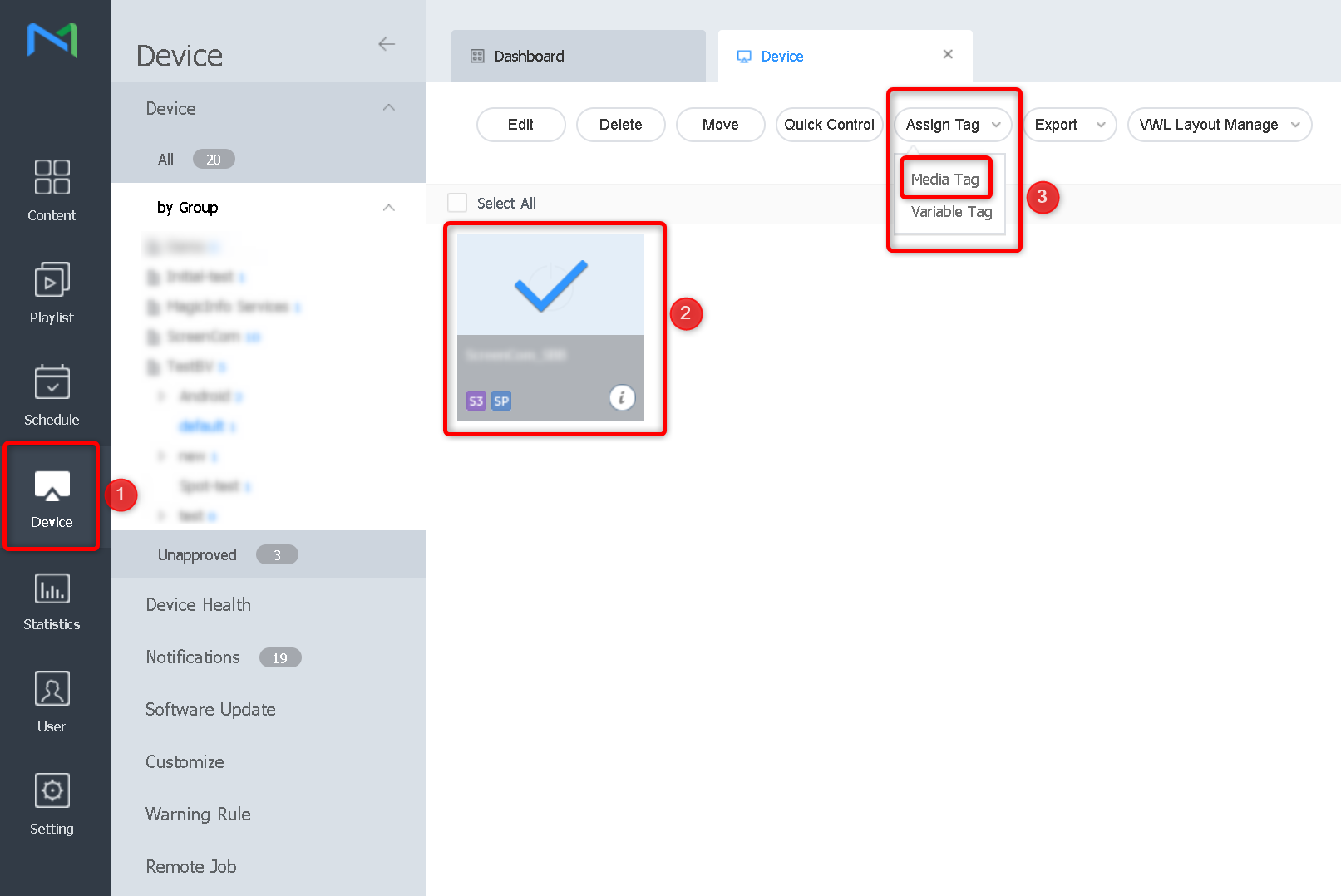
- Go to Device and select the device.
- Click Assign Tag and choose Media Tag from the dropdown.
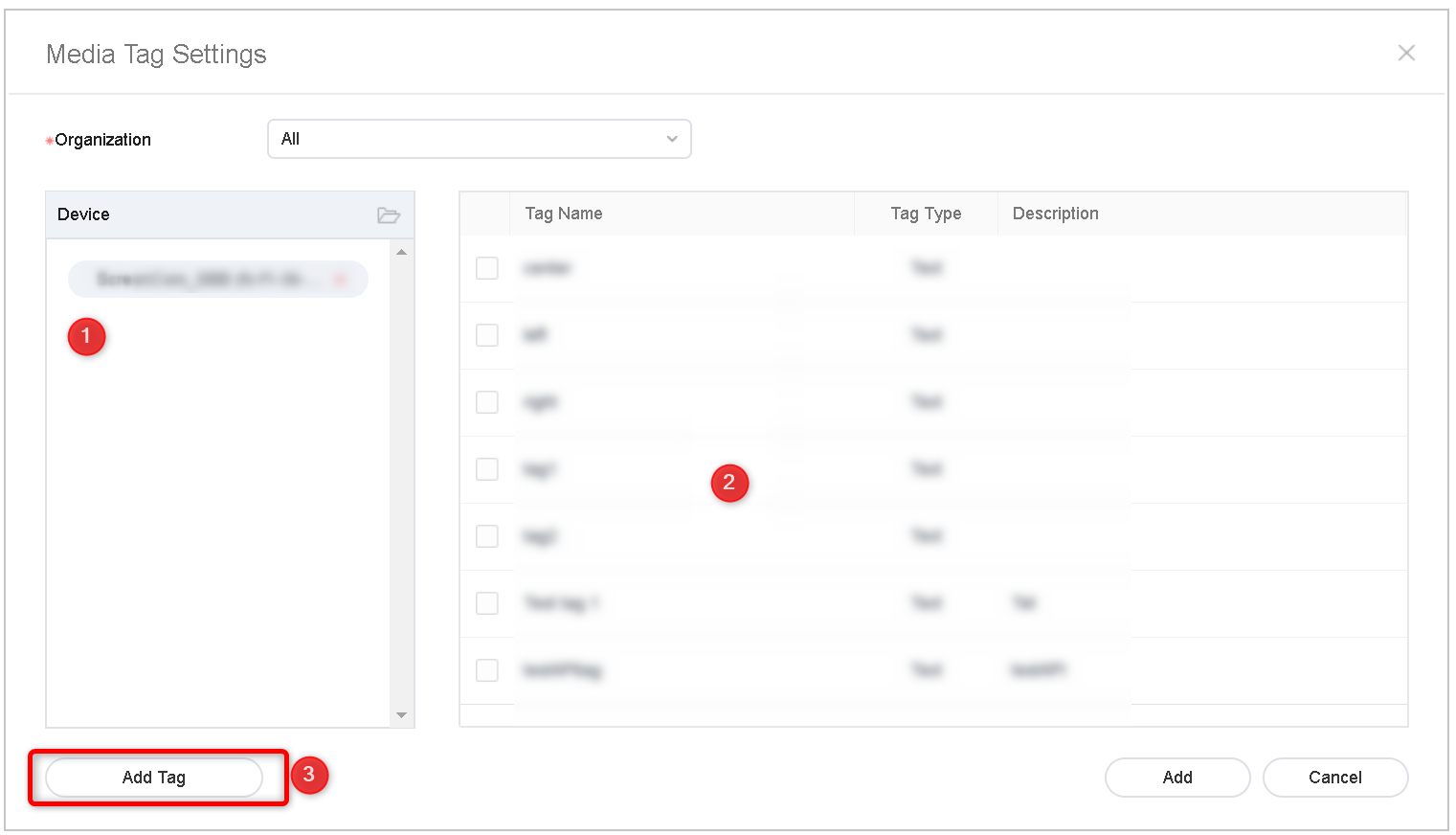
- In the Media Tag Settings dialog, the selected device is listed on the left. Either tick an existing tag in the table or click Add Tag to create one, then click Add.
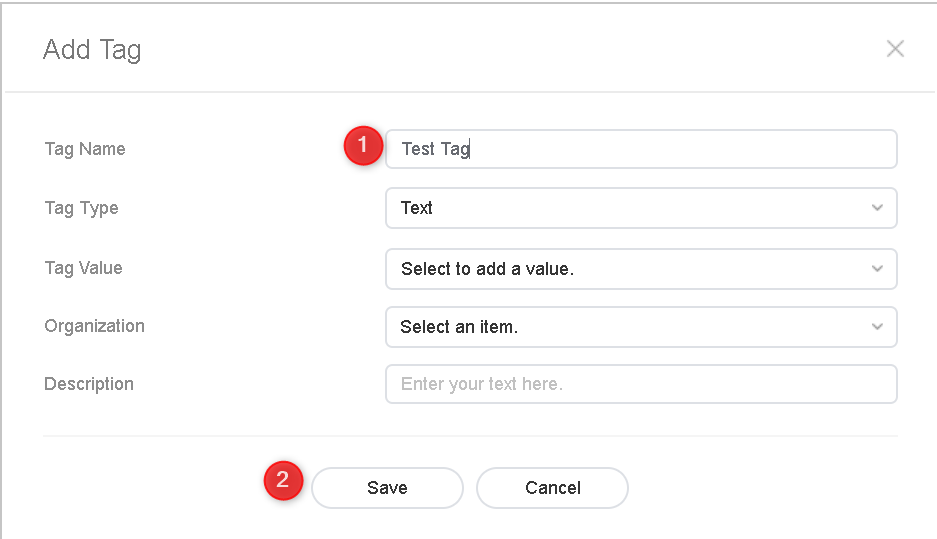
- When creating a new tag, give it a short, clear name, leave Tag Type set to Text, and click Save.
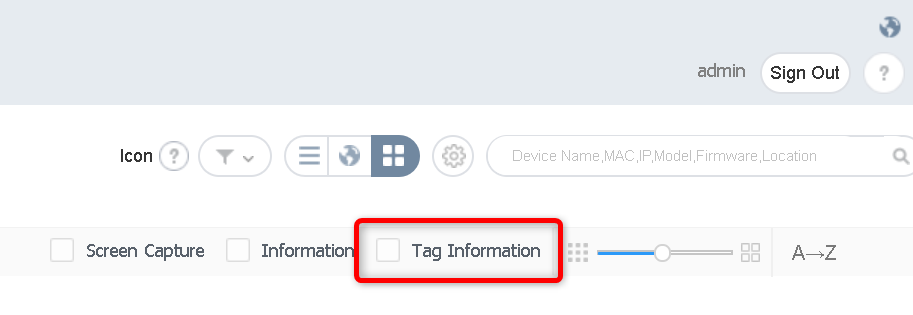
A confirmation appears in the upper-right corner when the tag is assigned. To review which tags are on which screens, enable the Tag Information checkbox above the device list.
Step 2: Create a Sync Play playlist
- Go to Playlist and click New Playlist.
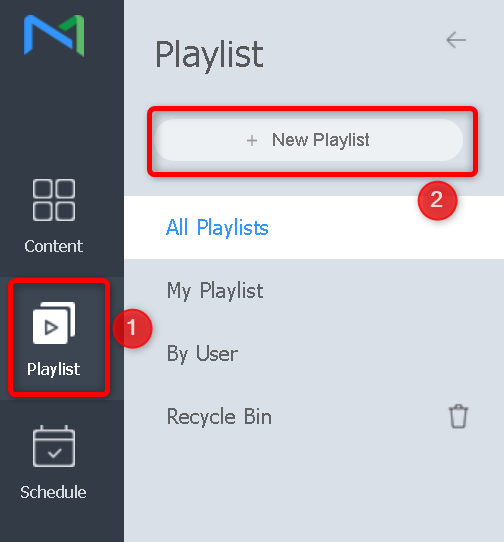
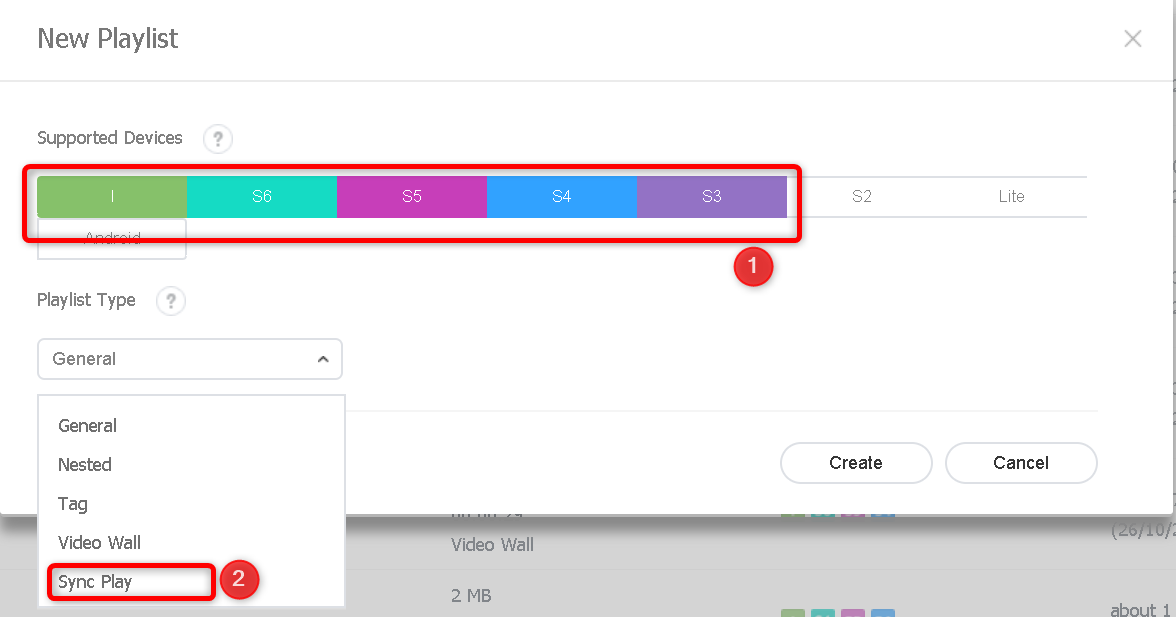
- In the New Playlist dialog, select the supported device type — it must be S3 or higher for Sync Play to be available — and set Playlist Type to Sync Play, then create the playlist.
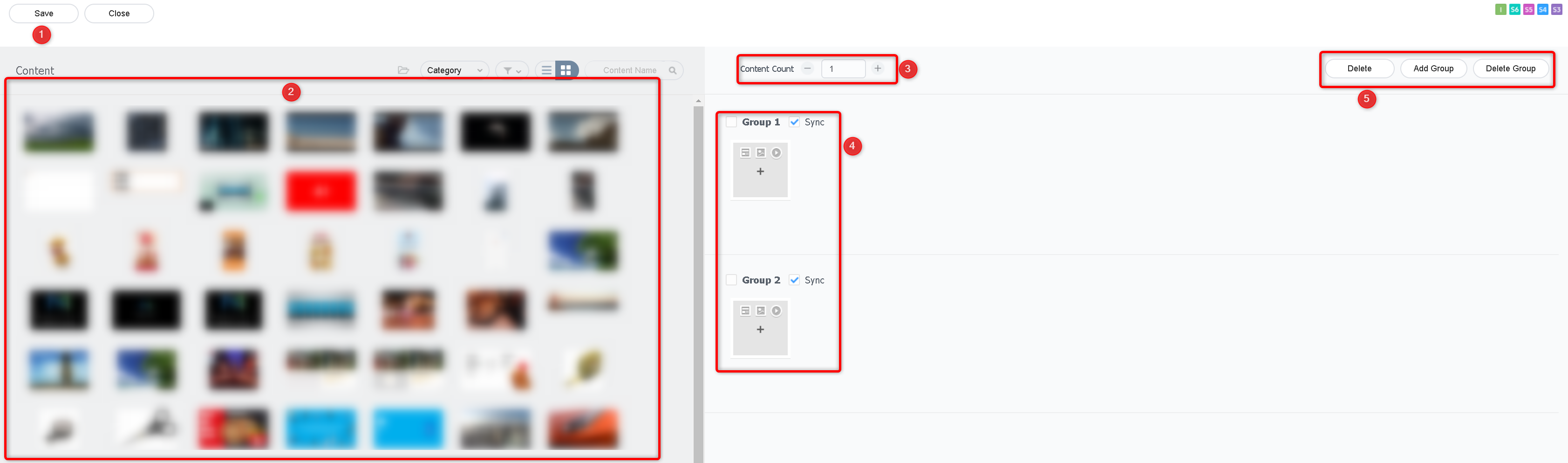
- In the playlist editor:
- Browse the content available on the server in the left panel and add items to the sync groups on the right.
- Set Content Count to the number of content items each group should hold.
- Use Add Group and Delete Group to match the number of screens taking part. Each group corresponds to one media tag — a tag will be assigned to each group when the playlist is scheduled.
- Click Save when the playlist is complete.
Step 3: Schedule the Sync Play playlist
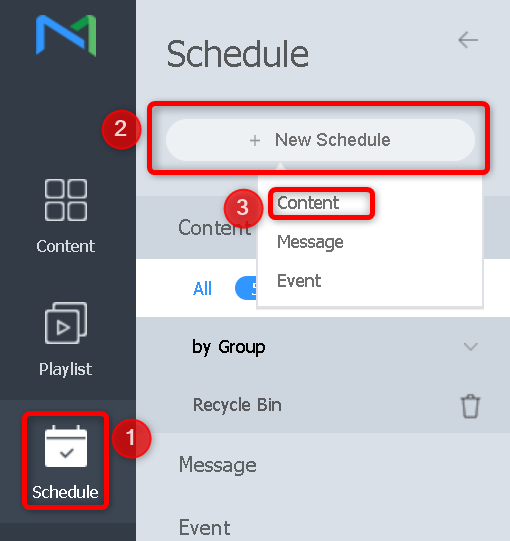
- Go to Schedule, click New Schedule, and choose Content from the dropdown.
- In the Create Schedule dialog, select the device type (S3 or higher), set Schedule Type to Sync Play, select the target device group under Publish to, and click Create.
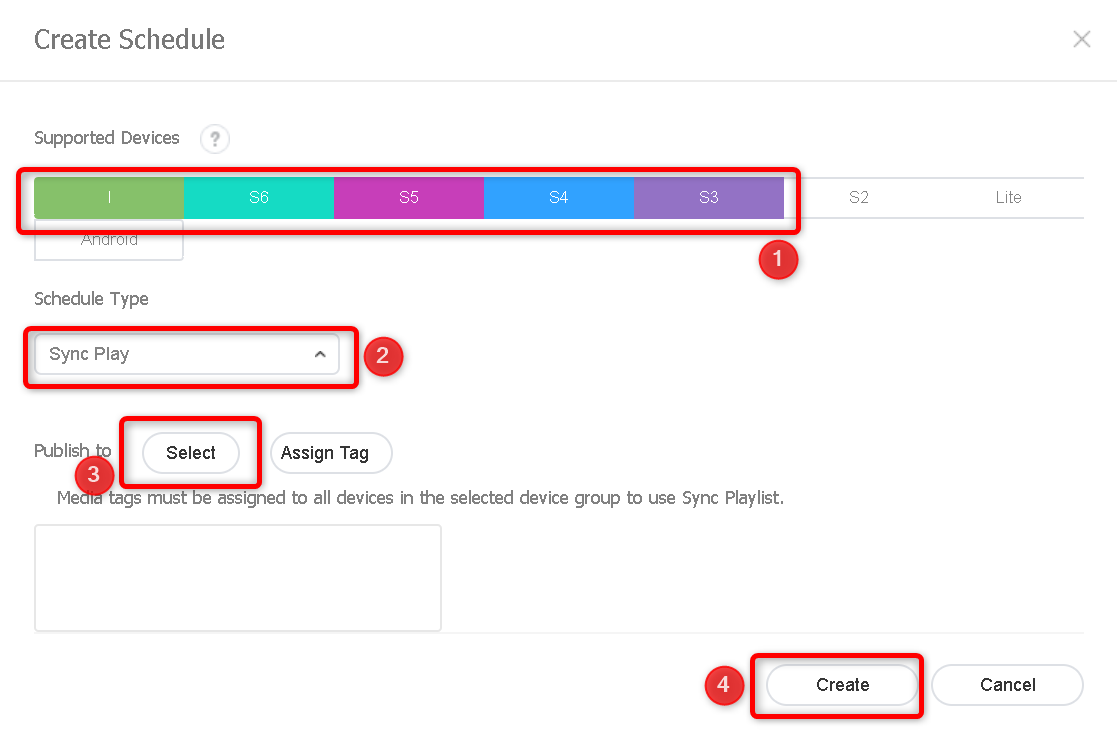
Media tags must be assigned to every device in the selected device group, or the sync playlist cannot be published to it.
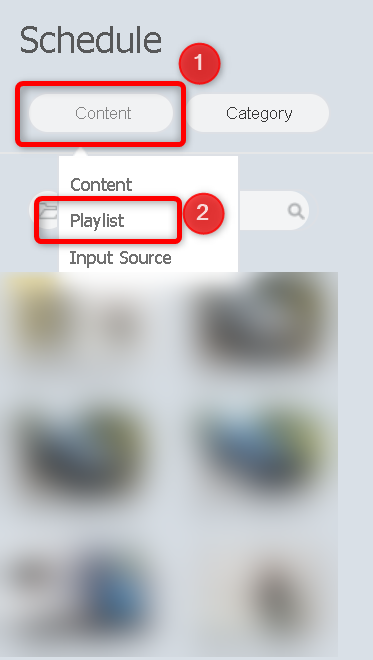
- In the schedule editor, open the Content tab and select Playlist — the Sync Play playlists appear automatically.
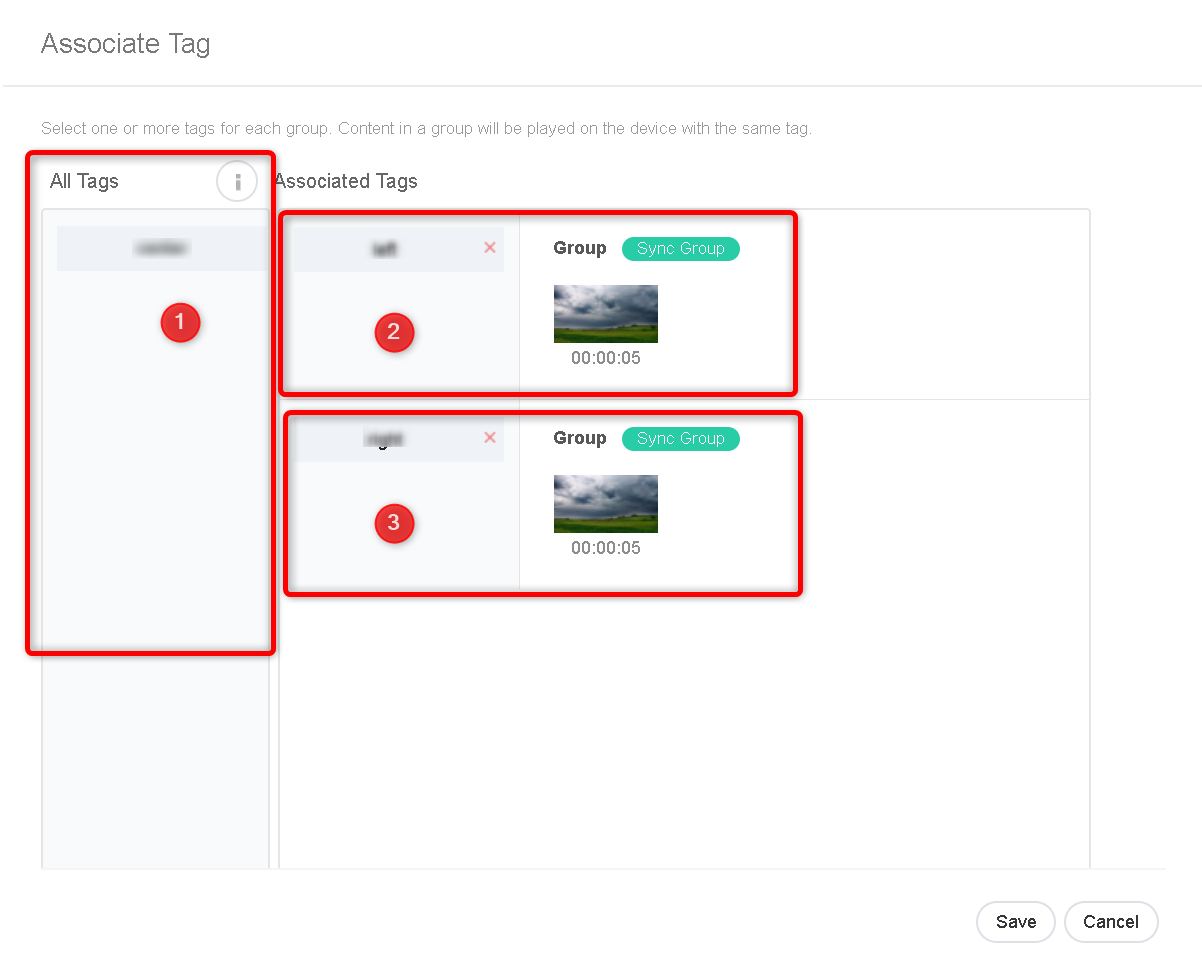
- Drag the playlist onto the timetable. The Associate Tag dialog opens: the tags created earlier are listed under All Tags — drag each tag onto the sync group it belongs to, then click Save.
- Publish the schedule to the device group.
For background on the individual building blocks, see Managing devices with tags, Creating a playlist, and Create a Message Schedule (Text Overlay).