Two-Step Verification (OTP)
Two-step verification adds a second factor to the MagicINFO Server sign-in: besides the password, each login requires a six-digit one-time password (OTP) from an authenticator app. The feature is available from MagicINFO Server version 8.
On MagicINFO Server version 9, two-step verification is mandatory and cannot be switched off through the interface. On version 8 it is optional and enabled as described below.
Enable two-step verification
-
Sign in as a server administrator and go to Setting > Server Management > Server Settings.
-
In the Password Policies section, enable Two-Step Verification (OTP).
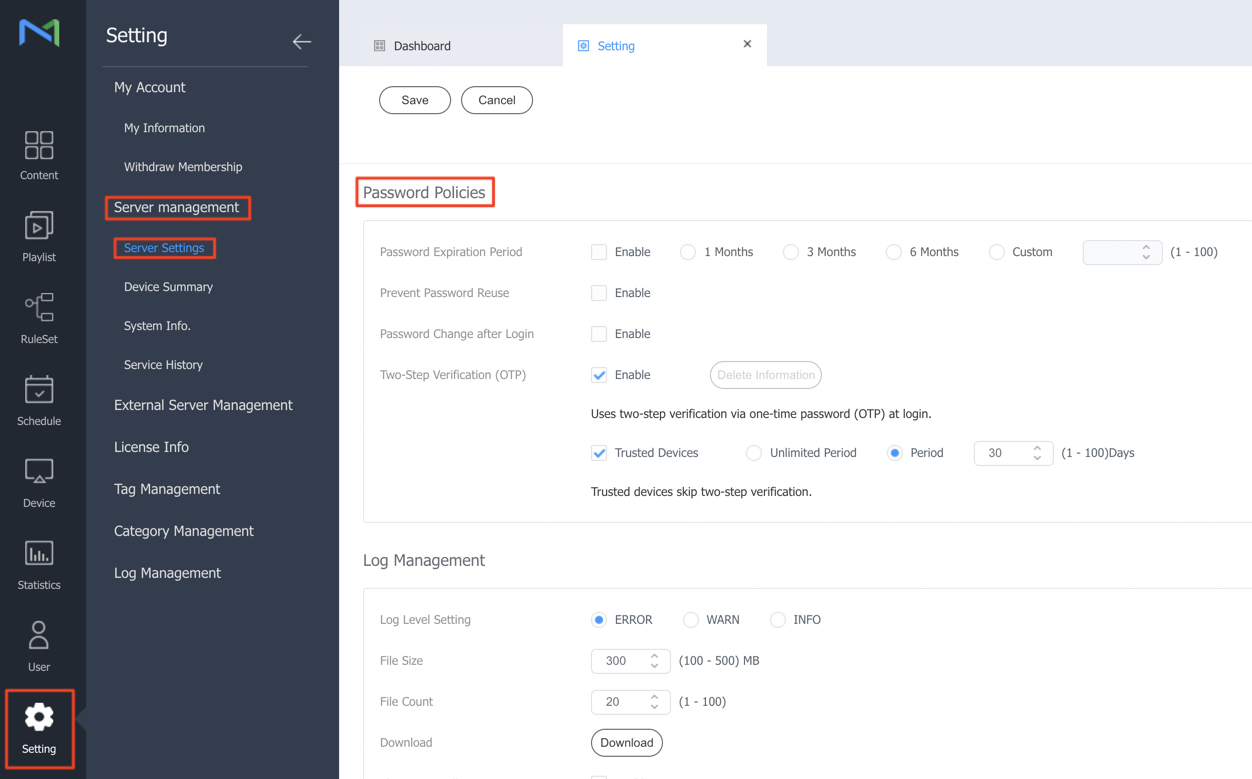
The same section holds the other password policy options (expiration period, reuse prevention, forced change after login) — see Password policy. The optional Trusted Devices setting lets a browser skip the OTP prompt for a configurable number of days.
-
Click Save.
Enroll a user account
After the policy is enabled, each user completes a one-time enrollment at their next sign-in. The example below uses Google Authenticator; any TOTP authenticator app (for example Microsoft Authenticator or Authy) works the same way.
-
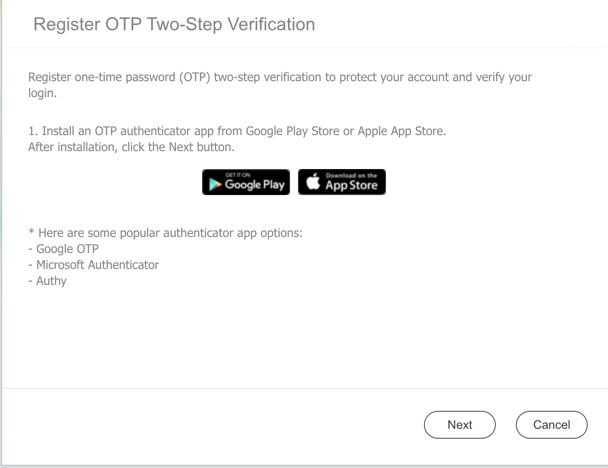
Sign in with the user's credentials. The Register OTP Two-Step Verification dialog appears.
-
Install an authenticator app on your phone if you do not have one yet.
-
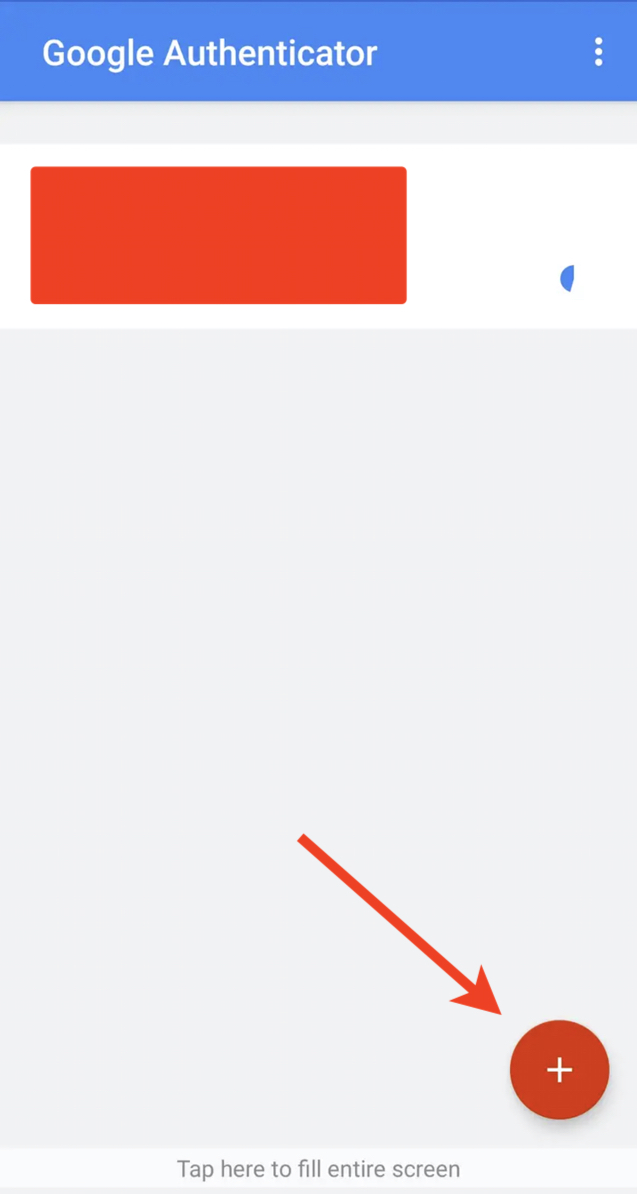
Open the app and add a new account — in Google Authenticator, tap the plus icon.
-
Click Next in MagicINFO and scan the QR code shown on screen with the app. The app then displays a six-digit code — enter it in the Enter code field and continue.
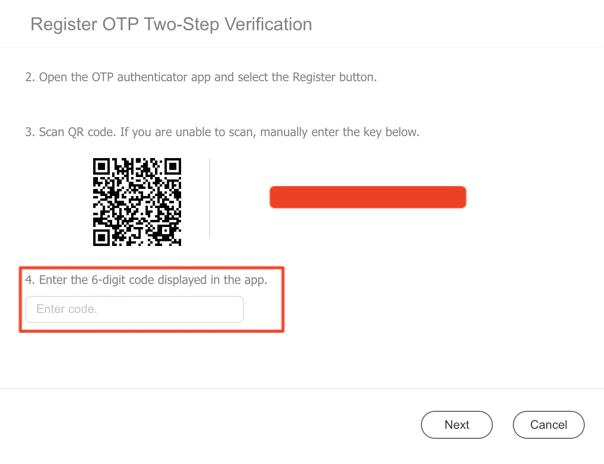
Enrollment is now complete. On every following sign-in, the user enters a fresh six-digit code from the authenticator app after their password.