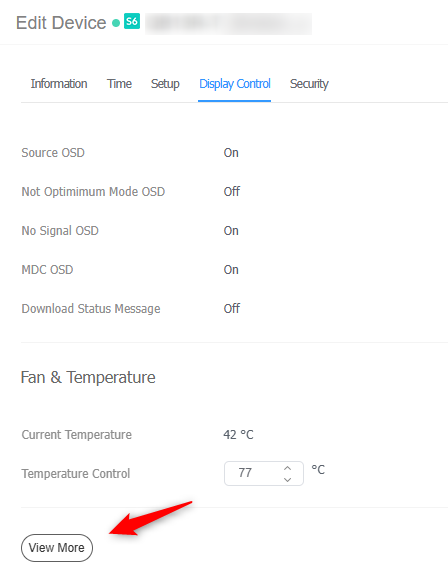
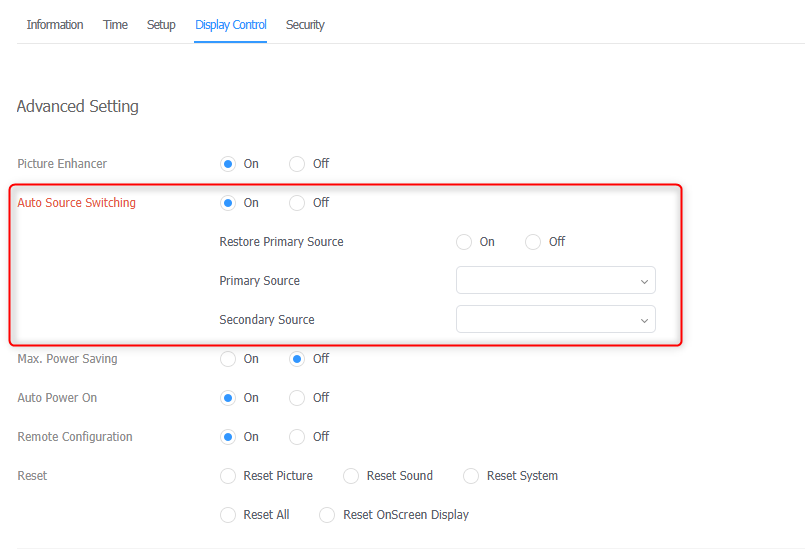
Auto Source Switching
Auto source switching lets a display alternate between MagicINFO playback and its other inputs without manual intervention. A typical use is a meeting-room screen: while idle it plays MagicINFO content, but as soon as someone connects a laptop over HDMI the display switches to that input, and when the cable is unplugged it falls back to MagicINFO.
The feature can be configured either on the device itself or remotely through MagicINFO Server.
Configure on the device
-
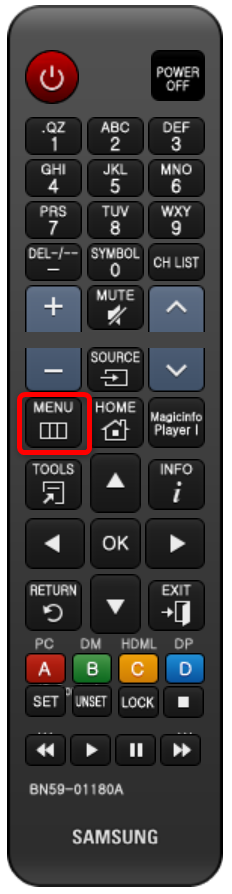
Press Menu on the remote control.
-
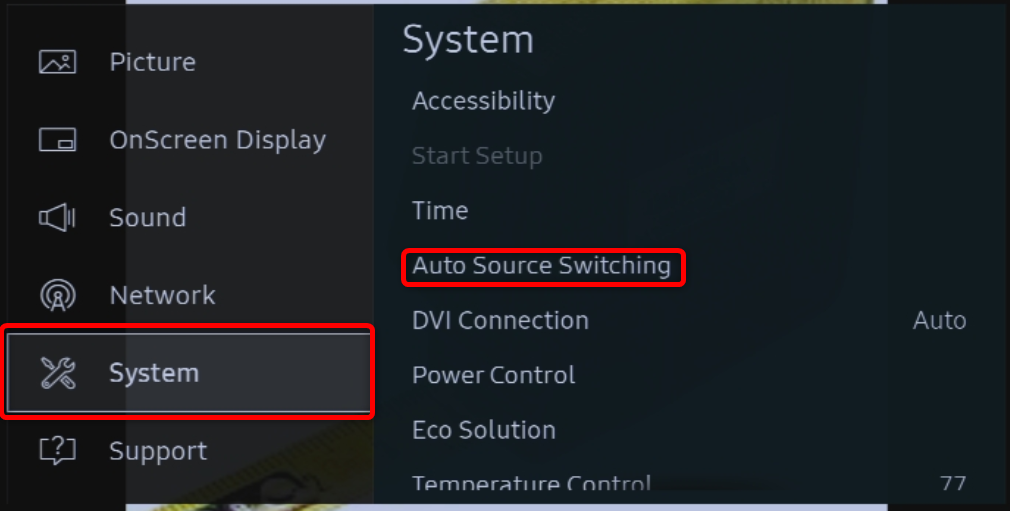
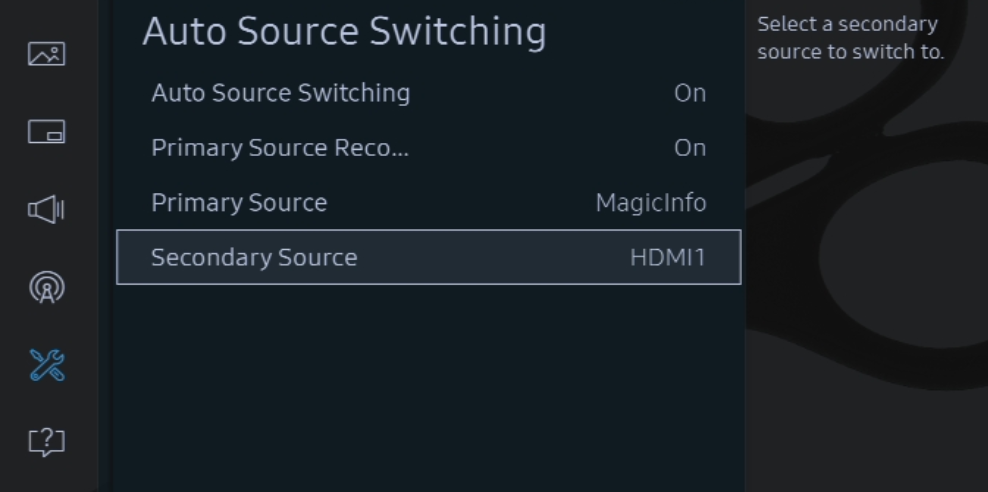
Go to System > Auto Source Switching.
-
Set Auto Source Switching to Preset Input or On (the option name depends on the model), then assign the sources. For the meeting-room scenario above, set the primary source to MagicINFO and the secondary source to HDMI.
Configure from the server
-
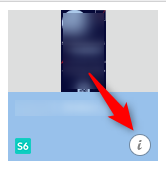
Log in to MagicINFO Server, open the Device section, select the device, and click its i (information) icon.
-
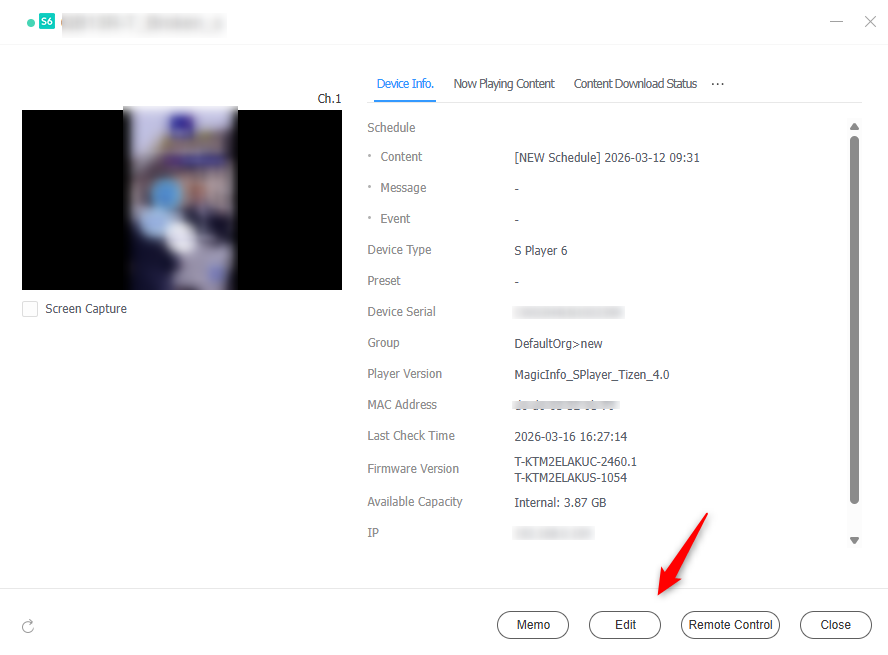
Click Edit.
-
Open the Display Control tab and click View More, then adjust the auto source switching options.