Device Time Tab: Clock and On/Off Timers
Set the current time of the device and schedule the time to turn the device on or off. Click the Time tab from the edit device info window.
In practice
- Clock Set does not last if the zone is wrong. Every 30 minutes the server sends the screen UTC, and the screen adds its own time zone and DST. Fix those on the Settings tab; see schedule plays at the wrong time.
- On/off timers run on the screen's own clock, so a wrong zone or DST shifts every timer by the same amount.
- Set the On Timer's Input Source to the player the screen uses. A timer that wakes the panel on an empty HDMI input shows "no signal".
- Outside scheduled hours a screen shows the MagicINFO logo, not black. A 24/7 content schedule plus on/off timers avoids that.
Setting the current time
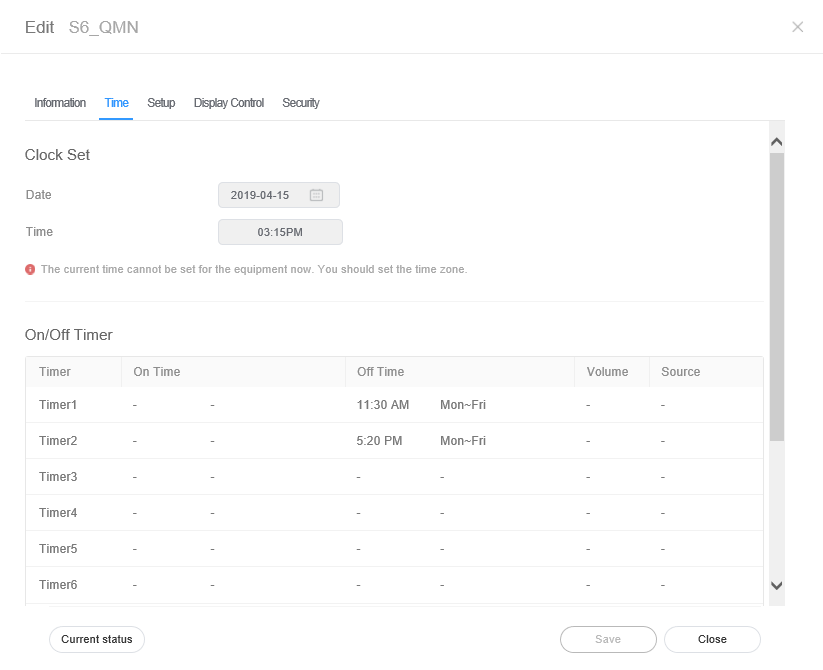
| Item | Description |
|---|---|
| Clock Set | Date: Set current date for the device. Time: Set current time for the device. |
| On/Off Timer | Set the time to automatically turn the device on or off. |
| Holiday management: | Holiday: Set holidays to prevent the device from operating on specified days. |
Setting timers
Schedule the set time to turn the device on or off.
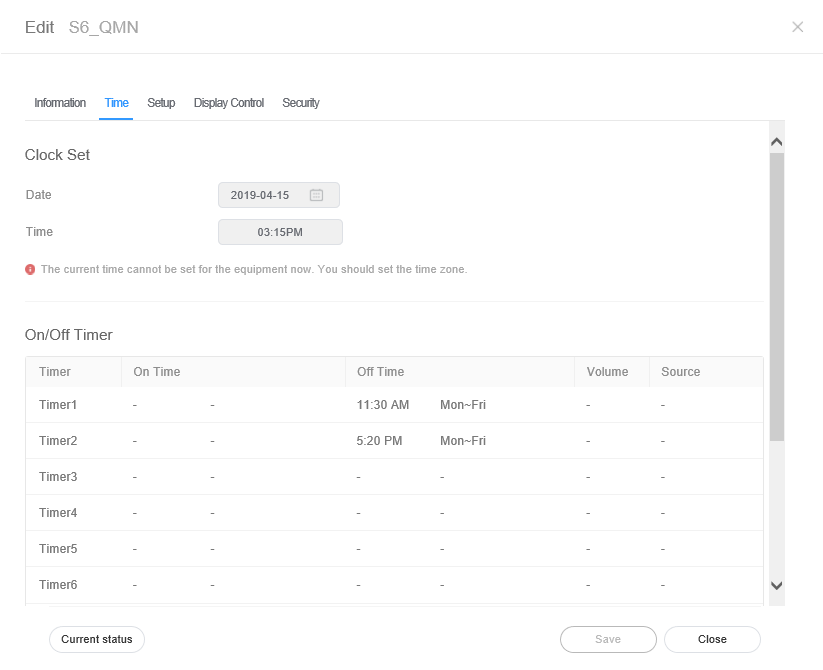
- Click a timer in the timer list: a timer that is already set to edit it, or an empty one to add a new timer.
- Set the timer details described below and click Save.
| Item | Description |
|---|---|
| On Timer | Set the time to turn on the device. To use the timer, select Use. Day: Select day(s) of the week to repeat the timer. On Time: Set the time to turn on the device. Volume: Set the device volume to apply when it turns on. Input Source: Select an input source to apply when the device turns on. Holiday: You can set to apply the set schedule even on holidays. |
| Off Timer | Set the time to automatically turn off the device. To use the timer, select Use. Day: Select day(s) of the week to repeat the timer. Off Time: Set the time to automatically turn off the device. Holiday: You can set to apply the set schedule even on holidays. |