Spot: Map Content Pages to Detection Boxes
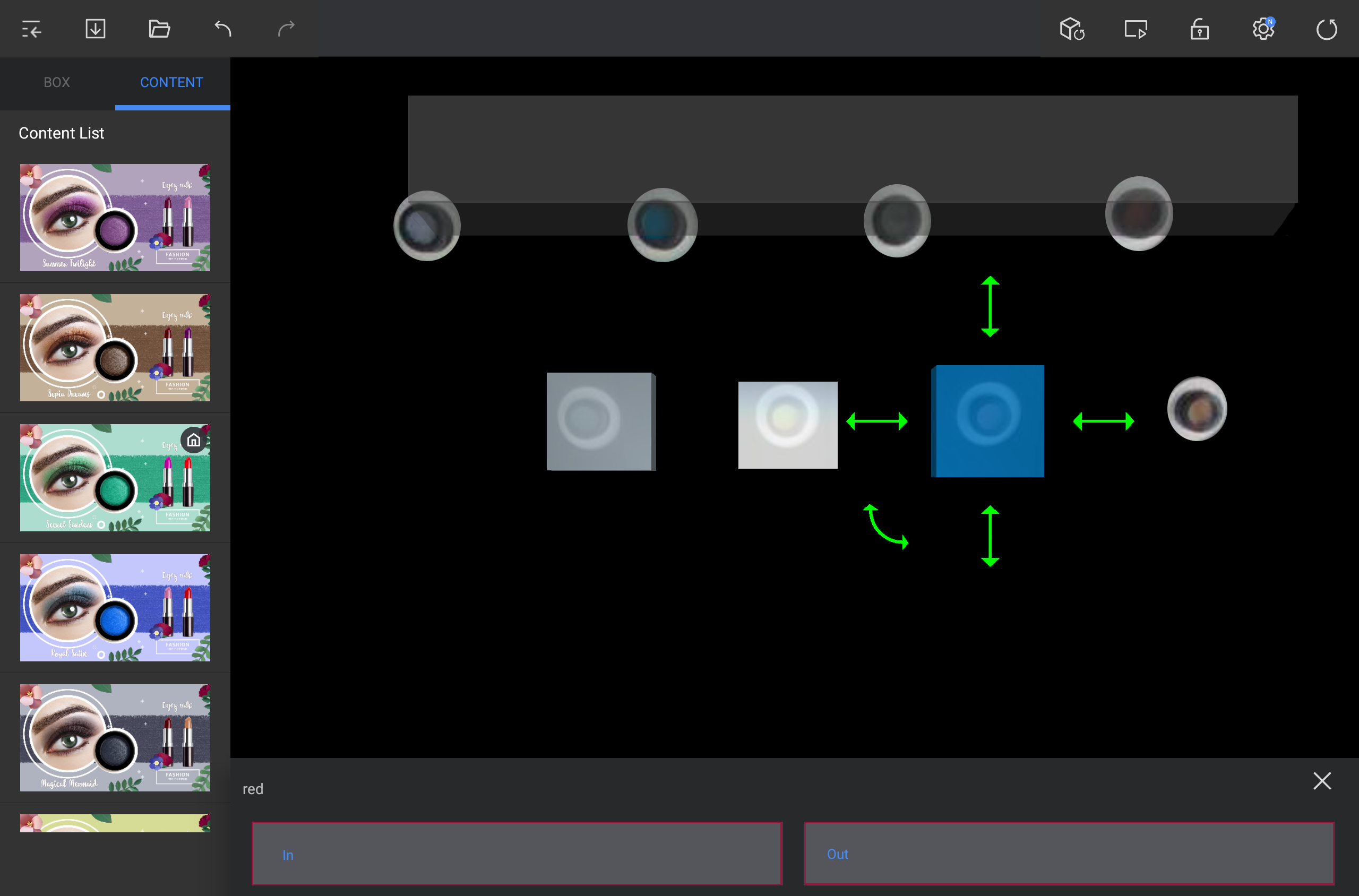
You can use spot manager for mapping the desired contents page on operation detection box. When operation moving into or moving out of box is detected, mapping page is played.
- Select one box from Box tab or press the desired box from angle area.
- Press desired page thumbnail from Contents tab and drag it to IN or OUT area.
- When operation moving into corresponding area is detected while mapping is applied in IN area, designated contents page is played.
- When operation moving out of corresponding area is detected while mapping is applied in OUT area, designated contents page is played.
Setting sub-boxes
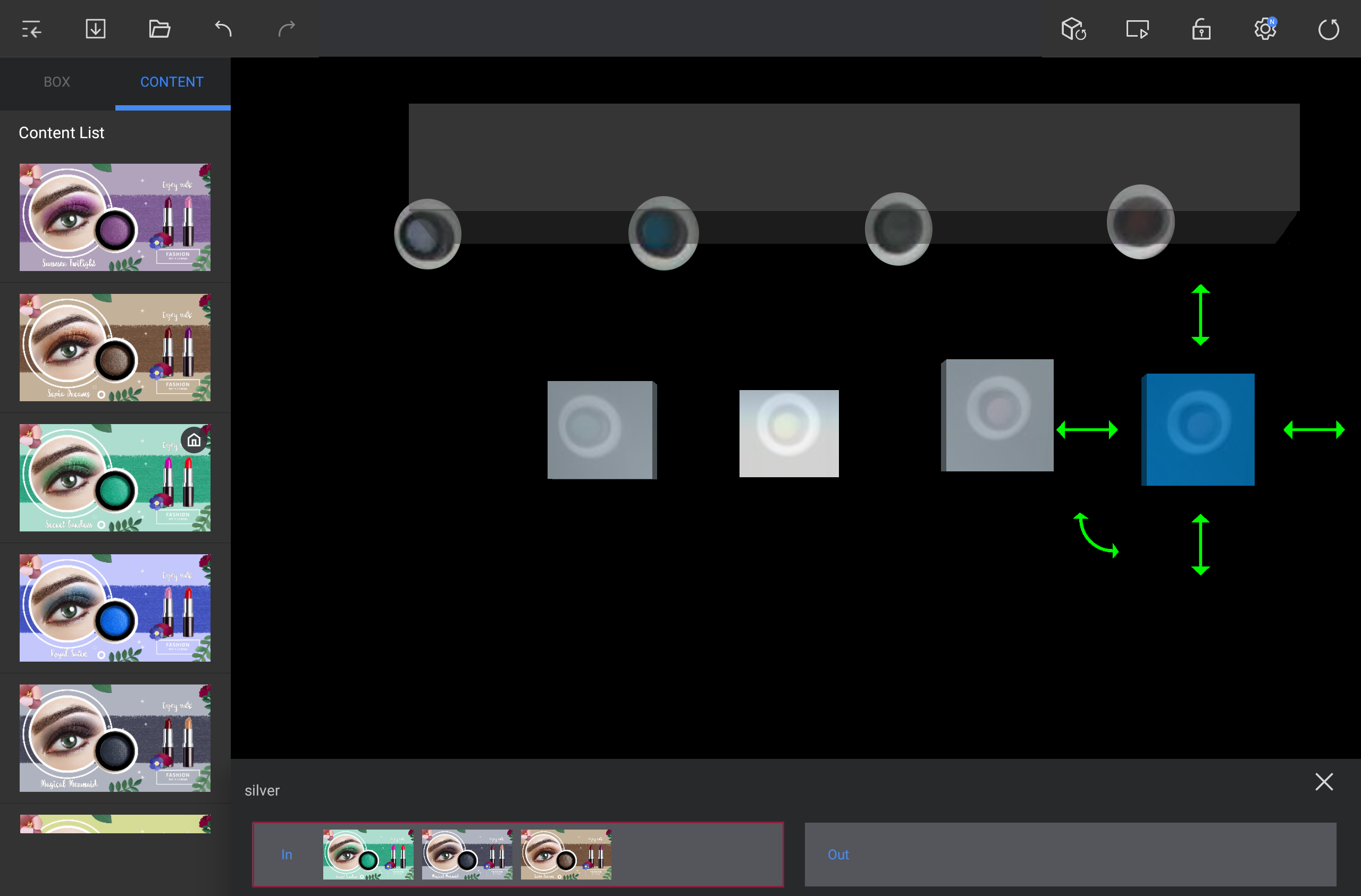
If two or more contents pages are mapped on the same area (IN or OUT), operation detection box is automatically generated depending on the number of each contents page. It is called the sub-box. Compose main contents and details in sub-boxes.
- Add two or more contents pages to IN or OUT area, press corresponding area (IN or OUT).
- Screen for editing sub-boxes is executed.
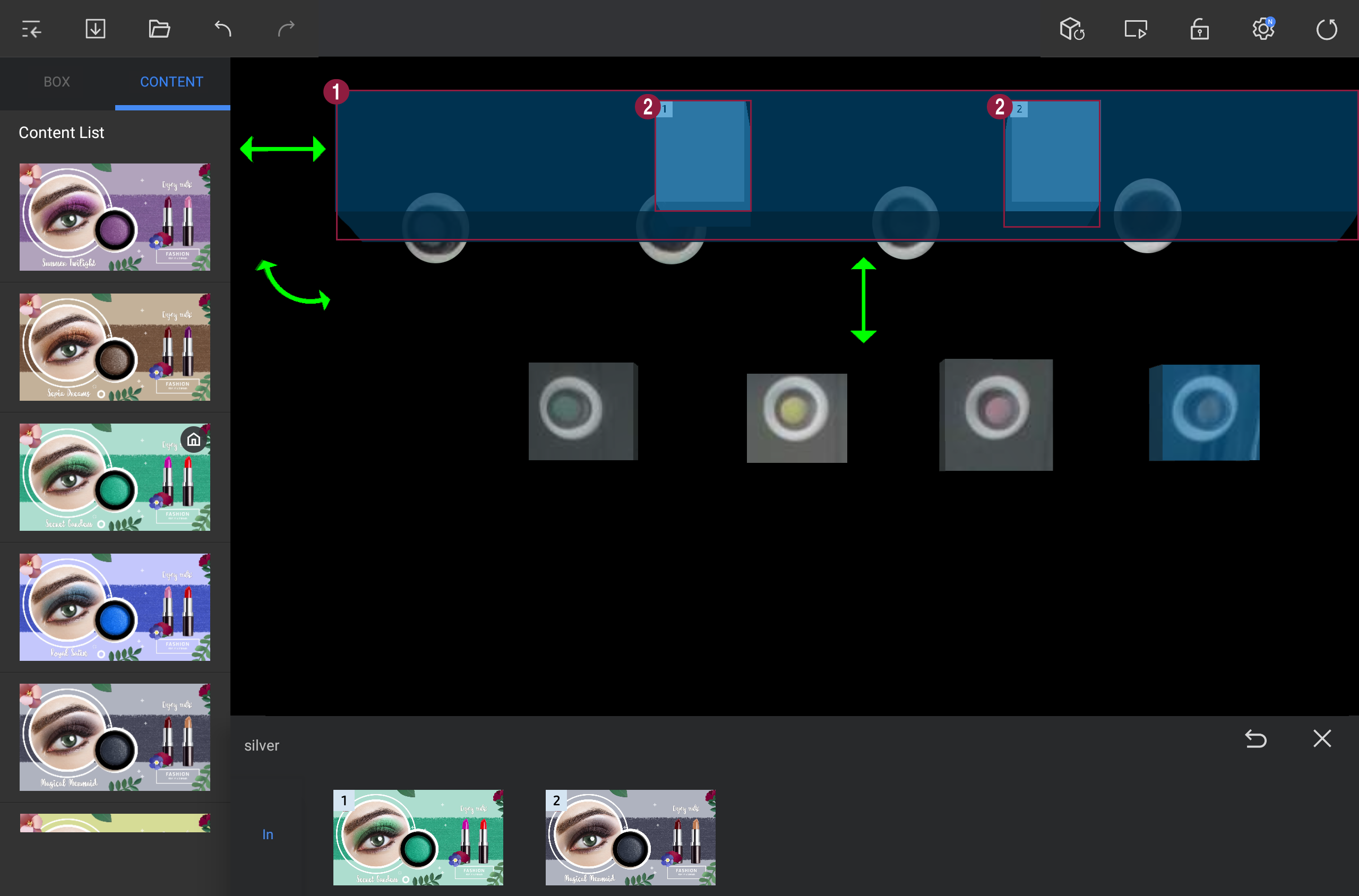
- Press the sub-box group and apply setting to desired location.
| Item | Description |
|---|---|
| 1 | It is group area where sub-boxes are bound. |
| 2 | It is sub-box that is automatically generated depending on the number of contents page. |
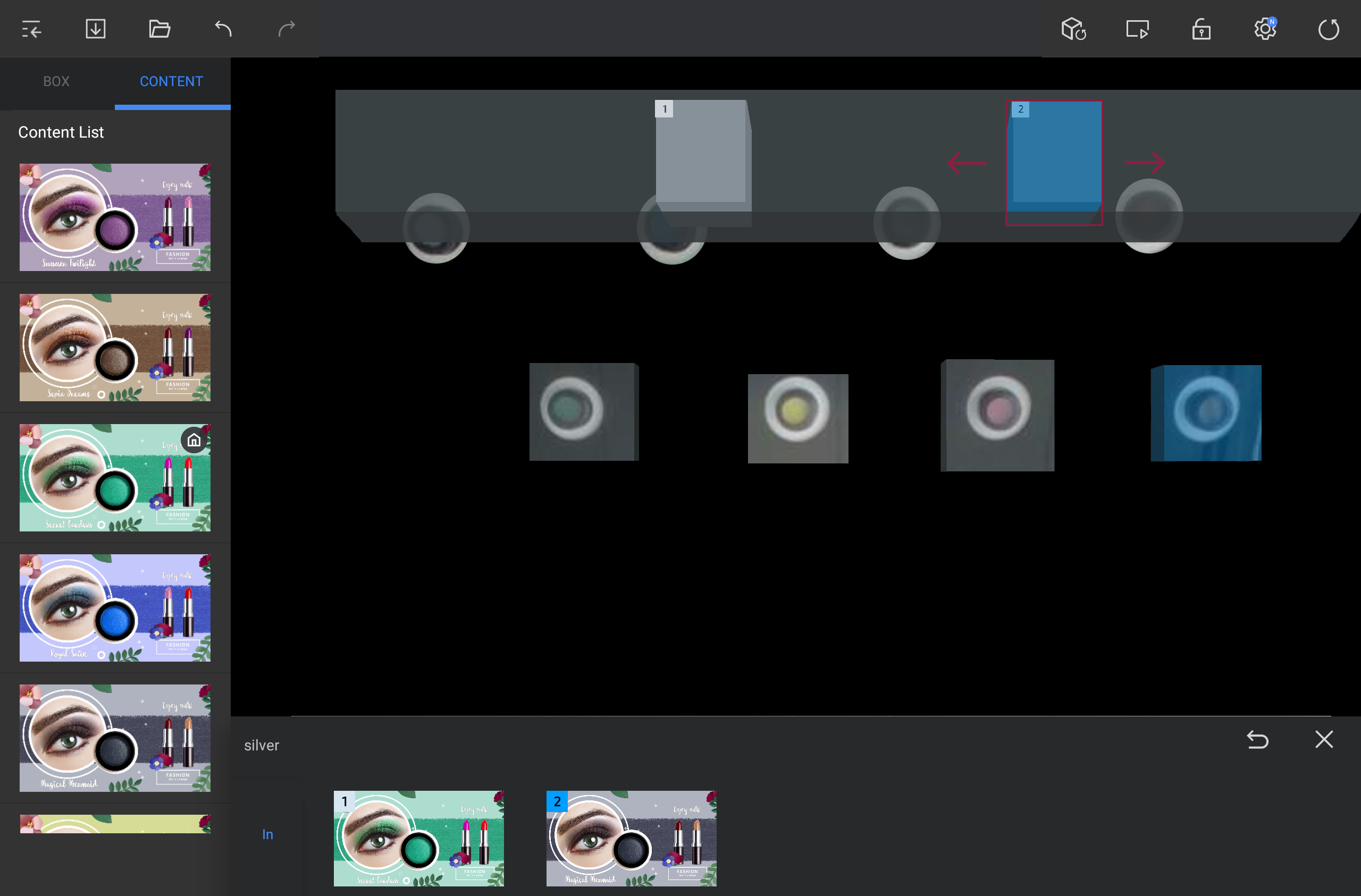
- Press each sub-box in group area and apply setting to desired location.
Setting the home screen
If operation is not detected on player in designated time, you can set the contents page that will be played in default.
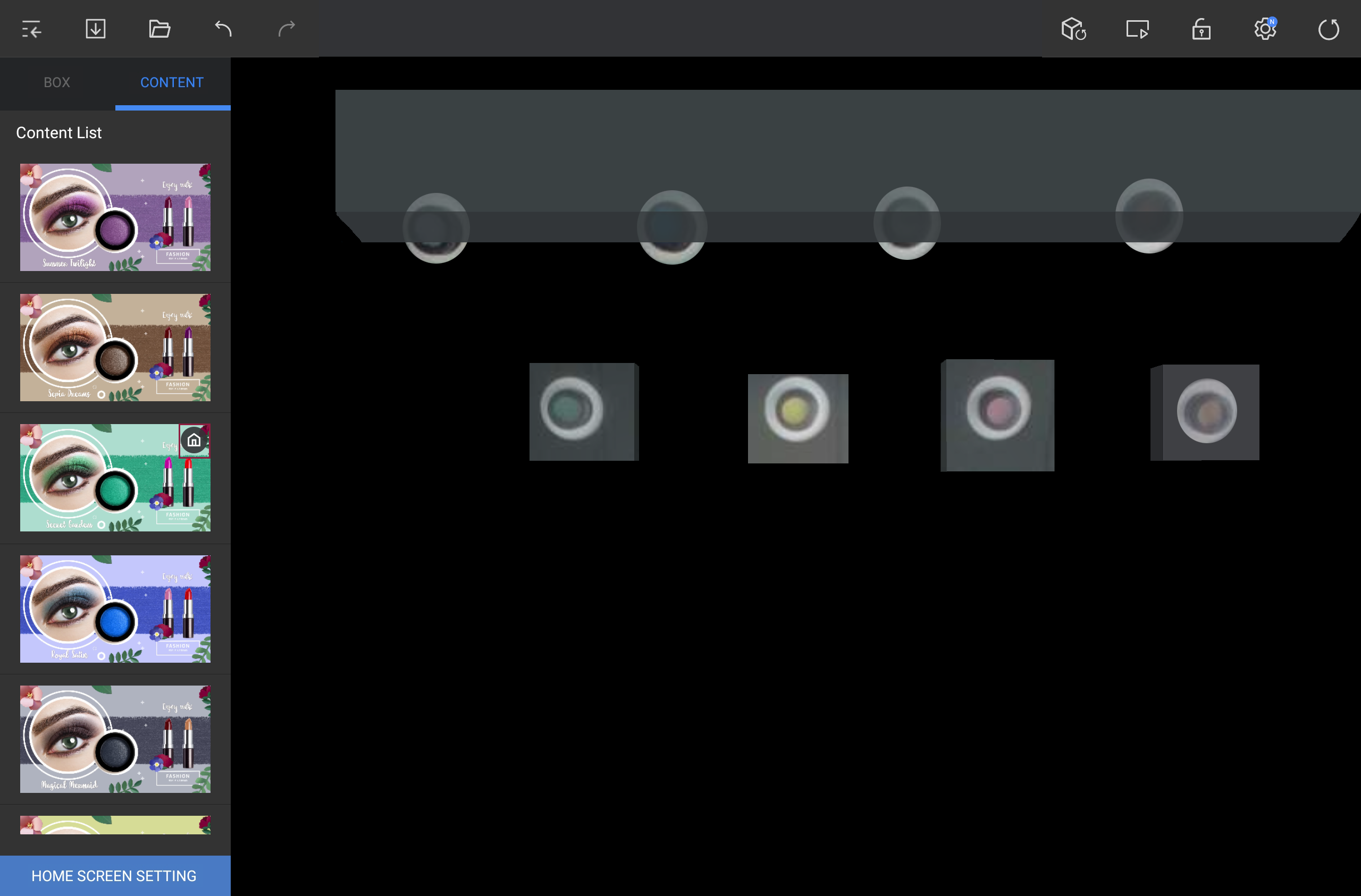
- From Contents tab, press Home Screen Setting from bottom left side of the screen and select the contents page you wish to set as default screen.
- Corresponding contents page is designated as default screen and
 is displayed.
- If setting window is displayed, select desired items and apply setting.
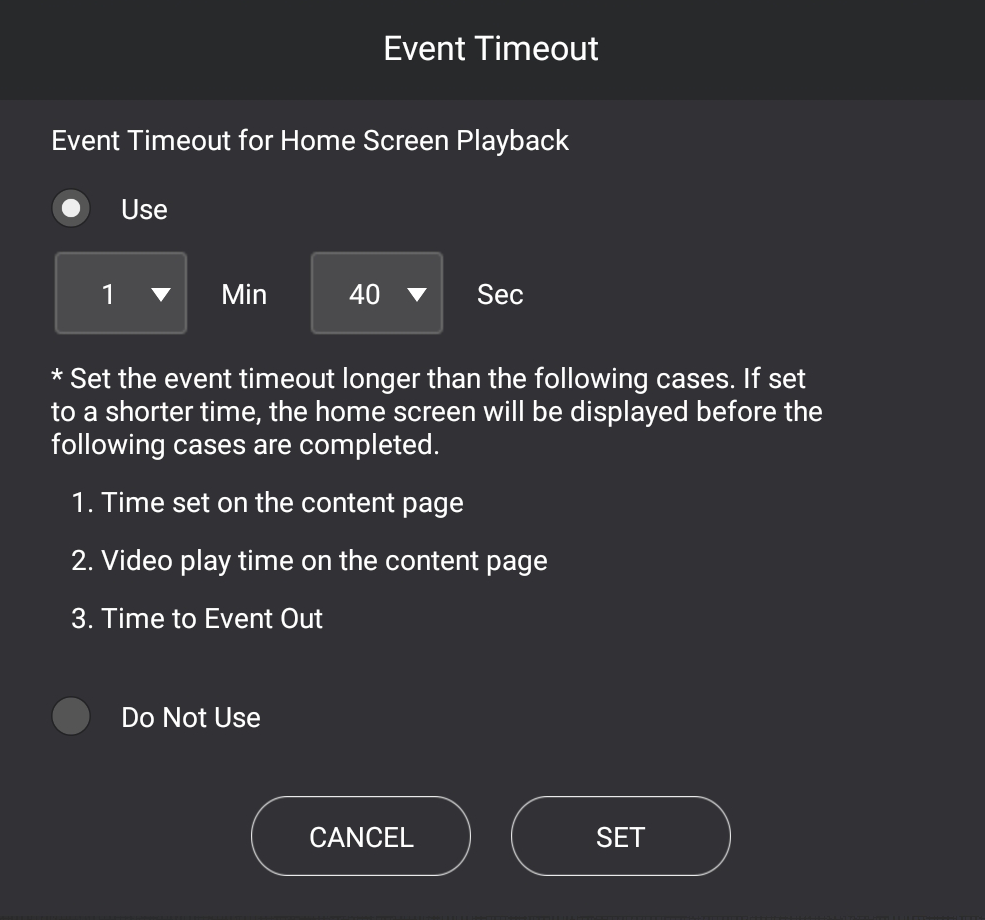
| Item | Description |
|---|---|
| Use | Auto-play function is used on default screen. If operation is not detected for certain time, contents page that is designated as default screen is automatically played. |
| No Use | Auto-play function is not used on default screen. If corresponding item is selected, mark disappears from contents page list. |