Spot: Requirements and First-Time Setup
Marking regulation user guide
In this user guide, software name and product name are indicated using the abbreviation below.
- MagicINFO Server → Server
- MagicINFO Player → Player
- MagicINFO Premium Author → Author
- Spot application for Android tablet → Spot Manager
- Intel Real Sense D435 → Camera
Methods for checking the screen
Click on the screen that is inserted in user guide to view the screen in original size.
Installation requirements
Mobile device
- Supported device: Android OS-based tablet
- Operating system: Android Lollipop 5.0 or above
- Resolution: 1280DP recommended
PC
- Operating system: Windows 10 or above, 64 bit (Windows N version not supported)
- USB 3.0 port support model
Camera
- Supported device: Intel Real Sense D435
Configuring initial environment
Installing spot manager on the tablet
- Press spot manager installation file (.apk) from the tablet and carry out installation following the guide on the installation screen.
- When installation is complete, connect the tablet to AP that is connected with PC.
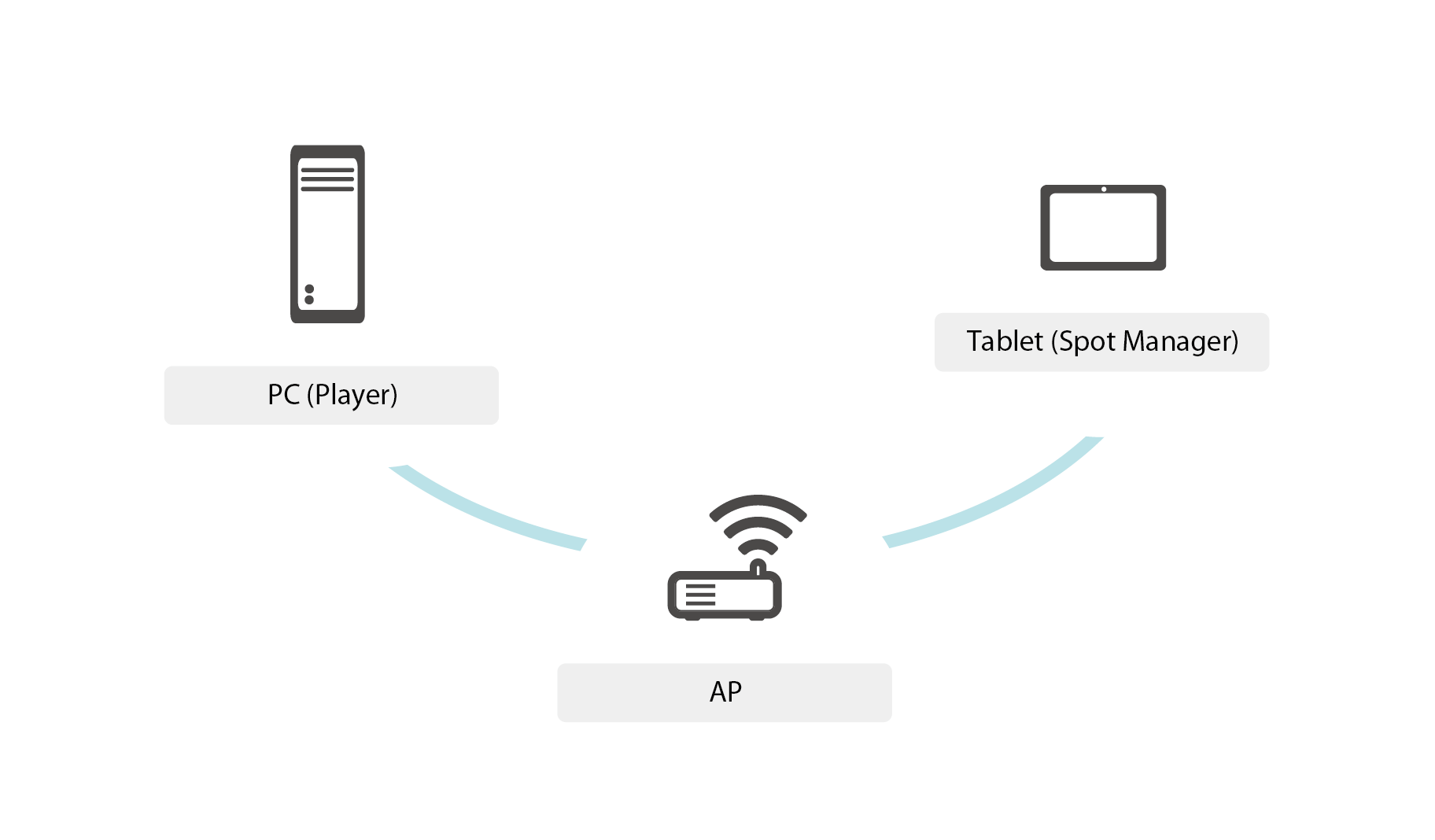
Pre-setting player
In order to use spot function, player program should be installed on PC.
First, prepare the PC where player program is installed and change the setting as indicated below.
- From Windows task bar, click on MagicInfo Watcher icon using right-mouse button and select Setting > Advance.
- Select module.
- Check on Execute from Spot item and press Apply.
Connecting the camera to the PC
In order to execute spot function, camera should be connected to the PC where player program is installed. Connect the camera to USB 3.0 port on the PC.