Spot Manager Settings: Screen, Camera and PIN
Switching player screen
You can switch the screen so that contents or spot camera screen is played on the player.
Press  and select desired screen mode.
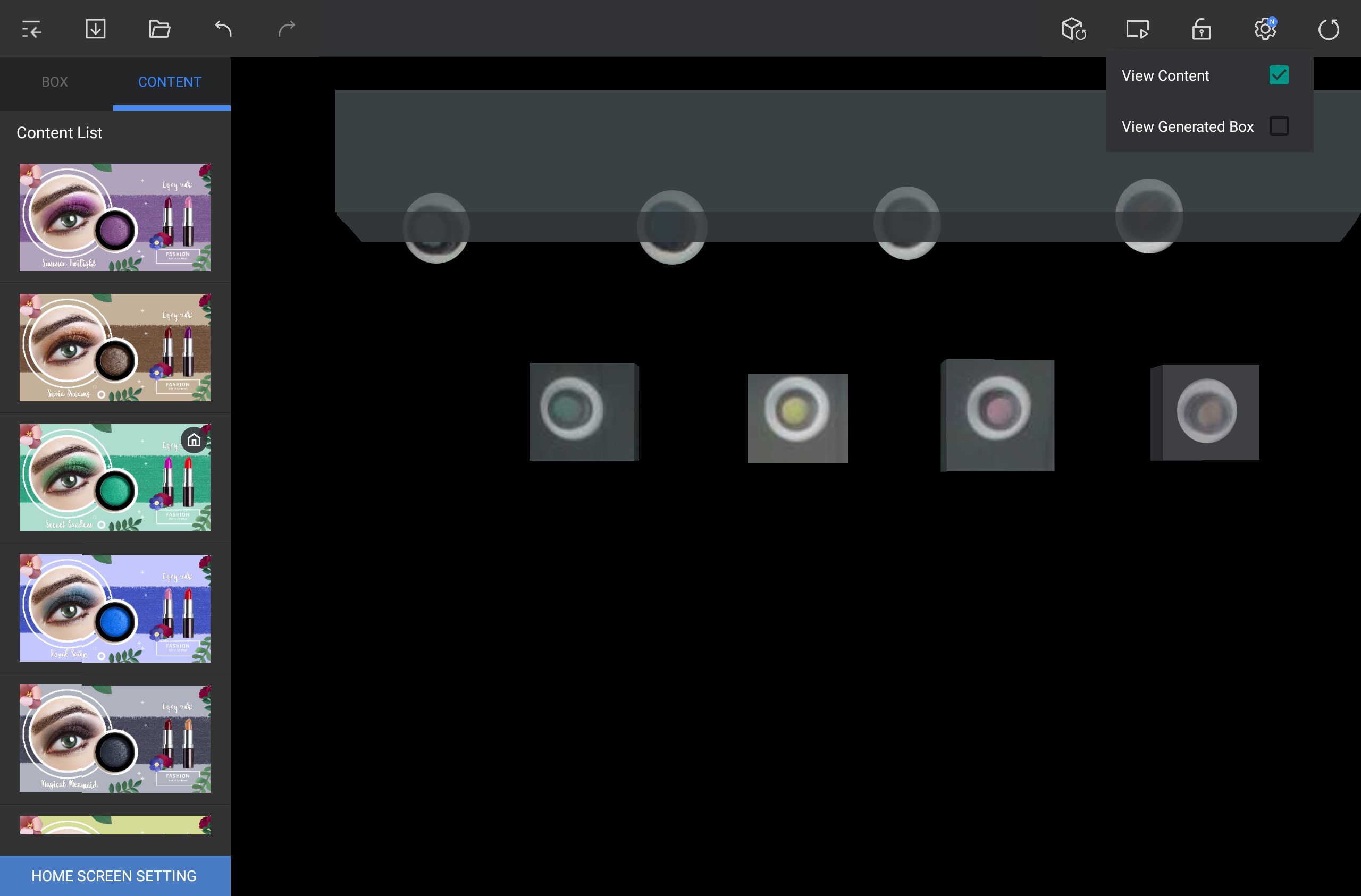
| Item | Description |
|---|---|
| View contents | Contents are played on the player. |
| View boxes | Spot camera screen is played on the player. |
Inverting camera screen
You can invert the camera screen to vertical or horizontal direction.
Press  and select view type.
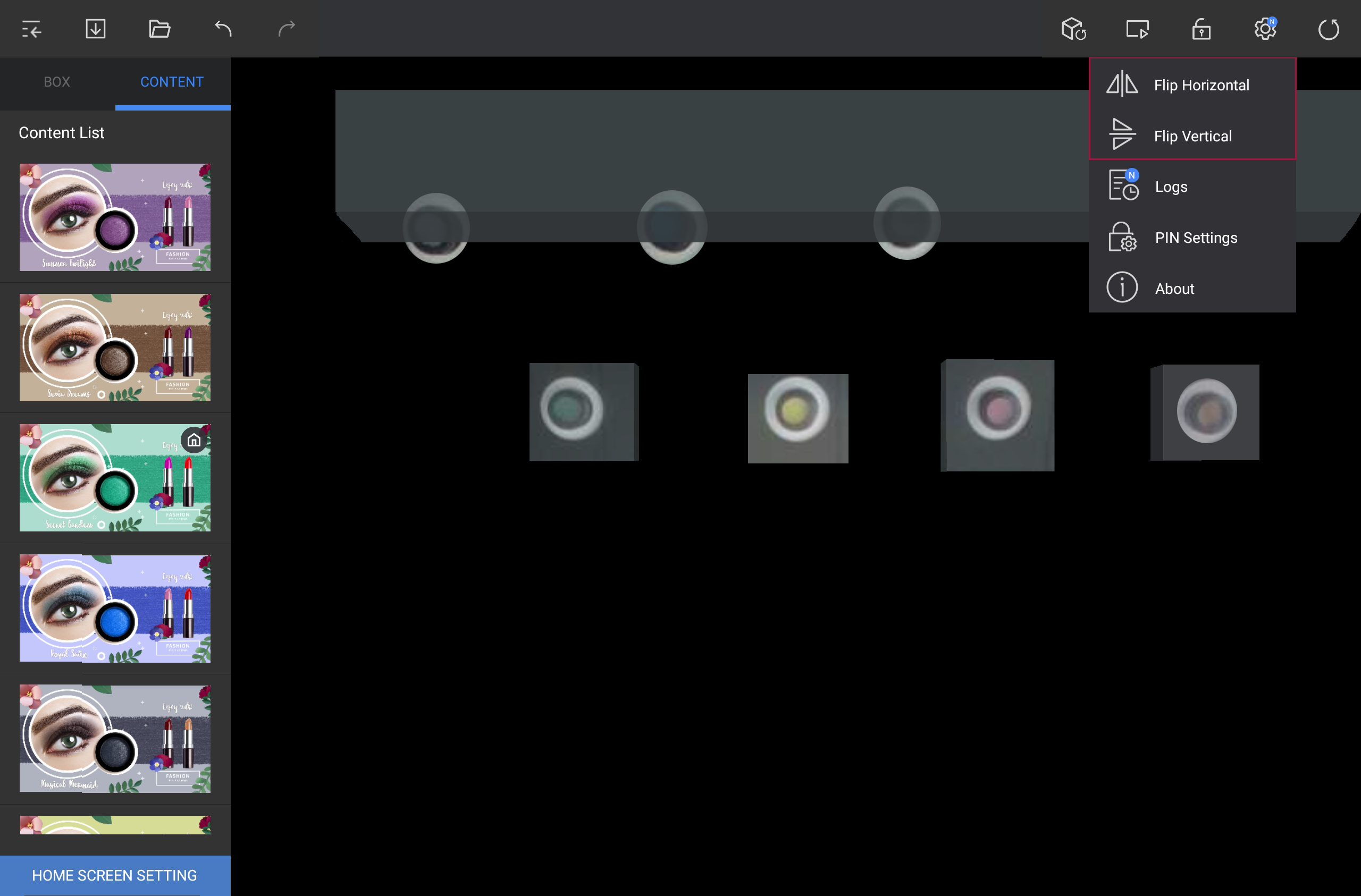
| Item | Description |
|---|---|
| Left / Right symmetry | You can invert the camera screen to horizontal direction for left / right symmetry. |
| Up / Down symmetry | You can invert the camera screen to vertical direction for up / down symmetry. |
Checking log
You can check for the log information that has occurred recently.
Select > log.
Setting the PIN number
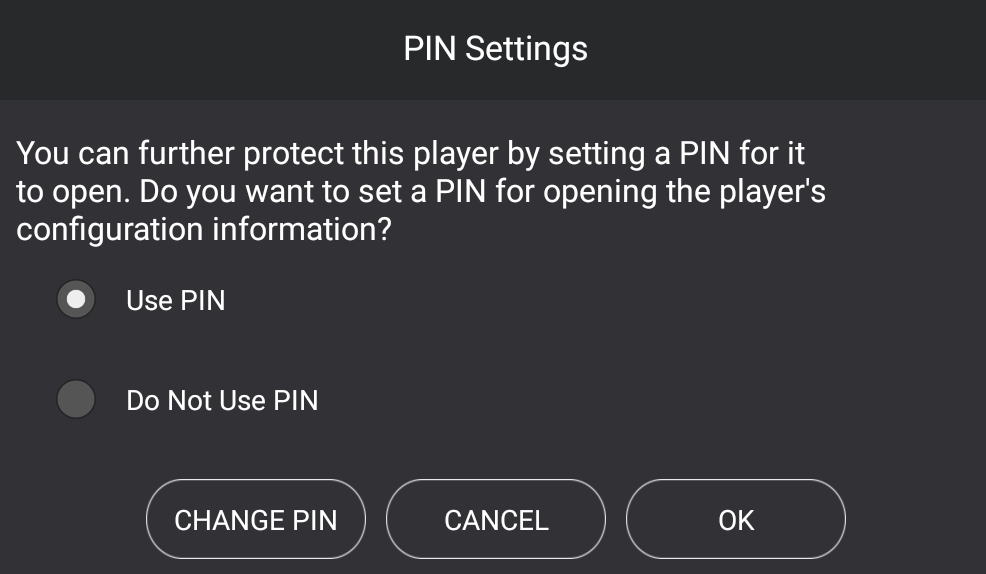
Anyone can use spot manager to set PIN lock so that setting cannot be changed. In case of PIN lock setting, you can press thumbnail of the player from the list and enter PIN number to connect to corresponding player.
- Select > PIN setting.
- Select Use PIN.
- For not setting PIN lock, select Do Not Use PIN.
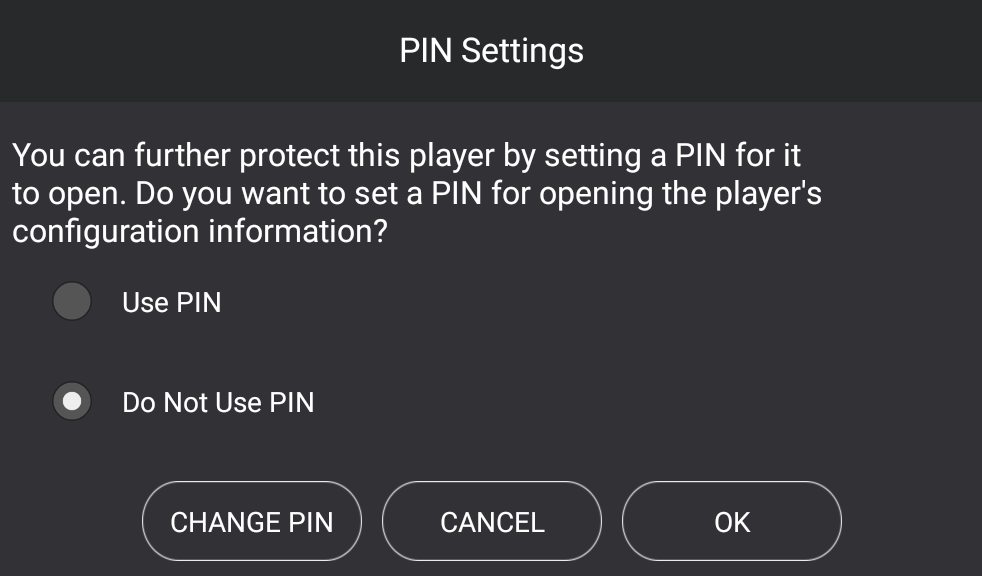
- Enter desired PIN number.
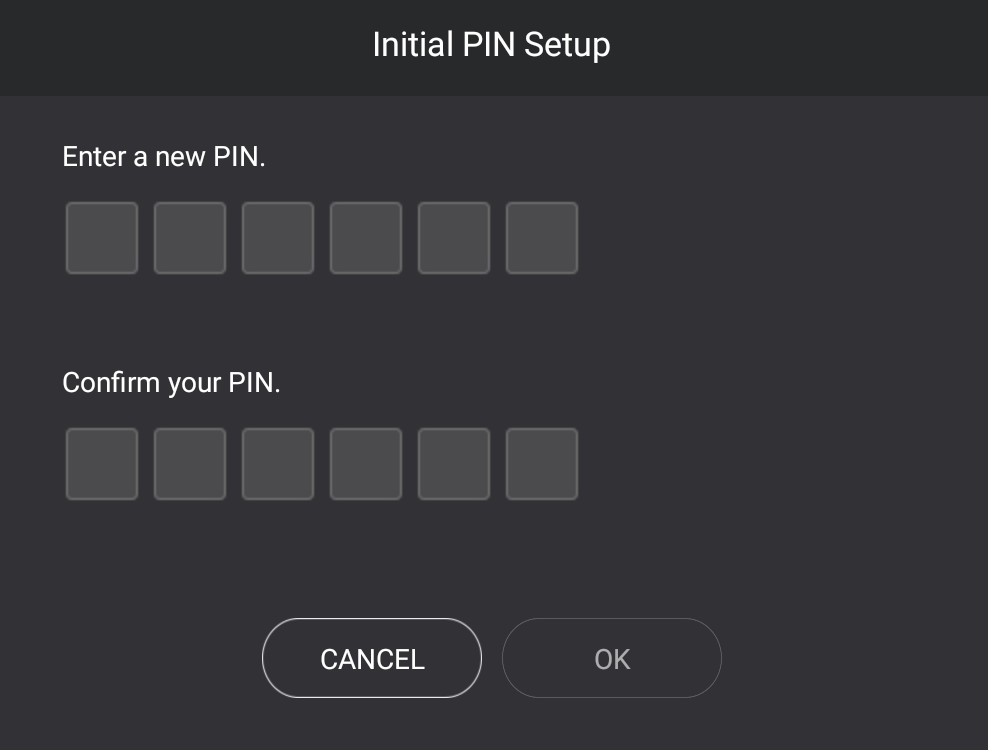
- After entering PIN number, press OK.
- When setting is complete, press OK.
Changing PIN number
You can change the PIN number.
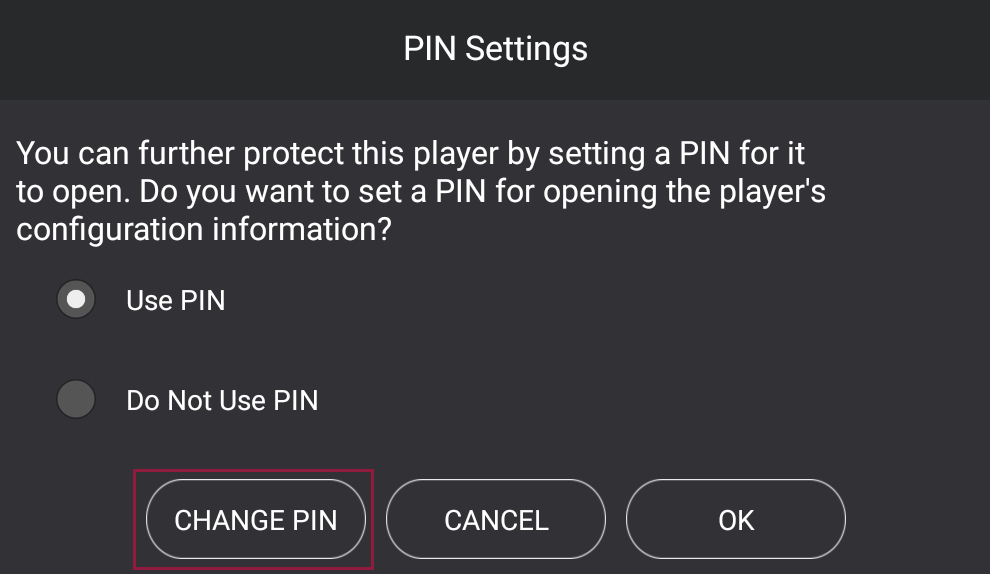
- Select > PIN setting.
- Enter PIN number.
- Select Change PIN.
- Enter previous PIN number and new PIN number following the guide on the screen.
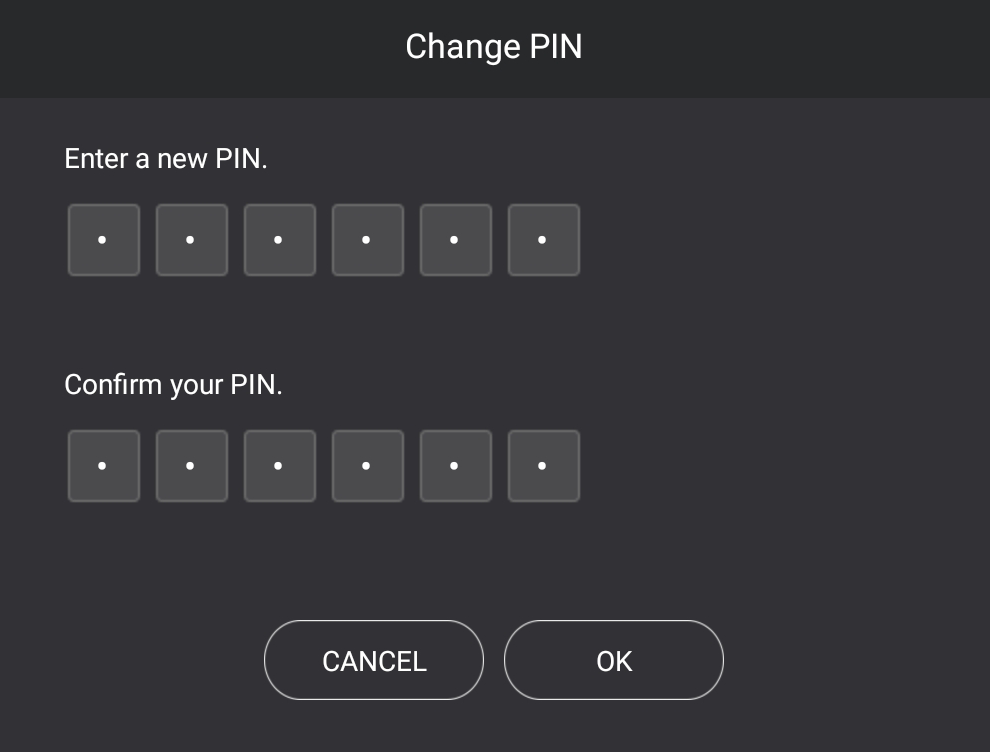
- After entering new PIN number, press OK.
- PIN number is changed.
- When setting is complete, press OK.
View spot information
You can check for the version and license of the spot that has been installed.
- Select > information.
- Check for the desired information.
- To check for license information, press open source license.
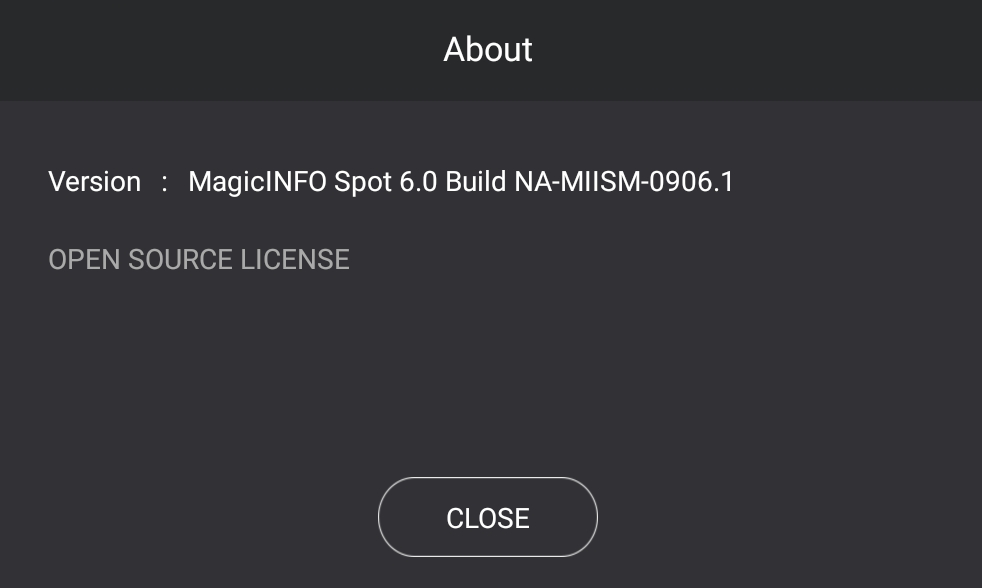
- Then, press Close.