Spot Quick Start: Set Up in Five Steps
Follow the method for establishing spot user environment, making operation detection box, and designating contents page to become familiar with the spot.
Preparation
--- |
| Hardware | ||
| Samsung Signage | ||
| Tablet - Android Lollipop 5.0 or above - Resolution of 1280DP is recommended | Camera - Intel Real Sense D435 | |
| MagicINFO Server 6 | Premium Author | MagicINFO I Player 6 |
Step 1. Installing camera
Connect the camera to USB 3.0 port on the PC. Depending on operation detection area, attach it on Signage or use holder to install it on desired location. For details, see Connecting the camera to the PC.
Step 2. Connecting player
- Connect the tablet where spot manager is installed to the AP that is connected to PC.
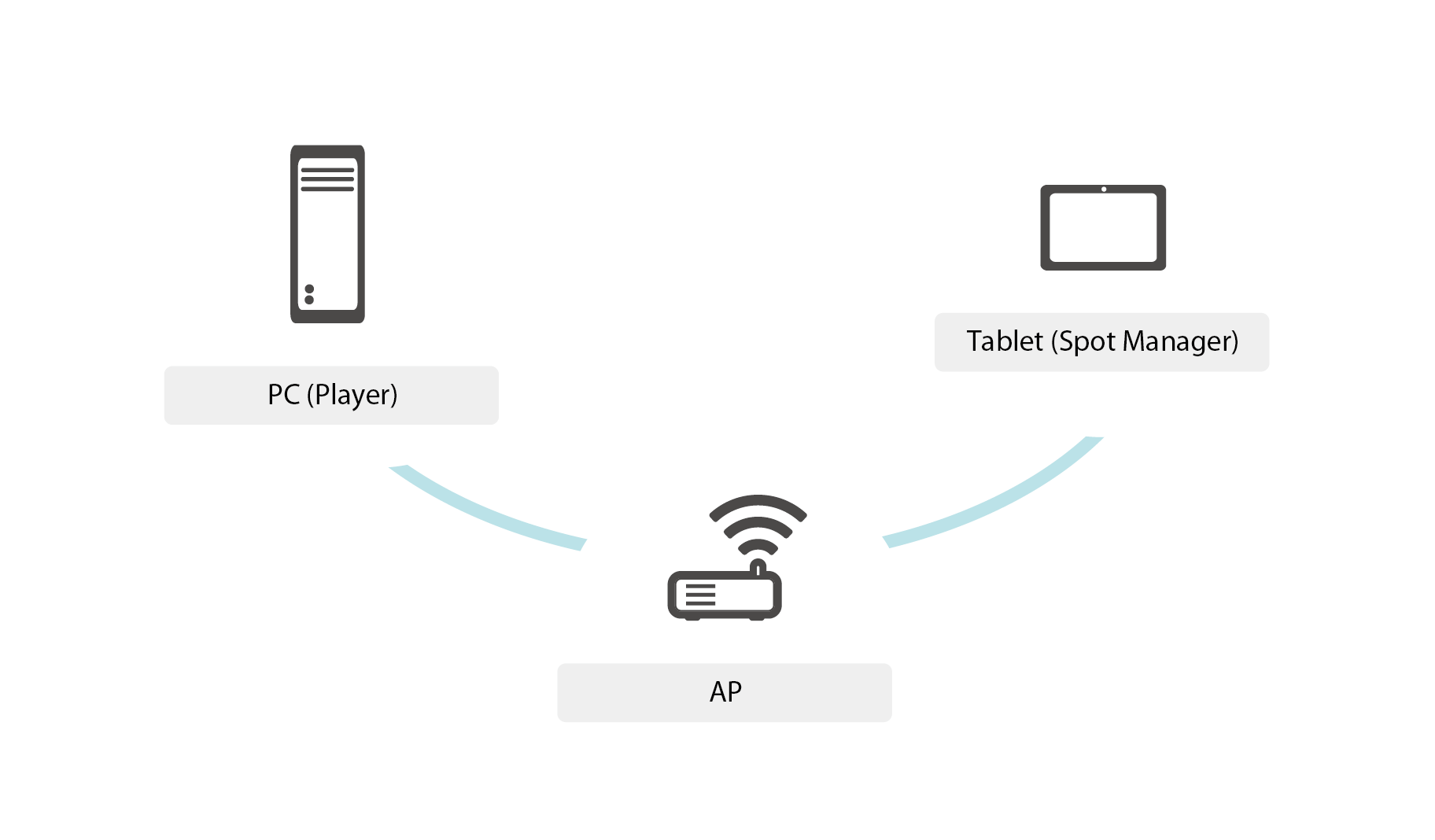
- Execute spot manager and select the player thumbnail that you wish to connect.
For details, see Connecting player.
Step 3. Making and distributing contents
Contents that are played using spot can be made and distributed using server or author.
ex) Making and distributing contents from server
- Log in to server (http://(MagicINFO Server IP):(port)/MagicINFO) and click
 (contents) > Make contents from main menu list.
- When web author is executed, apply setting to device type, support device, and resolution.
- Click Make for making contents. Contents should be composed in several pages.
- When contents making is complete, select
 to save the contents.
- From main menu list, click
 (Schedule) > Generate schedule > Contents.
- After completing initial schedule setting from schedule window, click on Generate.
- Drag the contents to desired date and time and click on Save.
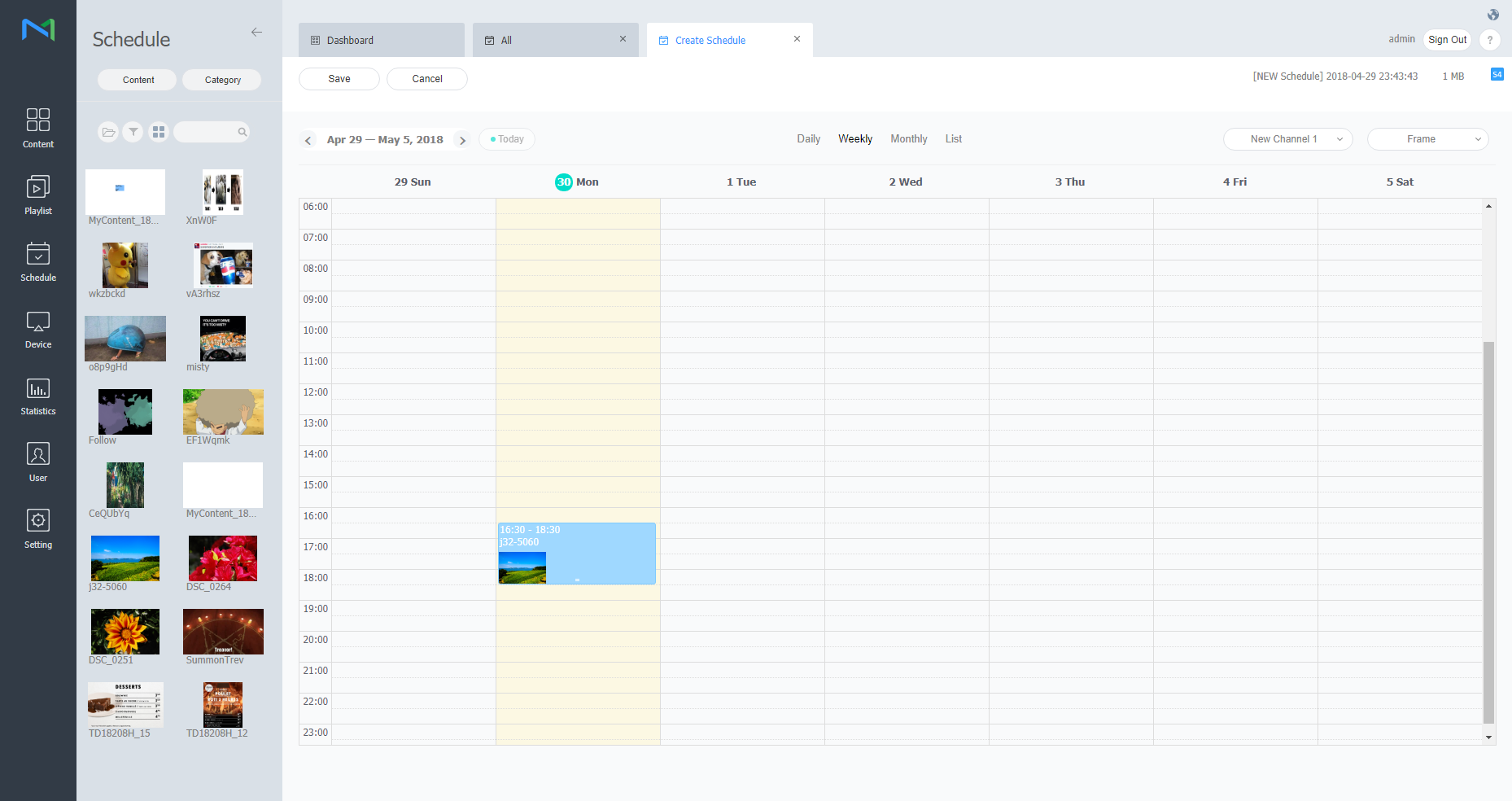
ex) Making and distributing contents from author
- From menu bar of the author program, click File >Create new contents and apply setting for contents information. Then, click Generate.
- Start making contents. Contents should be composed in several pages.
- When contents making is complete, select File >Save or Save as from menu bar to save the contents.
- Select File > Distribute from menu bar.
- When distribution task window is displayed, apply setting to each item.
- When setting is complete, click on Distribute.
Step 4. Making operation detection box
You can use spot manager to add the virtual box for detecting operation on the screen area that is shown on the camera.
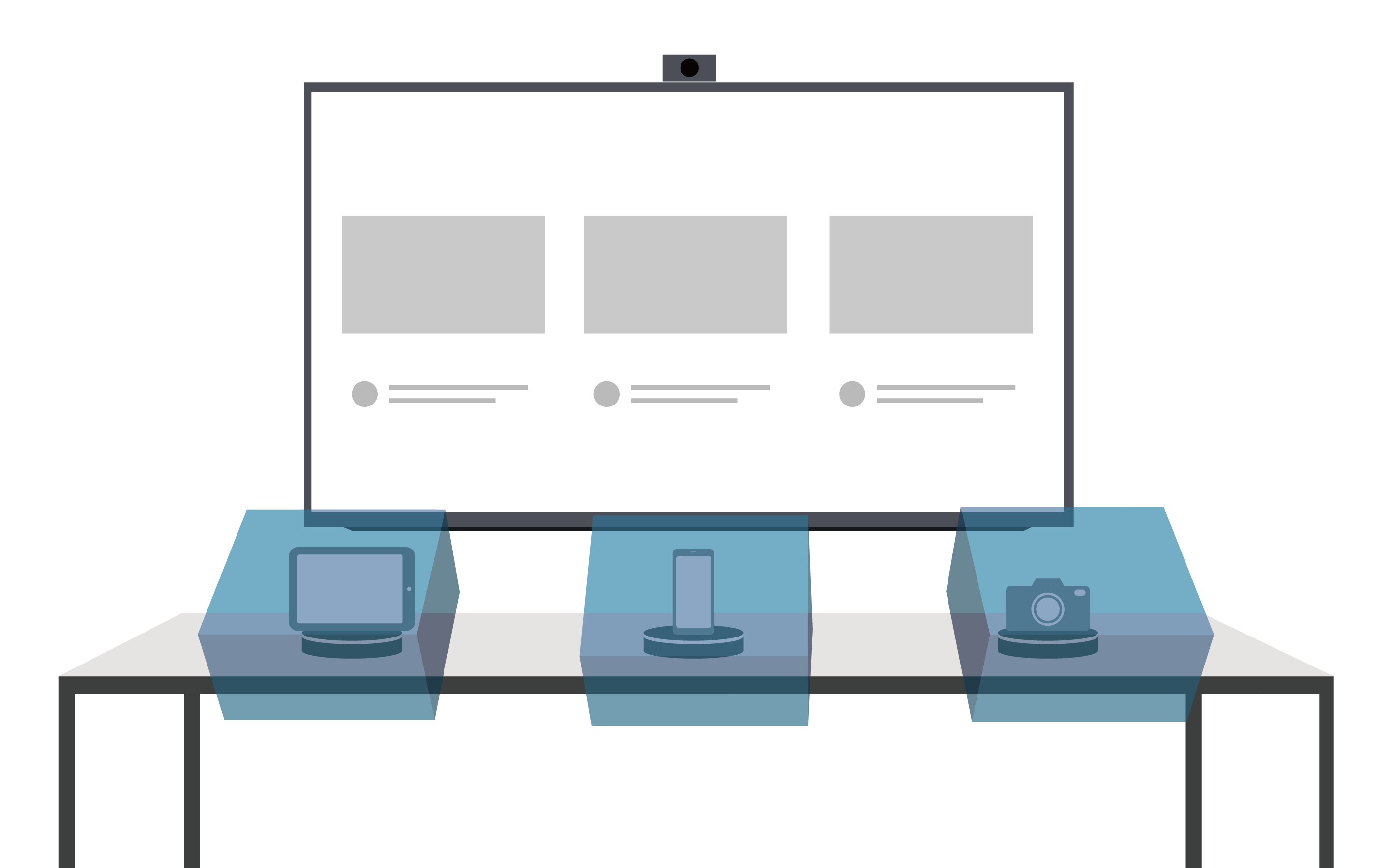 For details, see Making operation detection box.
Step 5. Mapping contents page on operation detection box
You can use spot manager for mapping the desired contents page on operation detection box. When operation moving into or moving out of box is detected, mapping page is played. For details, see Mapping contents page on operation detection box.