Using Spot Manager
A virtual box for detecting operation in a certain area can be added and connected to the desired content page for each corresponding area. Press the thumbnail of the desired player in the player list to open the edit screen for setting the Spot function on that player. The topics in this section cover creating and editing detection boxes and mapping content pages onto them.
Looking into screen configuration
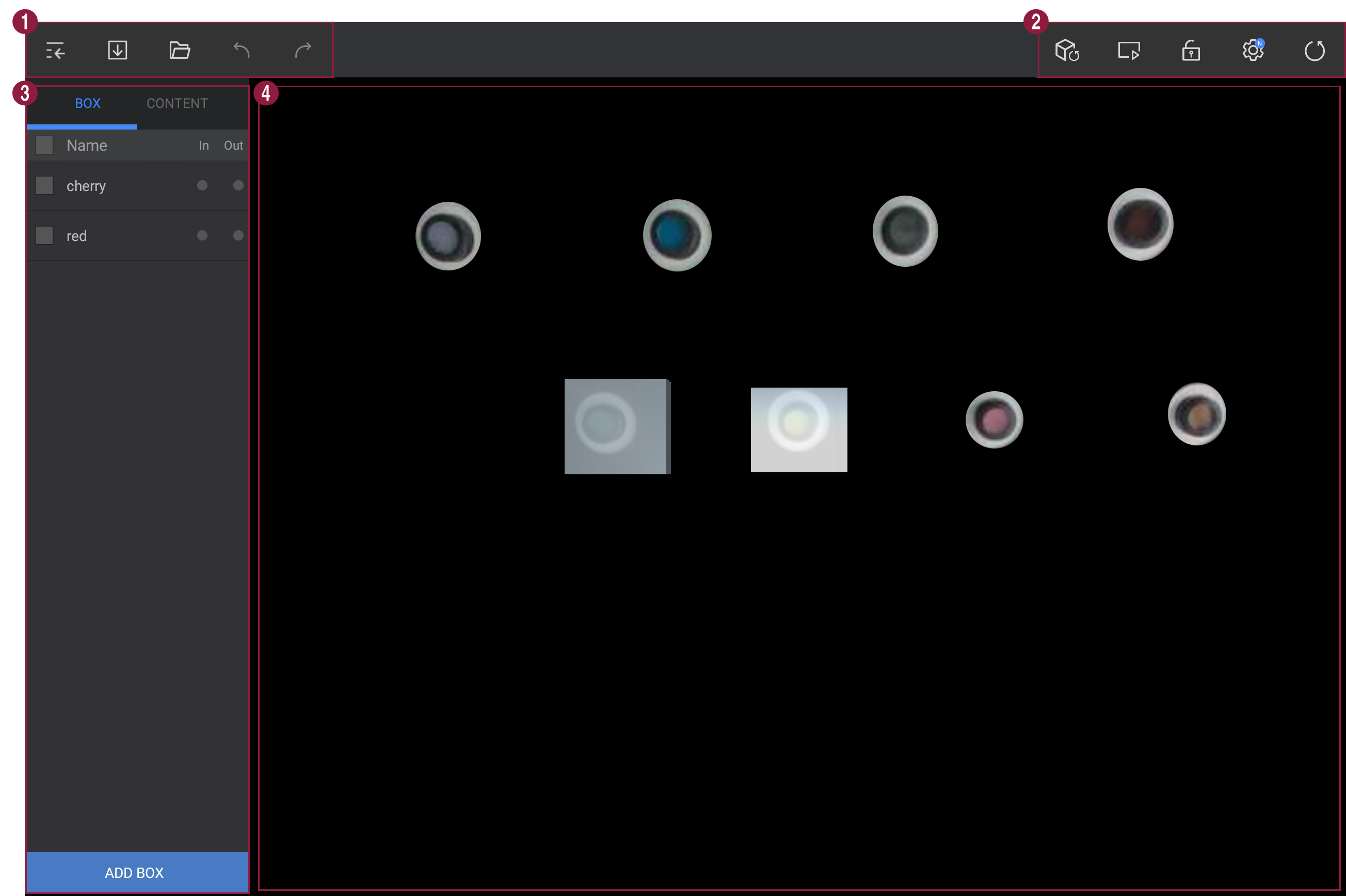
| Item | Description |
|---|---|
| 1 | Toolbar: the Box/Contents tab area can be closed  and reopened  , the current setting value can be saved  , a saved setting value can be loaded  , and you can undo  the work to return to the previous status or redo  it again. |
| 2 | Camera view: displays the screen shown by the camera  . The player screen can be switched  between playing content and the Spot camera screen (see Switching player screen). You can fix the camera screen  so it does not rotate when dragging, reverse the camera screen vertically or horizontally, or set a PIN number  (see Inverting camera screen and Setting the PIN number). You can also renew the screen  when an object has been added to the camera area, or when the camera angle or location has changed. |
| 3 | Box tab: lists the virtually generated operation detection boxes, showing each box's name and whether a content page has been designated. Press Add Box to generate a box of the desired size in the angle area where operation will be detected. Contents tab: shows the pages of content distributed to the player as thumbnails. Press Home Screen Setting to set the content page played when no operation is detected for a designated time. |
| 4 | Angle area: shows the camera screen together with the virtual operation detection boxes. Drag in the desired direction to change the angle. |
What's in this section
| Topic | Description |
|---|---|
| Making operation detection box | Add a virtual detection box in the camera view, then move, resize, rotate, rename, tag, or delete it. |
| Mapping contents page | Assign content pages to a box's IN and OUT events, work with automatically generated sub-boxes, and set the home screen page. |