MagicINFO Mobile: Edit Device Settings and Control
You can check for detailed information of the device that is registered to MagicINFO Server or modify the setting.
- Select the device you wish from the device list.
- Press Modify.
- Select the tab you wish and check for detailed information or control the device.
In practice
- The values on these tabs are the last ones the server read from the display. They refresh when you press Current Status or when the display reconnects, not on its regular check-ins, so an old value after Save usually means "not read yet", not "rejected".
- A display in network standby refuses live reads and commands. Switch it on before you judge whether a change was applied.
- A date and time set here does not last if the time zone is wrong: every 30 minutes the server sends the screen UTC, and the screen adds its own zone and DST. Fix the zone on the Setting tab instead.
Editing device information
- Select Information tab from Modify device screen.
- View and edit information and click Save. To refresh the current device status, click Current Status.
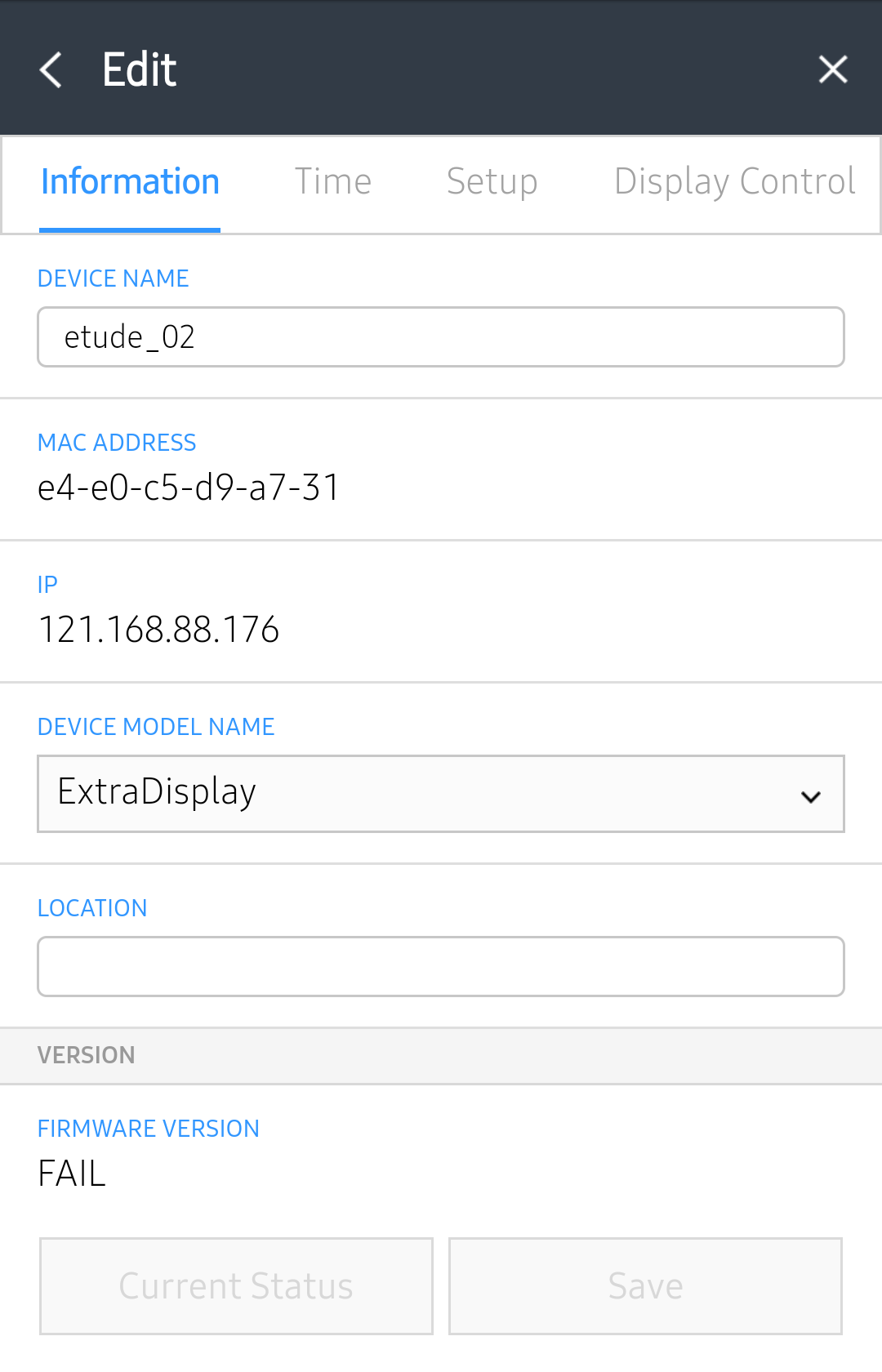
| Item | Description |
|---|---|
| Information | Device Name: Change a device name. MAC Address: View the MAC address for the device. IP: view the IP address. Device Model Name: Edit the device model name. Location: Edit the device location details. |
| Version | Firmware Version: View the device's firmware version. OS Image Version: View the device's OS image version. Client Program Version: View the device's client program version. |
| System | CPU: View the device CPU information. Memory Size: View the device memory capacity. Storage Size: View the storage size of a device. Video Adapter: View the device's graphics card information. Video Memory: View the device's graphics memory capacity. Video Driver: View the device graphics driver information. |
| Storage Size | Disk Space Usage: View disk space in use. Available Capacity: View available disk space. |
| ETC | Approval Date: View the approved date for the device. Screen Size: View the device screen size. Resolution: View the device screen resolution. Code: View the device code. Serial Key: View the device's serial key. |
Modify time information
- Select Time tab from Modify device screen.
- View and edit information and click Save. To refresh the current device status, click Current Status.
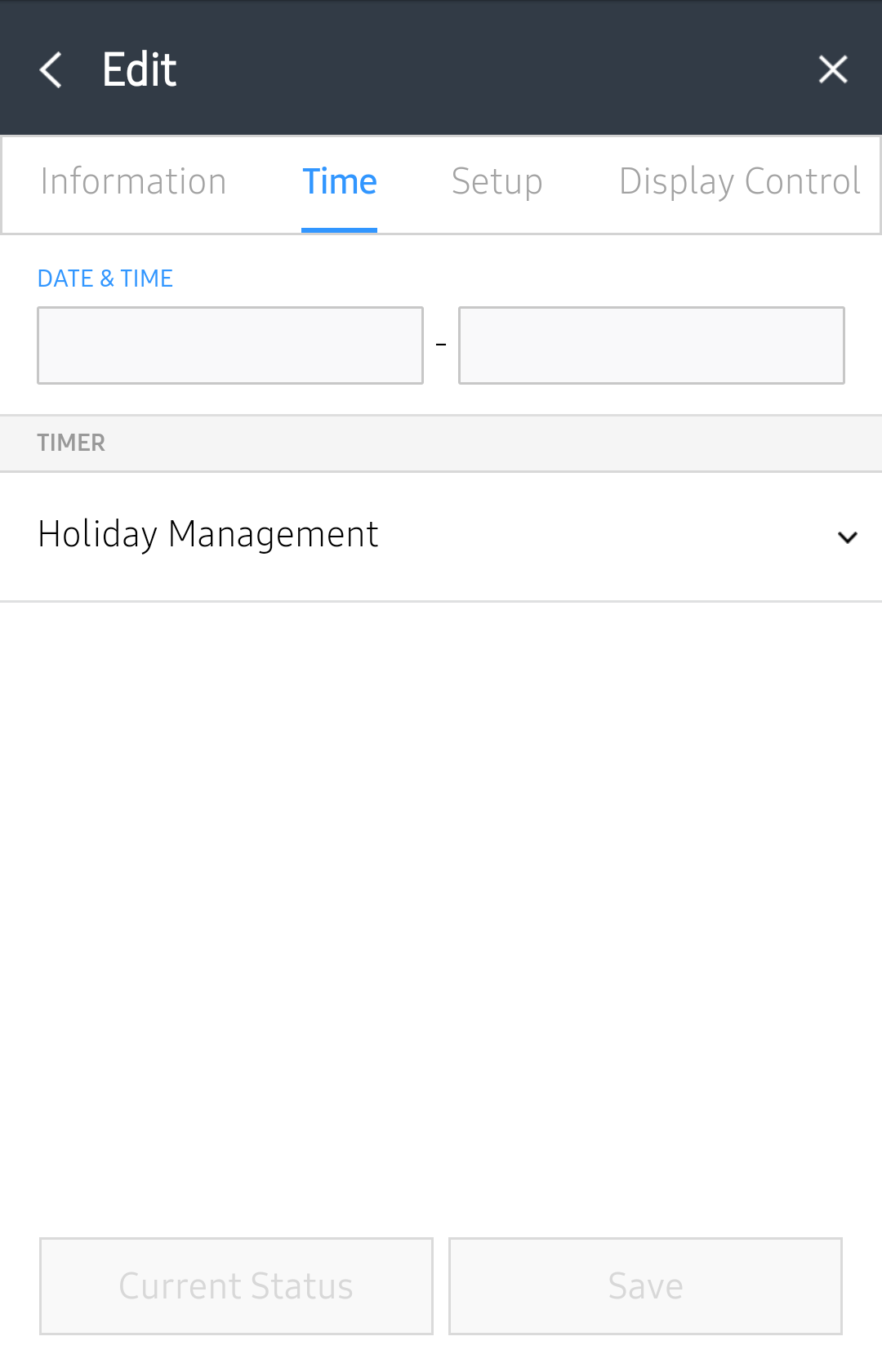
| Item | Description |
|---|---|
| Date & Time | You can set today's date and time that will be applied on the device. |
| Timer | Holiday management: Set holidays to prevent the device from operating on specified days. |
Modify setting information
- Select Setting tab from Modify device screen.
- View and edit information and click Save. To refresh the current device status, click Current Status.
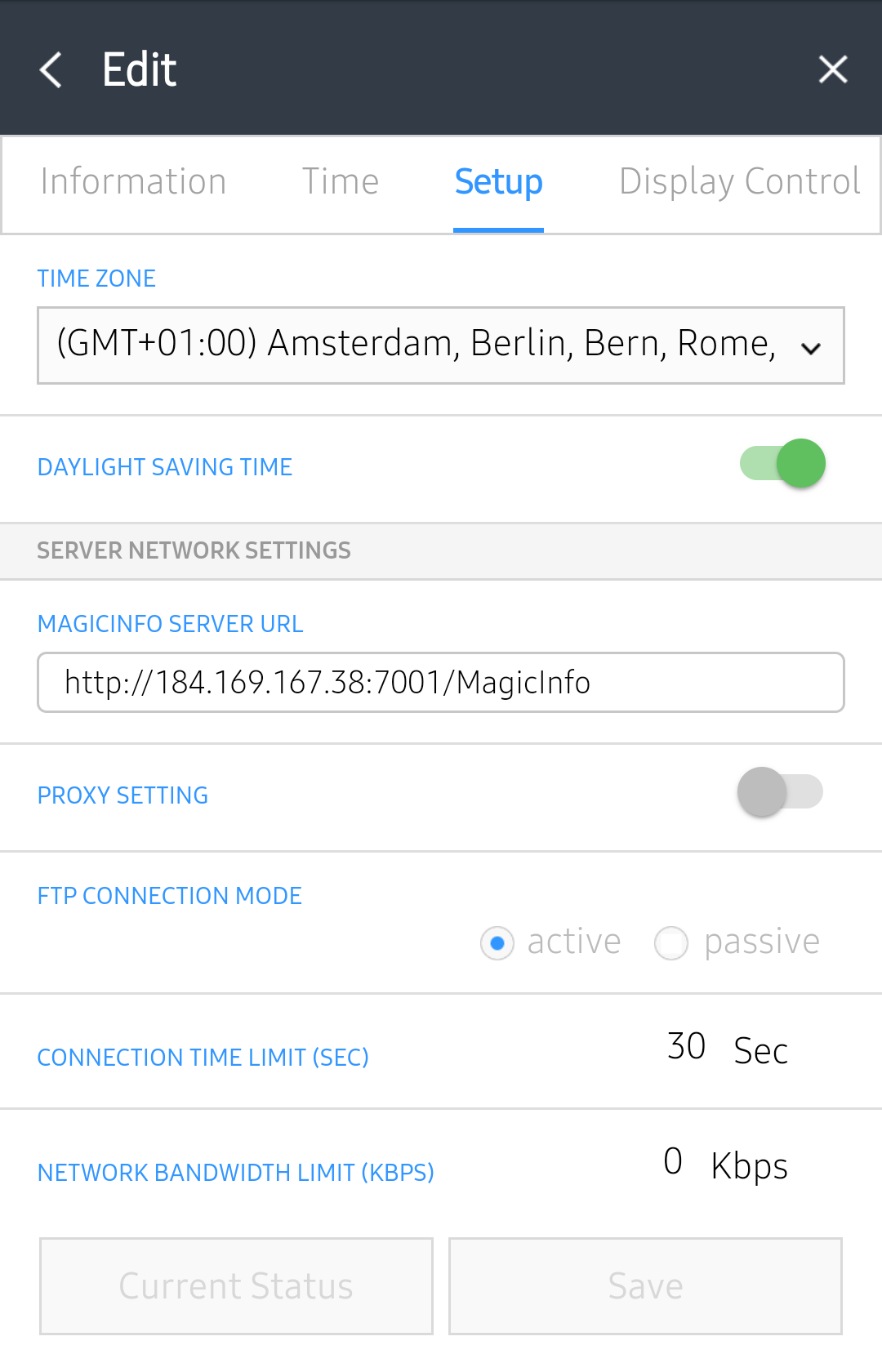
| Item | Description |
|---|---|
| Time Zone | Select a time zone for each city. |
| Daylight Saving Time | Turn daylight savings time mode on or off. To use daylight savings time mode, configure start and end settings. |
| Server Network Settings | MagicINFO Sever URL: Set MagicINFO Server address. Proxy Setting: Enable or disable the proxy server. Edit the settings if required. FTP Connection Mode: Configure the FTP connection mode. Connection Time Limit: Set timeout options to disconnect from MagicINFO Server if communication with the FTP server is not available for a specified period of time. Network Bandwidth Limit: Limit the bandwidth for the server network to connect. |
| Period | Triggering Interval: Specify the triggering cycle. Monitoring Interval: Specify the monitoring cycle. Screen Capture Cycle: Specify the screen capture cycle. The range is 1 to 180 minutes. PDFConversion interval: Set the time interval for each device to switch to another page in a distributed PDF document. This option is available when the document contains more than one page. Office Conversion interval: Set the time interval for each device to switch to another page in a distributed Office document. This option is available when the document contains more than one page. System Restart Interval: You can set the interval for restarting the system. |
| Tag | Tag: Add tags to devices. |
| Content Download Status | Setup: Download content from Edge Servers only. Interval: Set content downloading intervals. Job Unit: Set the unit for download intervals to seconds or percentage. |
Control device
- Select Control display tab from Modify device screen.
- View or modify the desired information and then click Save. To update
the current device status, click Current Status.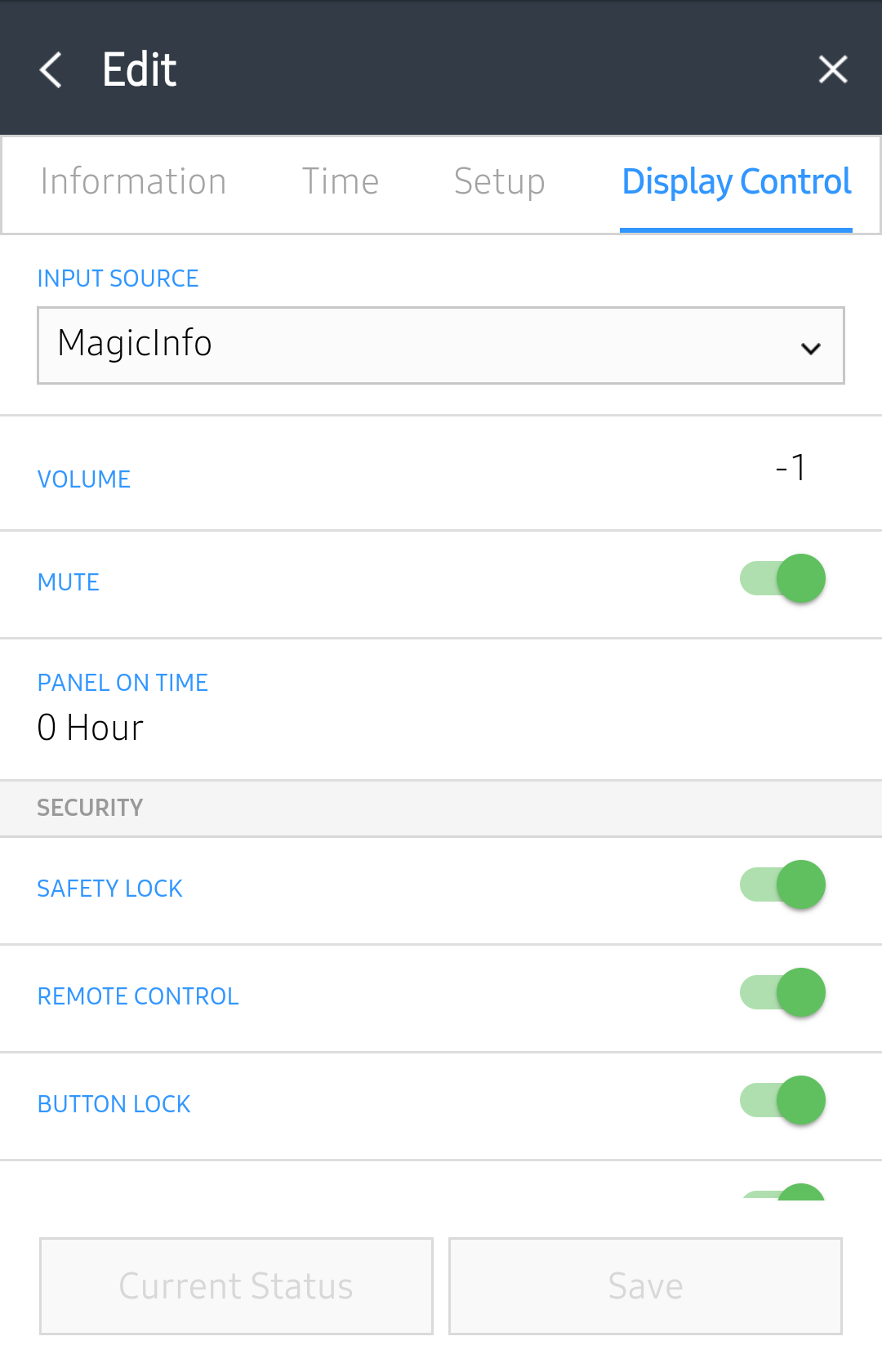
Remote control
Control devices and process data from a remote location. S Player does not support Remote Job feature. For details related to remote control, see Setting Remote Job.