MagicINFO Mobile: Browse and Manage Content
Add content files to distribute to devices added to the server and manage the files by category.
Select  >Content > List. Content files are displayed as a list.
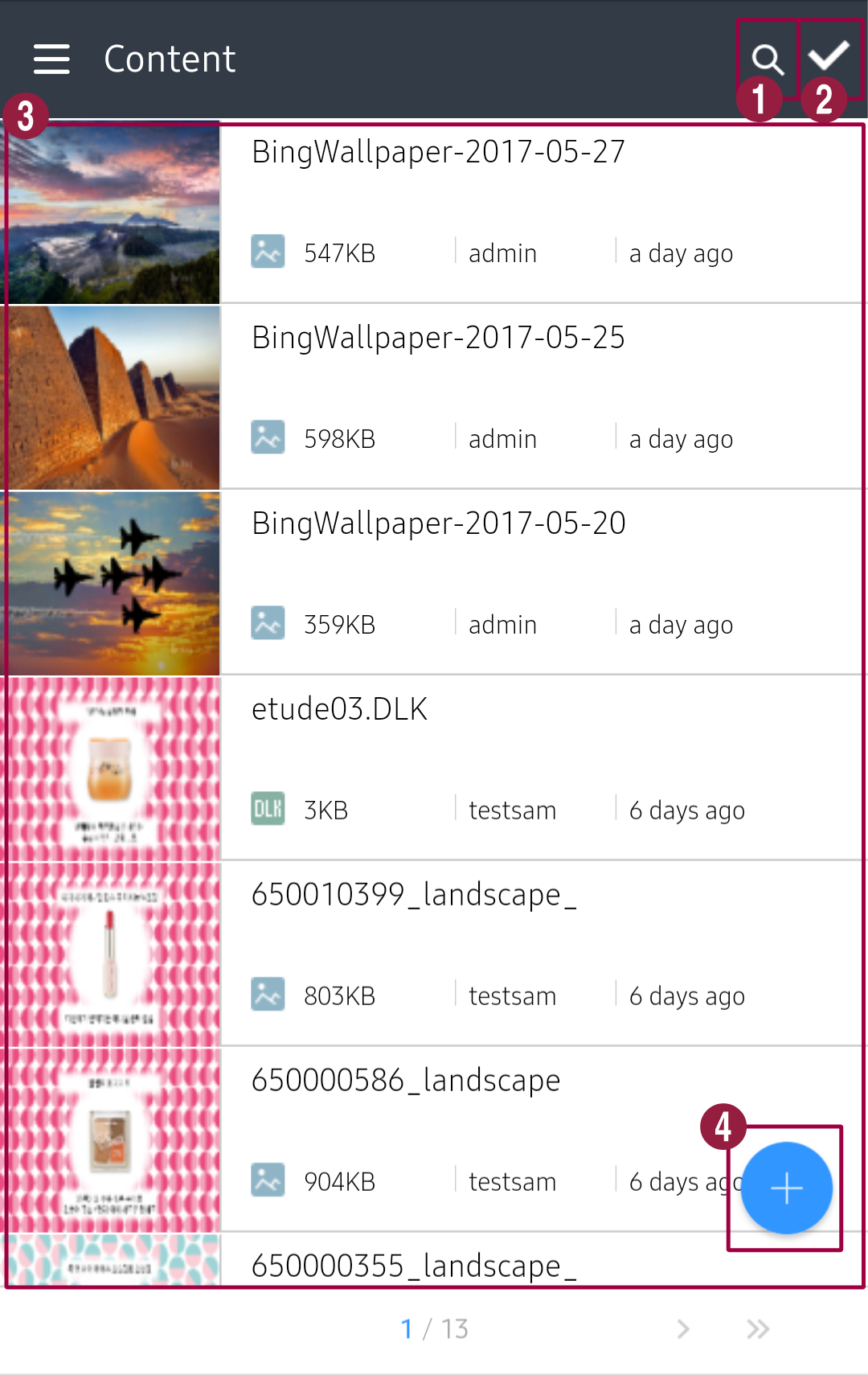
- Search content. Enter a keyword in the search box.
- Select content from the list. To select all content items, press Select All. To delete the selected content, press Delete.
- Content items registered in the server are shown. Press specific content to view the content details.
- Add or delete content. Upload content to the server. For details, see MagicINFO Mobile: Upload Content from a Phone.
Filtering the content list
Tap  in the content list, choose a condition on each tab and press Apply. Press Reset to clear the filters.
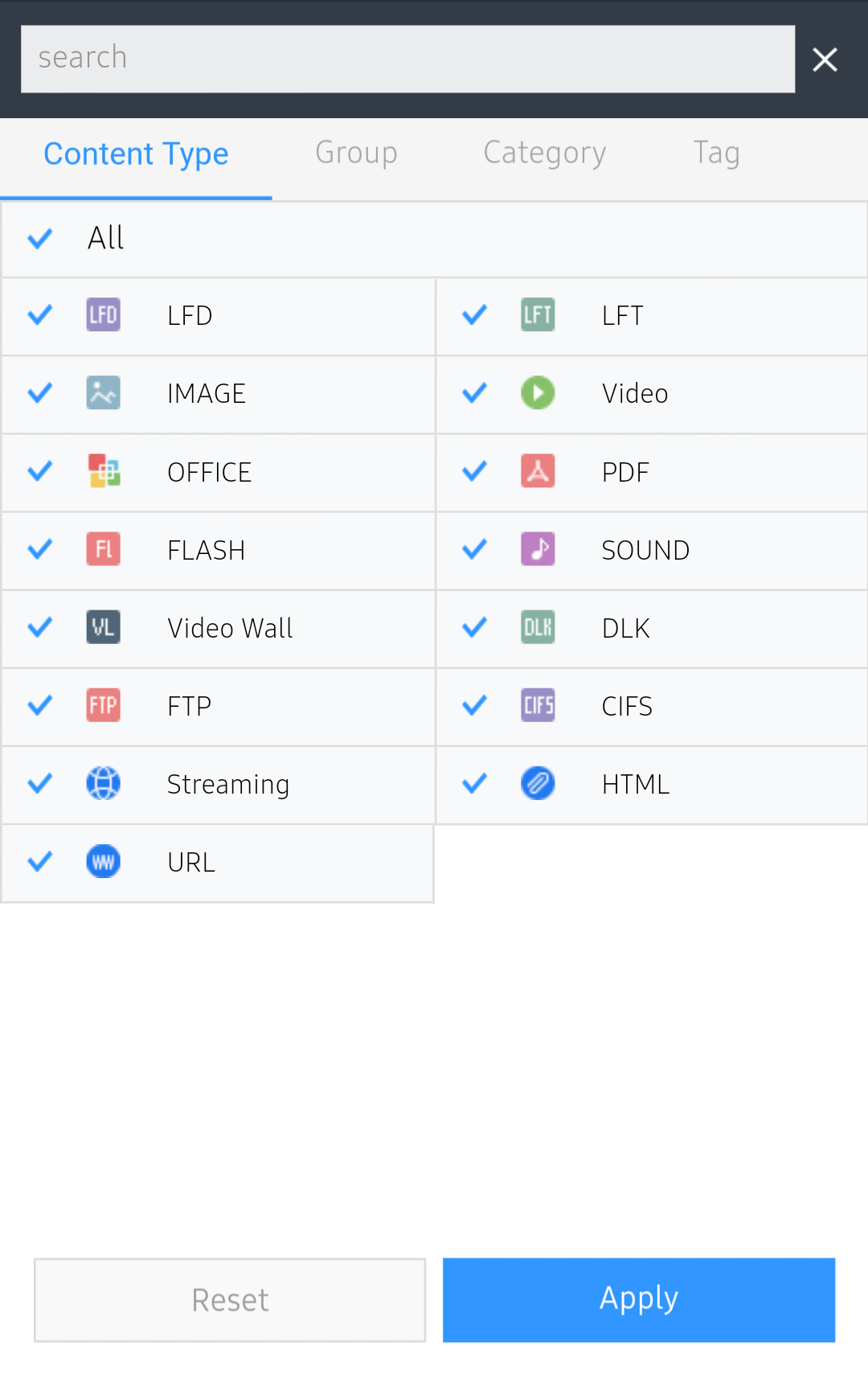
| Tab | Filters content by |
|---|---|
| Content Type | Content type. |
| Group | Group. Groups can only be created and edited in the desktop web console. |
| Category | Category. Categories can only be managed in the desktop web console. |
| Tag | Tag. Tags can only be managed in the desktop web console. |