Upgrade MagicINFO Server V3 to V4 (Legacy)
This page is for the few servers that still run MagicINFO Server V3, an old version. It covers the classic in-place move to V4 on the same computer and keeping the existing settings, content and display registrations. If you are already on V4 or later, use Updating MagicINFO Server instead.
First, decide: upgrade or start fresh?
Going from V3 to a current MagicINFO 9 build means several steps: the server version, the database version and the Windows version all have to move forward, and each step has its own preconditions. The current build also asks for a much newer database (see System requirements).
If the V3 server has few users and few displays, a fresh installation is often faster and cleaner:
- Install the current build on a supported Windows computer, following Basic MagicINFO Server installation.
- Upload your content again and rebuild the schedules.
- Point the displays at the new server and approve them again.
Keep the upgrade route below when the V3 server holds a lot of content, schedules or users that you cannot easily recreate.
The scenario
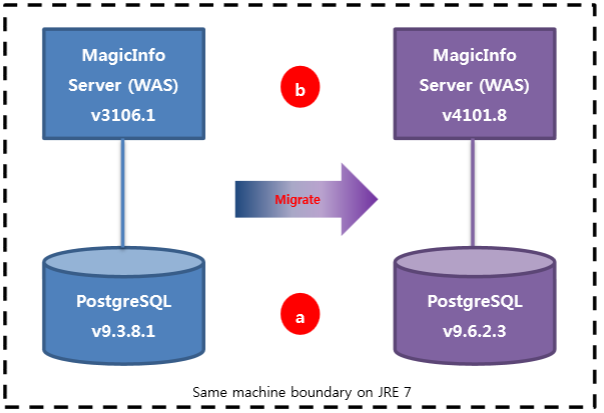
The diagram shows the case this page covers: one computer running MagicINFO Server V3 on PostgreSQL 9.3 becomes, on the same computer, MagicINFO Server V4 on PostgreSQL 9.6. The order matters:
- a. Upgrade the database first, if it needs it. MagicINFO V4 recommends PostgreSQL 9.5 or later.
- b. Then upgrade the MagicINFO server (the web application server, "WAS").
Done this way, the settings are kept and displays are offline only for the time the service is stopped.
Before you start
- Take a full backup or a snapshot of the computer. Do not start without one.
- Note the database user name and password that MagicINFO uses. You need them for the restore and the installer needs them later. If the installer stops at the database step with "password authentication failed", nothing has been changed and the old version keeps running: correct the user name or password and run it again.
- Check that the computer meets the requirements of the V4 build you are installing.
- Plan a maintenance window: displays cannot reach the server while the service is stopped.
Step a: upgrade PostgreSQL
Skip this step if the server already runs PostgreSQL 9.5 or later.
1. Back up the database
- Stop the MagicINFO service in Windows Services, so nothing writes to the database during the backup.
- Open pgAdmin, which is installed together with PostgreSQL, and sign in with the database password.
- In the server tree, right-click the
magicinfodatabase and choose Backup. - Enter a file name for the backup and click Backup.
- Check that the backup file exists and is not empty. Copy it off the server as well.
2. Install the newer PostgreSQL
- Run the installer of the newer PostgreSQL version as an administrator.
- Give it the same port that MagicINFO connects to (PostgreSQL's default is 5432). If the old PostgreSQL still holds that port, stop or uninstall the old version first, only after the backup has been checked.
- Set the superuser password and note it.
3. Restore the database
- Open pgAdmin and connect to the new PostgreSQL server.
- Create the database user (login role) that MagicINFO uses, with the same name and password as before.
- Create a database named
magicinfo, owned by that user. - Right-click the new
magicinfodatabase, choose Restore, select the backup file and start the restore. - When it finishes, check that the tables are there, for example by opening the user table and finding your admin account.
Start the MagicINFO service again and sign in to make sure the old version works on the new database before you continue.
Step b: upgrade MagicINFO Server
- Download the V4 installer you are moving to.
- Run it as an administrator. Installers from v4.1 onwards first check whether the computer is ready for the upgrade; fix anything it reports before you continue. See Upgrade pre-check.
- Let the installer complete. It upgrades the existing installation and restarts the service, which can take several minutes before the web console answers.
- Clear the browser cache on every computer that opens the console, otherwise the old pages can mix with the new ones.
- Sign in and check that users, content, schedules and displays are all there, and that displays reconnect.
After V4
From V4 you can continue to later versions with Updating MagicINFO Server. Read the release notes of each target build before you run it: some builds require a specific PostgreSQL version first, which you upgrade with the same back up, install, restore steps as above. To see which build you are on at any point, use Finding the MagicINFO version.