Clustering: Separate Database, WAS and Proxy Servers
MagicINFO Server normally runs as one installation: the web application (WAS) and its database on the same Windows computer. For larger networks you can split it into separate roles and run several WAS nodes side by side behind a load balancer. This page explains when that is worth doing, the order to build it in, and the settings that must match on every node.
Do you need a cluster?
Usually not. A single server, sized for your device count, is simpler to run, back up and upgrade, and it is what most installations use. See Server Sizing for hardware by number of devices.
Consider splitting when:
- the database needs its own machine, for capacity or because your organization runs databases on dedicated servers, or
- one WAS can no longer carry the load and you want several WAS nodes sharing the work.
Moving only the database to its own server is the smaller step: install the DB part on one machine and the WAS part on another, and stop there. The cache, shared storage and proxy are needed only once you run more than one WAS node.
The parts of a cluster
| Role | What it is | How many |
|---|---|---|
| Database server | PostgreSQL or SQL Server holding the MagicINFO database | One |
| WAS nodes | MagicINFO Server installed with the WAS feature | One or more |
| Storage server | A Windows share holding the runtime folders (content, uploads, thumbnails) that every WAS node reads and writes | One, when there are several WAS nodes |
| Cache (memory) server | Memcached or Redis, shared by the WAS nodes | One or more, when there are several WAS nodes |
| Proxy / load balancer | HAProxy, Nginx or similar, the single address browsers and displays connect to | One |
Build order
1. Database server
Run the MagicINFO Server installer on the database machine and choose Advanced Install with the DB feature. Write down the database name, user ID and password you set; every WAS node needs exactly these values. The installation screens are described in How to Install MagicINFO Server.
2. WAS nodes
On each application machine, run the installer with Advanced Install and the WAS feature, and point it at the database server when it asks for the database details. Make sure the database server's firewall lets each WAS node in.
3. Cache server
Install Memcached or Redis by following that product's own documentation. MagicINFO only needs to know where it is (see the cache settings below).
4. Shared storage
The WAS nodes must all see the same content files, so the runtime folders live on one shared location.
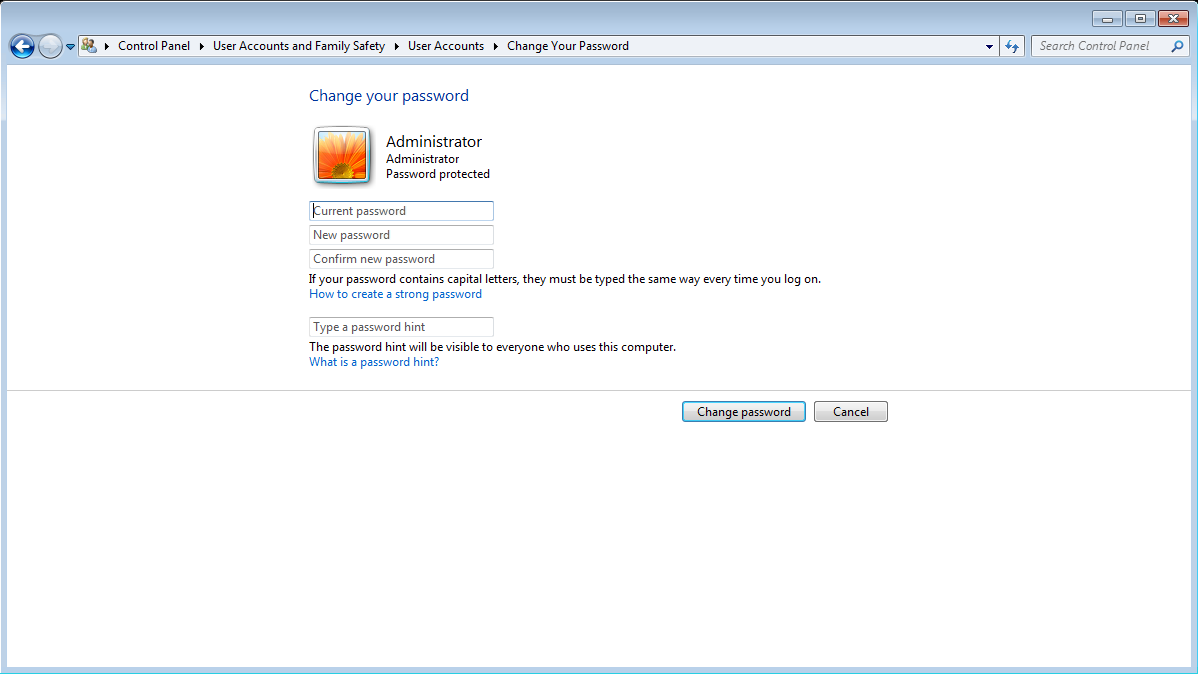
- On the storage server, set the Windows administrator password to the same password as the account used on the WAS (Tomcat) servers, so the MagicINFO service on each node can authenticate to the share. (Control Panel > User Accounts > Change your password.)
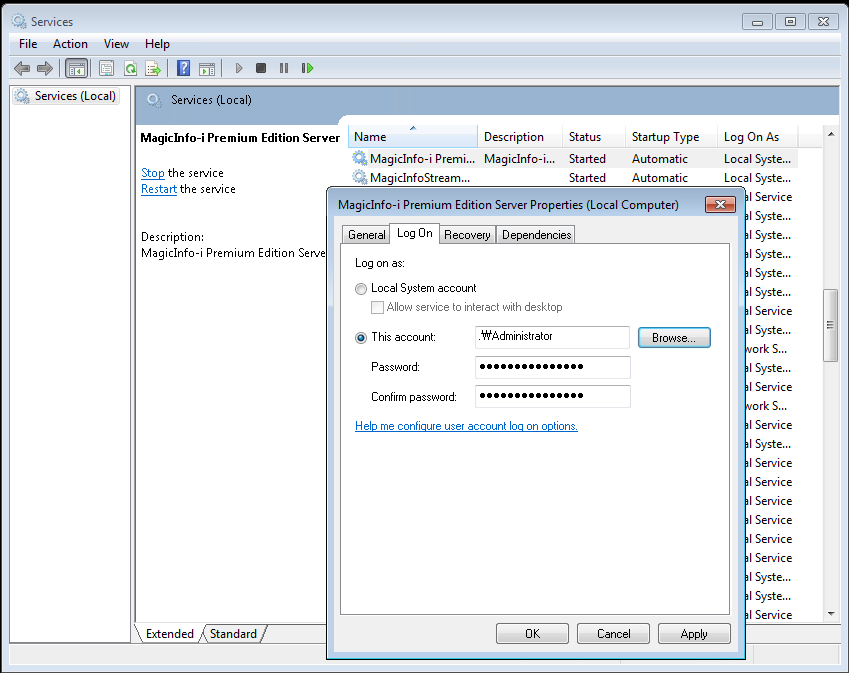
- On each WAS node, open Services (Control Panel > Administrative Tools > Services), open the MagicINFO server service and set the account password it logs on with.
- On the storage server, share the runtime folder.
5. Proxy / load balancer
Install HAProxy, Nginx or another load balancer in front of the WAS nodes. From then on, browsers and displays use the proxy's address, not a node's.
Points that matter for Samsung displays:
- Talk HTTP/1.1 to displays. Samsung displays expect HTTP/1.1 from the server. Do not offer them HTTP/2 on the side facing the displays.
- Keep a default destination. Some older display models send the host name
www.rmdevice.samsung.cominstead of your server's name. If the proxy routes by host name, make the MagicINFO nodes its default destination so these displays still arrive. - Health check.
GET /MagicInfo/openapi/auth?cmd=isMagicInfoanswers with a short version number when a node is up, which makes it a convenient check URL. Expect these checks to appear in the access log next to real traffic.
Settings that must be identical on every WAS node
All of these are in each node's config.properties (by default C:\MagicInfo Premium\conf\config.properties). Back the file up before editing, edit it on every node, and restart the MagicINFO service on each node afterwards; a restart takes several minutes. The key names below must be typed exactly.
Database connection
Every node points at the same database server:
wsrm.urlwsrm.usernamewsrm.passwordorg.quartz.dataSource.databaseDS.URLorg.quartz.dataSource.databaseDS.userorg.quartz.dataSource.databaseDS.password
Cache
With Memcached, list every cache server, separated by a space:
cache.type = memcached
memcached.use = Y
memcached.url = 192.0.2.21:11211 192.0.2.22:11211
With Redis, point to a Redis configuration file:
cache.type = redis
redis.config = <path to the Redis config file>
Shared runtime storage
Set each of these to the matching runtime path on the storage server:
CONTENTS_HOMEJOBS_HOMEUPLOAD_HOMEIMAGE_HOMETHUMBNAIL_HOMEVWT_HOMEMDD_HOME
If one node keeps a local path, content uploaded through that node is invisible to the others.
WebAuthor and load balancer
Point WebAuthor at the proxy address:
webauthor.web_urlwebauthor.web_url_public
Tell MagicINFO it sits behind a load balancer, with the port browsers use:
loadbalancer.enable = true
loadbalancer.port = <browser port>
Multi-server mode
multiple.server.enable = true
Common problems
Content uploaded on one node is missing on another. One of the *_HOME paths still points at a local folder, or the service account on that node cannot open the share. Compare the storage settings across nodes and check the service log-on password.
A node starts but shows different data. Its database settings differ from the others. Compare the six database keys on every node.
Displays connect to one node but not through the proxy. Check that the proxy speaks HTTP/1.1 towards the displays, that the TLS setting and port on the display match what the proxy offers, and that the proxy has a default destination. See MagicINFO ports explained.
Upgrading a cluster. Upgrade and back up every part, database included, in one planned window; see Before You Upgrade. Re-check config.properties on each node afterwards.
Checked against MagicINFO Server 9, October 2026.