Edit a User: Group, Role and Temporary Password
Viewing detailed user information
- In the user list, view user information and click a user ID for which you want to edit information.
- View the information. Edit the information as needed and click Save.
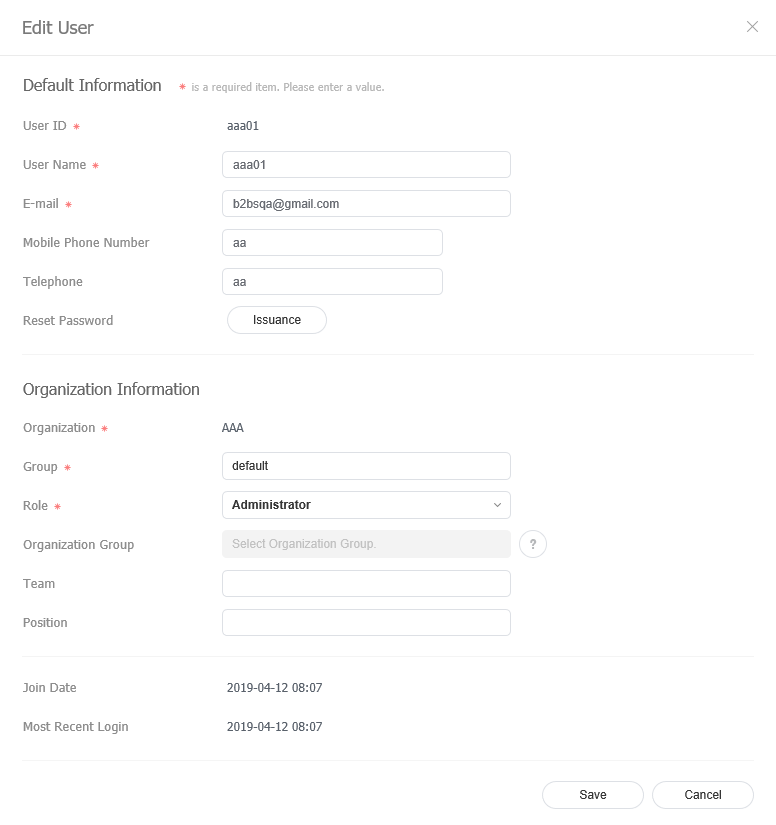
Changing a user group
Change the group of a user from the user list. Only the general administrator and organization administrators can change user groups.
- In the user list, click a user ID for which you want to change the group.
- In the detailed user info window, click Group.
- Select the new group name and click Save. The group of the user will be changed.
Enter a group name in the search box to search for a specific group.

Changing a user role
Change a user role from the user list.
- The general administrator and organization administrator role cannot be modified.
- The general administrator and organization administrators can add and manage roles. For details, see Managing roles.
- In the user list, click a user ID for which you want to change the role.
- Select the Role from the drop-down list and click Save. The role of the user will be changed.
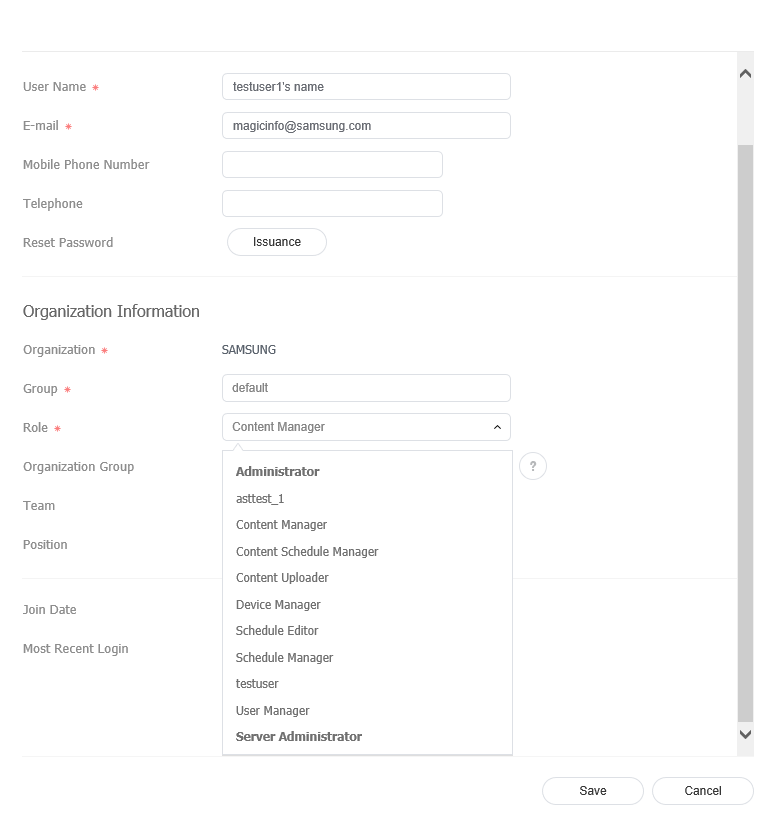
- Administrator: Authorized to manage overall matters of their organization.
- Content Manager: Authorized to access and manage the content-related menu items.
- Content Schedule Manager: Authorized to retrieve and manage content and schedules.
- Content Uploader: Authorized to create content and playlists.
- Device Manager: Authorized to access and manage the device-related menu items.
- Schedule Editor: Authorized to create and edit content schedules and message schedules.
- Schedule Manager: Authorized to access and manage the schedule-related menu items.
- User Manager: Authorized to access and manage the user-related menu items.
Issuing temporary passwords
The administrator can issue a temporary password to a user that has lost their password.
- To use this function, go to Setup > Server management > Server Settings > and select the Enable Alarm Mailing checkbox.
- After obtaining a temporary password, make sure to change the password after login. Otherwise, a warning message that the password should be changed will appear each time you log in.
- In the user list, click a user ID for which you want to issue a temporary password.
- In the detailed user info window, click Issuance from Reset Password.
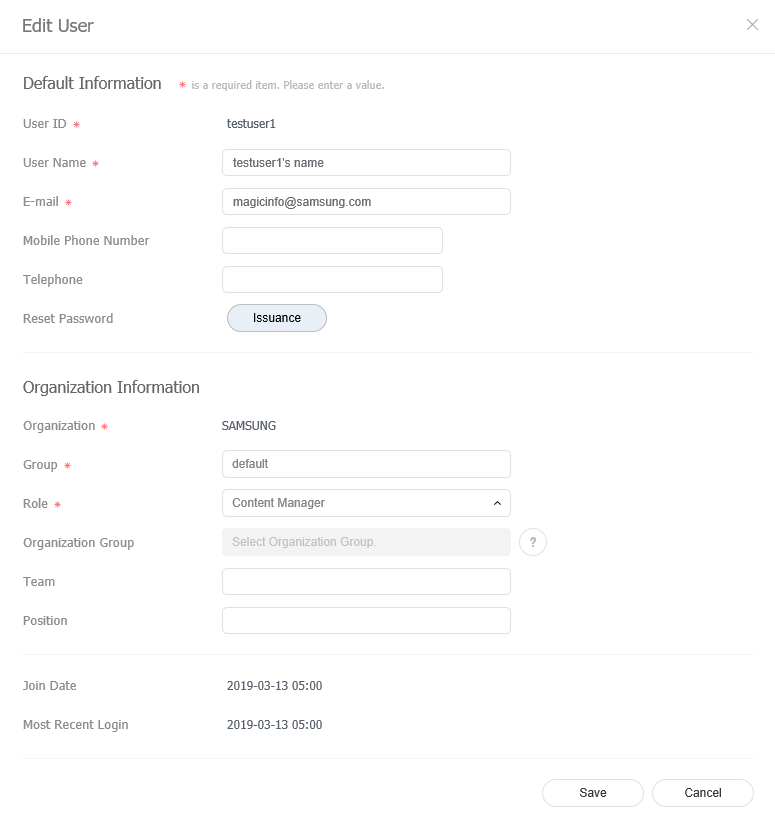
- Click OK in the issue confirmation dialog box.
The temporary password is sent to the e-mail address registered for the user, so check that the address is correct before you issue it. The user's mobile phone number can be changed in the same user window.