Activate a MagicINFO Server License (Full or Trial)
A newly installed MagicINFO Server does almost nothing until a license is active: most menus stay locked. You activate it once, from the web console, with either a purchased license key or a free trial license. Both can be done online, which takes a minute, or offline, which needs one extra exchange with the license provider.
Open the license page from the main menu: Setting > License Info (the menu is called Setup in some builds). Later changes, such as adding devices to a key or returning a license, are covered in Manage Licenses.
Before you start
- Sign in as the general administrator (
admin) or another server administrator. - Have the license key ready, or decide which product you want to trial.
- Check whether the server can reach the Internet. If it cannot, plan for the offline method below.
- Keep your company name, address, e-mail address and phone number at hand; the dialog asks for them.
Which one do you need?
| Full license | Free trial license | |
|---|---|---|
| Where it comes from | Bought with the product, from your supplier | Generated in the dialog itself |
| Button on License Info | 1st-Time Activation (shown as First Time Activation in some builds) | Free License |
| Add more devices later | Yes, with Additional Activation | No |
| Can be returned and moved to another server | Yes | No |
You can start on a trial and register a full key later; the full key is entered with the same 1st-Time Activation button.
Activate a full license
- On License Info, click 1st-Time Activation.
- In the dialog, set the Internet connection status. Choose Connected if the server can reach the Internet; otherwise see Offline activation.
- Type the license key you received.
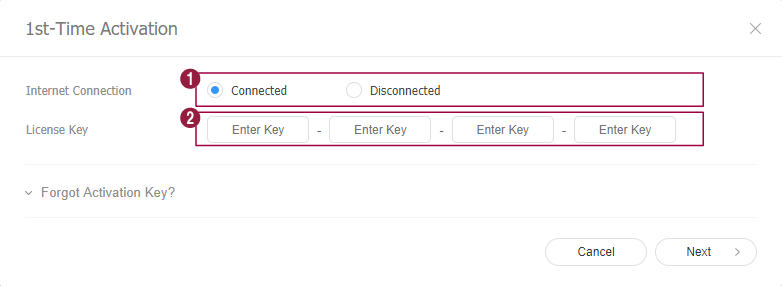
- Click Next.
- Enter your company details and tick Agree to provide information. The Terms and Conditions link opens the terms if you want to read them first.
- Confirm (the button is OK or Save, depending on the build), then close the confirmation message.
- Sign out and sign in again. The newly licensed menus appear only in a fresh session.
Activate a free trial license
Trial licenses are meant for evaluation on your own (on-premises) server.
- On License Info, click Free License.
- In Product, choose the MagicINFO product you want to try.
- Set the Internet connection status. A trial license key is generated and shown in the dialog.
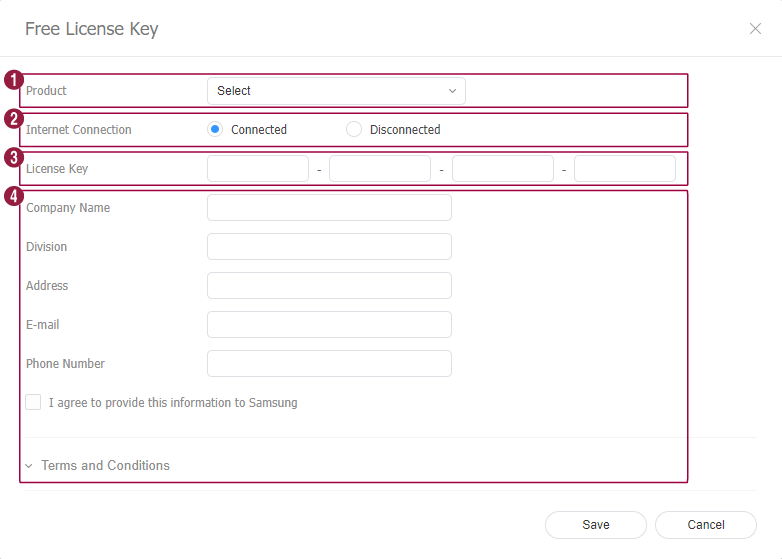
- Enter your company and contact details and tick the agreement box.
- Click Save, then Close on the confirmation message.
- Sign out and sign in again.
A step-by-step version with screenshots of both the online and offline trial dialogs is in Activating a free trial license.
Offline activation (Disconnected)
Use this when the server has no Internet access by design. The activation is then done in two halves: the server tells you who it is, and the license provider sends back an activation key that only works on that server.
- In either dialog, set the Internet connection status to Disconnected.
- Note the License Key and the H/W Unique Key the dialog shows. The hardware key identifies this server.
- Get the activation key file. Either use Samsung's license website (the manual names
www.secslm.com) or send both values to your MagicINFO supplier, who returns the file. - Load the file in the dialog (Read Activation Key in the trial dialog), then save and sign out and in again.
A license activated on one computer cannot be used on another. To move a full license, return it first; see Manage Licenses.
Common problems
Error 1300 during activation. The server could not contact the license database, almost always because it has no working Internet connection at that moment. Give it Internet access for the activation, or use the offline method. Details: License Activation Error 1300.
Activation succeeded but menus are still greyed out. Sign out and sign in again. The session that was open during activation keeps the old, unlicensed view.
You bought more devices for an existing key. Do not use 1st-Time Activation again. Select the active key and use Additional Activation; see Activating a license key.
You want more from a trial. A trial cannot be topped up with Additional Activation and cannot be returned. Register a full key when you are ready.
The server is being rebuilt or moved to new hardware. An activation belongs to the computer it was made on. Return the license from the old server before you retire it, then activate it again on the new one. If the old server is already gone, ask your supplier.
Is the license still covered for upgrades? On MagicINFO Server 9, when a paid Unified Player license is registered, its maintenance license decides whether major versions released after the maintenance end date run without restrictions. Check it before you upgrade; see Manage Licenses.
Checked against MagicINFO Server 9, October 2026.