Manage Licenses: Add, Return and Check History
Licenses activated in MagicINFO Server can be viewed and managed.
From the main menu bar, click  (Setting) > License Management.
MagicINFO Server needs an activated license before regular use. See Activate a MagicINFO Server License (Full or Trial).
- The device type a display gets (S Player, Lite and so on) follows the license the server assigns, not the hardware alone. We have seen the same display register as a Lite player on one server and as an S Player on another, so a display can draw on a different license type after it moves to a new server.
- If you query the database, do not judge license health from the stored validity flag. On a working server it read "false" for every license while all of them were in use. Trust License Status, or the license-usage figures from the REST API, instead.
Activating Additional Licenses
Extend a license use period or add a license for a new device.
- To extend the expiration date of a registered license, contact the dealer the product was purchased from or your local marketing representative to extend the license expiration date.
- Additional activation is not possible for trial licenses.
- Select desired licenses to activate in the license list and then click Additional Activation.
- When the additional activation window appears, select a corresponding Internet environment.
- If not connected to the Internet, select Disconnected and then activate the license according to the on-screen instructions.
- To register a license offline, access the license server (http://www.secslm.com) and obtain an activation key.
- Click Next to proceed. To apply changes, log out from the system and then log in again.
Returning Licenses
Once authorized on one computer, licenses cannot be used on other computers. Return a license if you want to move the activated software to another computer or if you no longer use the license. It is not possible to return a trial license key. If you return a license, information on devices connected connected to MagicINFO Server is deleted and you are no longer able to use MagicINFO Server. To use MagicINFO Server again, repeat the initial license activation process.
- Select a license to return from the license list.
- Click Return License.
- When the license return window appears, click OK.
- Select a desired Internet environment and then click OK.
- If not connected to the Internet, select Disconnected and then activate the license according to the on-screen instructions.
- To return a license offline, access the license server (http://www.secslm.com) and then enter the license key.
- The maintenance license policy is valid only when a paid Unified Player license is registered. The policy is not valid if a free policy is registered.
- Click OK.
Checking the history of issued licenses
To view issued licenses managed in MagicINFO Server, click License History.
Checking the maintenance license
- This function is available in MagicINFO Server 9 and newer versions.
- The following notification window appears if a paid Unified Player license without a maintenance license is registered and a user with a server administrator or organization administrator role is logged in. If this window appears, renew the maintenance license.
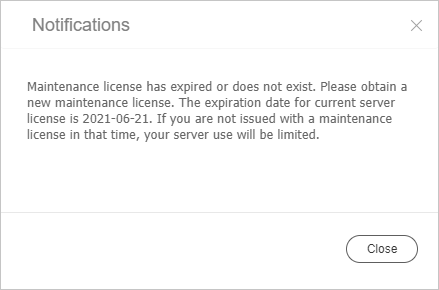 If the date specified in the notification window is exceeded, only the users and setting menu options are displayed. This does not apply when a Unified Player license is not registered in MagicINFO Server and an RM license or Lite license is used.
When a Unified Player license with a maintenance license is registered, there are no feature restrictions during the maintenance license term. If you update a major version after the maintenance license expires, there will be feature restrictions.
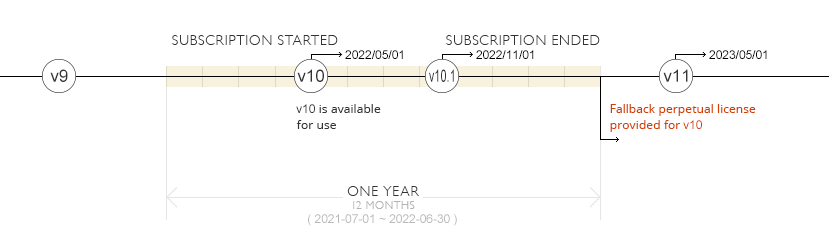 In the example shown above, versions V10 and V10.1 were issued before the expiration date and the software can be used without any feature restrictions. If you update the software to V11, there will be feature restrictions as it is a version that was issued after the expiration date.
This applies based on the first issue date of a major version. The issue date of a minor version does not matter.
Assigning a license for each organization
- This function is available in MagicINFO Server 9 and newer versions.
- The maximum number of devices that can be used for each organization can be set for a United Player license and RM Player license only.
- Click (Setting) > License Management > License Status. View the number of devices assigned to each organization.
- Click the "assign organization" button to set the maximum number of devices that can be used for each organization.