Page Transition Effects in Web Author
When creating content for each page, the page switching effect such as movement to the previous or next page can be applied.
- Add a page on the Web Author editing page. Click
 (Add Page).
- At the lower part, click
 (Page List).
- Click
 icon between pages.
The page switching window appears.
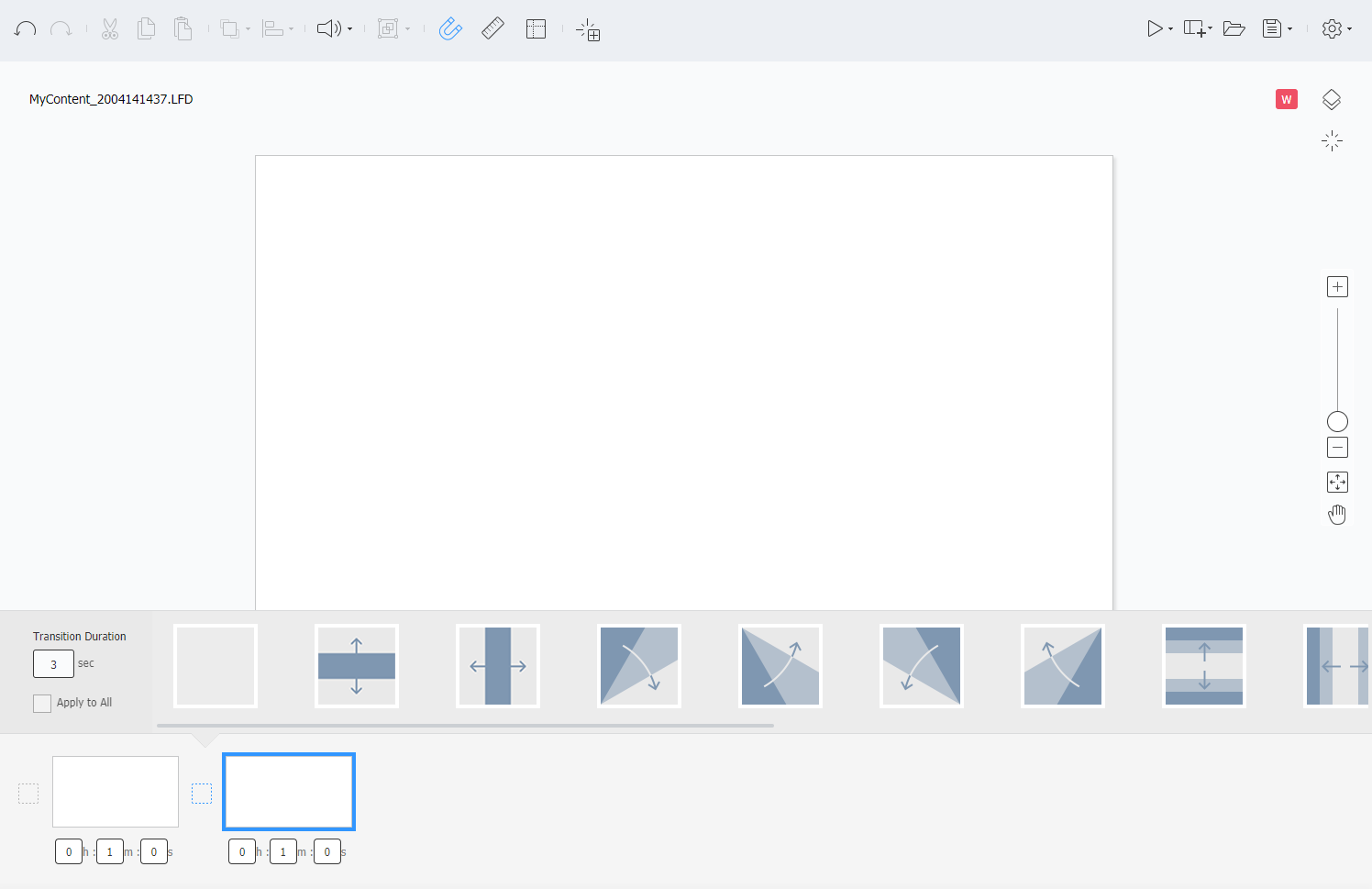 For the W Player dedicated contents, the following page switching effects can be selected. To view the page switching effects, move the mouse cursor to a desired effect.
- Curtain effect
- Corner effect
- Stripe effect
- Magnification effect
- Swiss effect
- Uncover effect
- Grid effect
- Brightness effect
- Blind effect
- Dissolve effect
- Turn effect
- Enter the time in Transition Duration to change the speed for switching effects.
- To apply switching effects to all pages, select Apply All.