Editing elements
Using the element edit toolbar
You can create content by selecting elements arranged on the canvas and using the editing tools at the top of the screen.
| Tools | Tool name | Description |
|---|---|---|
 | Undo (shortcut key: Ctrl + Z) | Undo the last command to revert back to the previous state. |
 | Redo (shortcut key: Ctrl + Y) | Redo a command that has been undone. |
 | Cut (shortcut key: Ctrl + X) | Cut the selected element. |
 | Copy (shortcut key: Ctrl + C) | Copy the selected element. |
 | Paste (shortcut key: Ctrl + V) | Paste an element that has been copied or cut. |
 | Arrange | Arrange several elements in a desired order. |
 | Align | Align several elements based on desired alignment criteria. |
 | Sound | View sound elements, such as audio, video and input source, added to content, and turn sound on or off for each element. |
 | Group | Group or ungroup elements. |
 | DataLink | Configure the settings for DataLink. The DataLink setting button can be used when switched from the |
 | External Events | Configure event triggers. |
 | Snap to Grid | Automatically arrange elements to fit the grid. |
 | Ruler | Display rulers in landscape and portrait orientations. |
 | Guides | Display the guides. |
 | Add Custom Effect | Using the CSS script, various effects can be applied to the selected element. This function is available only in W Player. |
Configuring element properties
Use the element edit bar to configure detailed properties of an element. The element edit bar appears when an element is selected on the canvas. Displayed setting items may vary depending on the selected element type.
| Tools | Tool name | Description |
|---|---|---|
| X | Horizontal Position | Enter the horizontal position of an element. |
| Y | Vertical Position | Enter the vertical position of an element. |
 | Width | Enter the horizontal size of an element. |
| Height | Enter the vertical size of an element. |
 | Rotate | Enter the rotation angle of an element. |
 | Flip Horizontal | An element can be flipped horizontally. |
 | Flip Vertical | An element can be flipped vertically. |
 | Crop | An element can be cut after zooming it in or out. |
 | Transparency | The transparency of an element can be adjusted. |
 | Fill | Fill color in an element. |
 | Line Color | Set the frame color of an element. |
 | Line Style | Set the line style of an element. |
 | Input Source | Select a type of input source. |
| For the items that can be set in a text element, refer to the following. |
Modifying elements
Customize the element size, position and other properties:
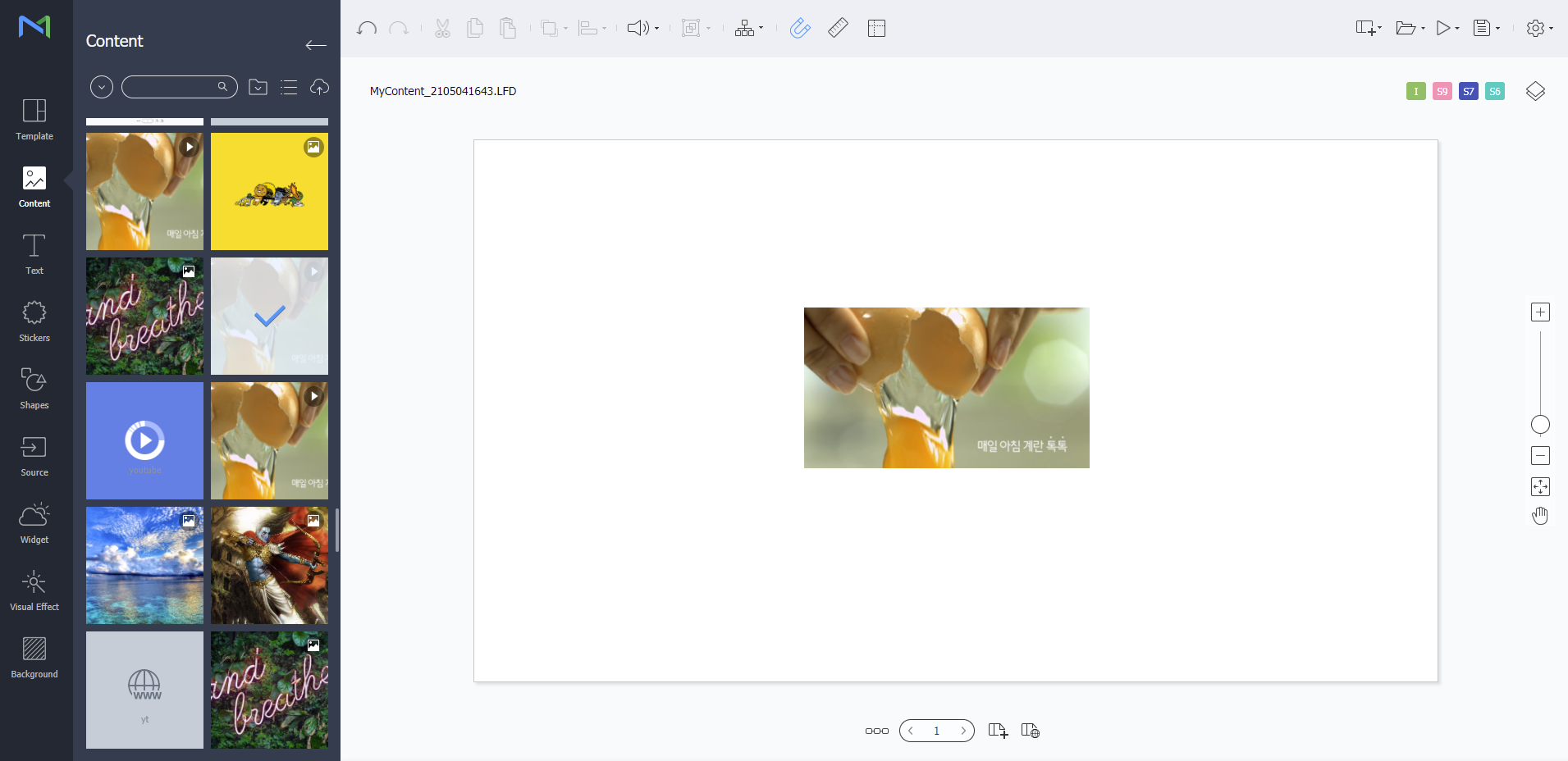
- To move an element, click inside the element and drag it to another position.
- To change the layout size for an element, click the edge around the element and drag it horizontally or vertically.
- To rotate an element, select the element and then drag the rotation in the desired direction. Note that the rotation feature may not be supported for all device types. If you selected VideoWall, elements cannot be rotated.
Locking an element
Set a lock on an element to prevent others from modifying it. Only the user with lock privilege can modify it.
Select an element to apply the lock feature to and then click  (Lock) from the element editor toolbar. Select a lock function on the pop-up menu for locking.
- Lock Size and Position Lock elements so that their sizes and positions cannot be modified.
- Lock Design Style Lock elements so that their design styles cannot be modified.
- Lock Element Lock elements so that all settings cannot be modified.
Editing an element layer
Click  (Layers) and then drag layers for multiple elements to change their order.
Move the mouse cursor over the page or element name and then select
 (Edit Name) to change the names for page and elements.
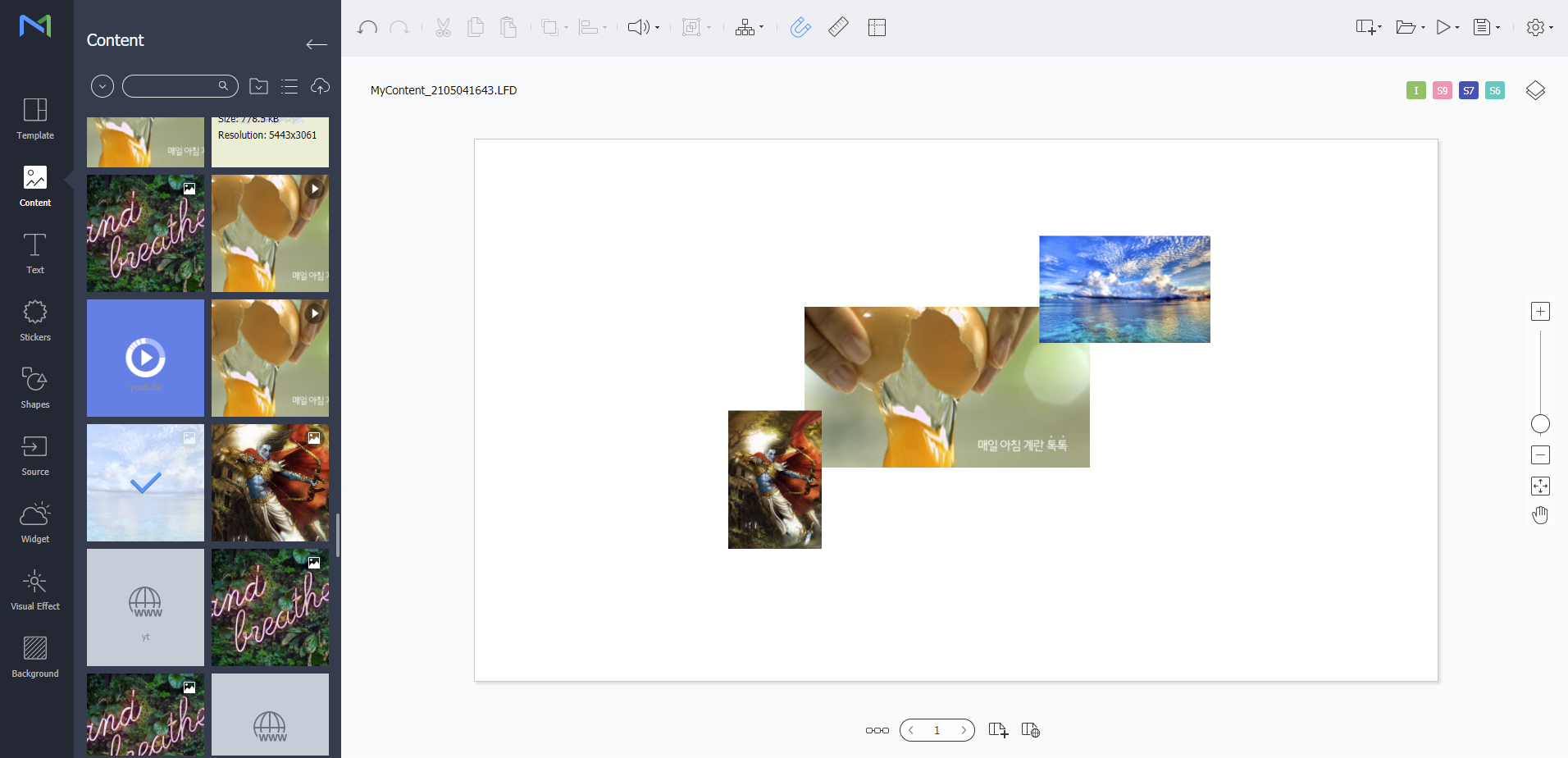 When creating content, if the device type is set to Videowall, it is possible to select two or more different content items and sync them for playback. Synced content items are displayed in the same color.