Manage the Message Schedule List
Create and manage messages to play on devices. Message schedules can be created daily, weekly or monthly. Click Message from the sub-menu items.
Viewing message schedules
Create groups in each organization to manage message schedules by the group. For each organization, a default group is created by default.
- All: View message schedules added by users within your organization.
- by Group: View or manage message schedules by the group specified when adding a message.
Managing message schedule groups
- Click Message from the sub-menu items.
- Click by Group.
- Manage groups, using one of the following options:
- Option 1: Select a group and right-click on the mouse.
- Option 2: Place the mouse cursor on a group name and click
 .
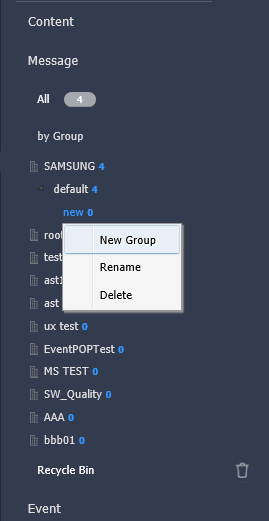
| Item | Description |
|---|---|
| New Group | Create a sub-group under the selected group. A root group can be created by adding an organization. For details on adding organizations, see Create and Manage User Groups. |
| Rename | Rename the selected group. It is not possible to rename a root group. |
| Delete | Delete the selected group. It is not possible to delete a root group. |
- To move a group, drag the group from by Group to a desired location. Sub-groups can be moved to root groups. It is not possible to move root groups to sub-groups. When moving a group that contains sub-groups, all the sub-groups will move together maintaining the group hierarchy.
- The number of users in a group will be displayed next to the group name.
Searching message schedules
 Enter a keyword in the search box and click
 .
Custom search
Click  to search schedules by using different criteria.

| Item | Description |
|---|---|
| Device Group | Search schedules that have been distributed to specific devices. Click and select a device group from the Select Group window. |
| Date Modified | Search schedules modified on specific dates. Select a date from the dropdown list. Alternatively, select User Defined and manually enter a date. |
Recycle Bin
Click Recycle Bin to view deleted schedules.
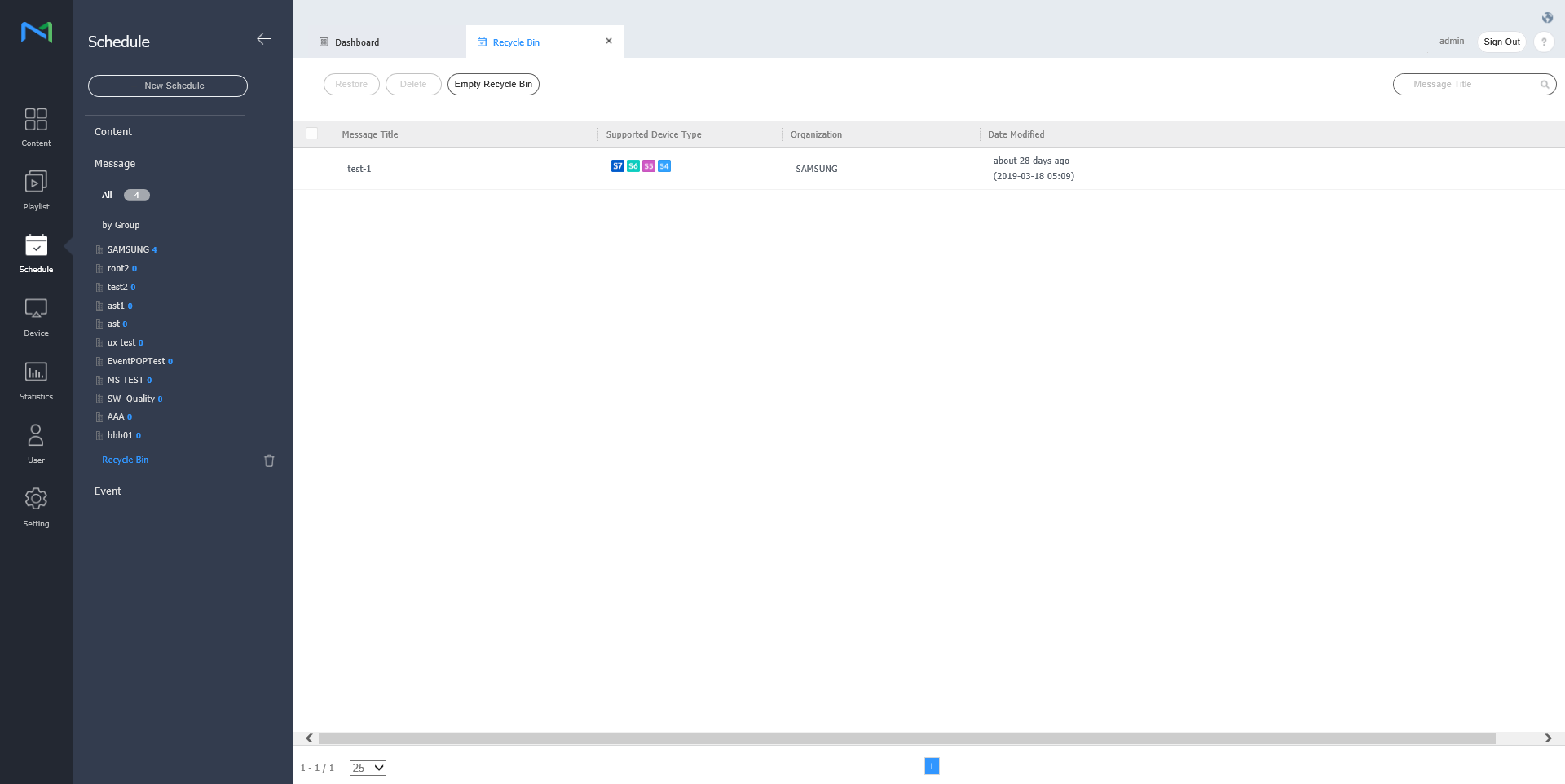
- Click Restore to restore the selected schedule to a desired group.
- Click Delete to delete the selected schedule permanently.
- Click Empty Recycle Bin to delete all schedules in Recycle Bin permanently. Deleting a message schedule moves it to the Recycle Bin, where it can be restored.