Manage the Event Schedule List
Create and manage events to play on devices. Event schedules can be created by daily, weekly or monthly. Read the following for details on event schedules.
Viewing event schedules
Create groups for each organization to manage event schedules by the group. For each organization, a default group is created by default.
- All: View all event schedules added by users in your organization.
- by Group: View or manage event schedules according to the group specified when the schedules were added.
Managing event schedule groups
- Click by Group.
- Manage groups, using one of the following options:
- Option 1: Select a group and right-click on the mouse.
- Option 2: Place the mouse cursor on a group name and click
 .
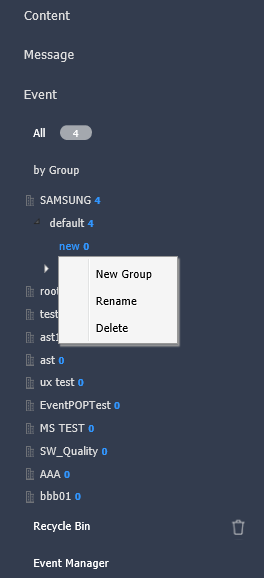
| Item | Description |
|---|---|
| New Group | Create a sub-group under the selected group. A root group can be created by adding an organization. For details on adding organizations, see Create and Manage User Groups. |
| Rename | Rename the selected group. It is not possible to rename a root group. |
| Delete | Delete the selected group. It is not possible to delete a root group. |
- To move a group, drag the group from by Group to a desired location. Sub-groups can be moved to root groups. It is not possible to move root groups to sub-groups. When moving a group that contains sub-groups, all the sub-groups will move together maintaining the group hierarchy.
- The number of users in a group will be displayed next to the group name.
Searching event schedules
 Enter a keyword in the search box and click
 .
Custom search
Click  to search schedules by using different criteria.

| Item | Description |
|---|---|
| Device Group | Search schedules that have been distributed to specific devices. Click and select a device group from the Select Group window. |
| Date Modified | Search schedules modified on specific dates. Select a date from the dropdown list. Alternatively, select User Defined and manually enter a date. |
Recycle Bin
Click Recycle Bin to view deleted schedules.
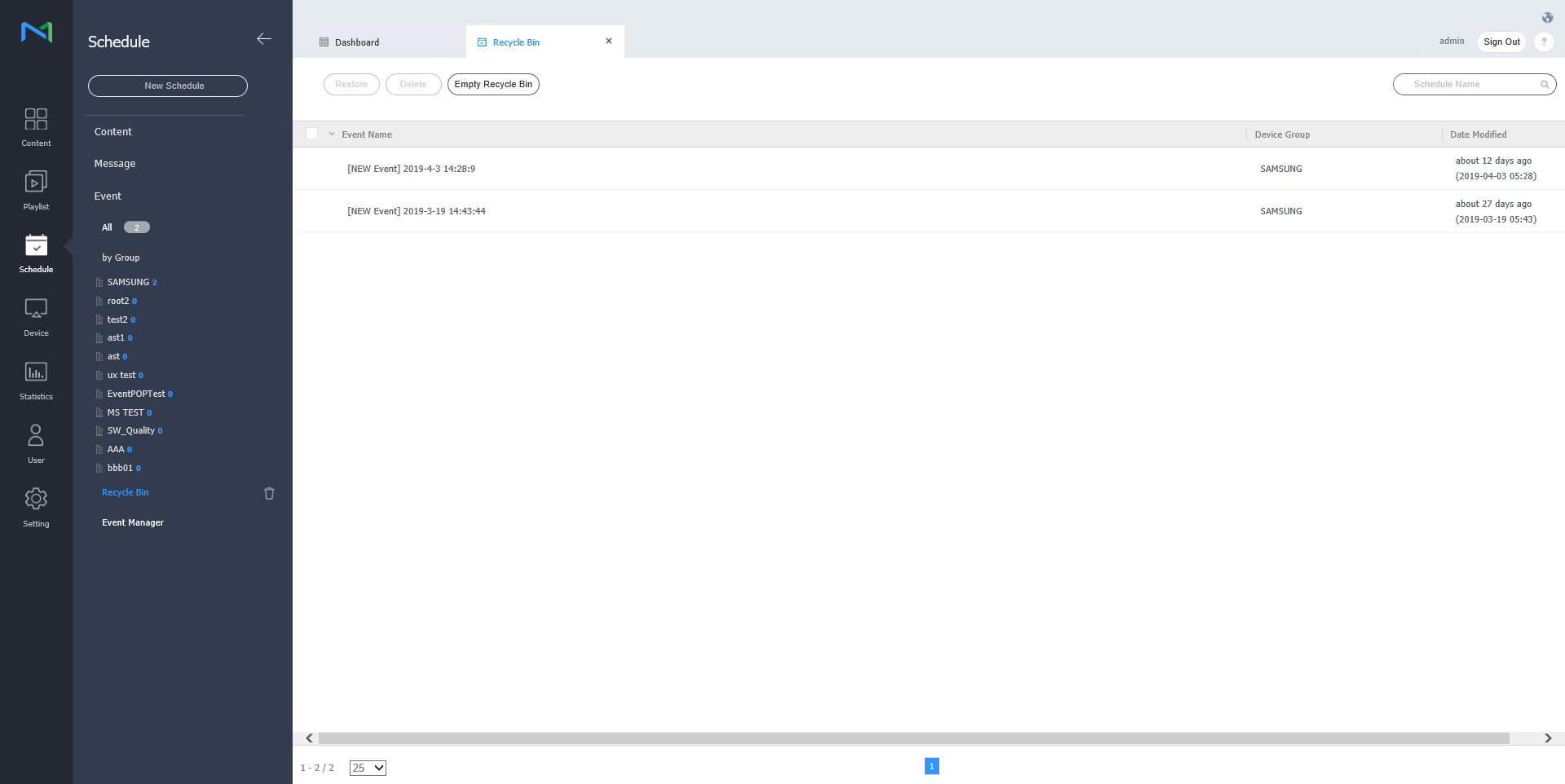
- Click Restore to restore the selected schedule to a desired group.
- Click Delete to delete the selected schedule permanently.
- Click Empty Recycle Bin to delete all schedules in Recycle Bin permanently. Deleting an event schedule moves it to the Recycle Bin, where it can be restored.