Create a VideoWall Playlist
Create a playlist to play on a video wall.
- Click New Playlist.
- Configure initial playlist settings and click Create.

| Item | Description |
|---|---|
| Supported Devices | Select a device type that will play the playlist. - A VideoWall playlist can be created when S2 Player is selected. However, the playlists can be played on I Player, S3 Player. - Higher-performance devices than the selected device are automatically included in the selection. For example, if you select S2 Player, higher versions, such as S3 Player, I Player, are automatically selected. - Supported Devices only displays device types for the devices that have currently licenses registered on MagicINFO Server. |
| Playlist Type | Select a playlist type. Select Video Wall. - Available playlist types may vary, depending on the device type selected in the previous step. - For details on each playlist type, hover the mouse pointer over  next to Playlist Type. |
- Configure detailed playlist settings and click Save.
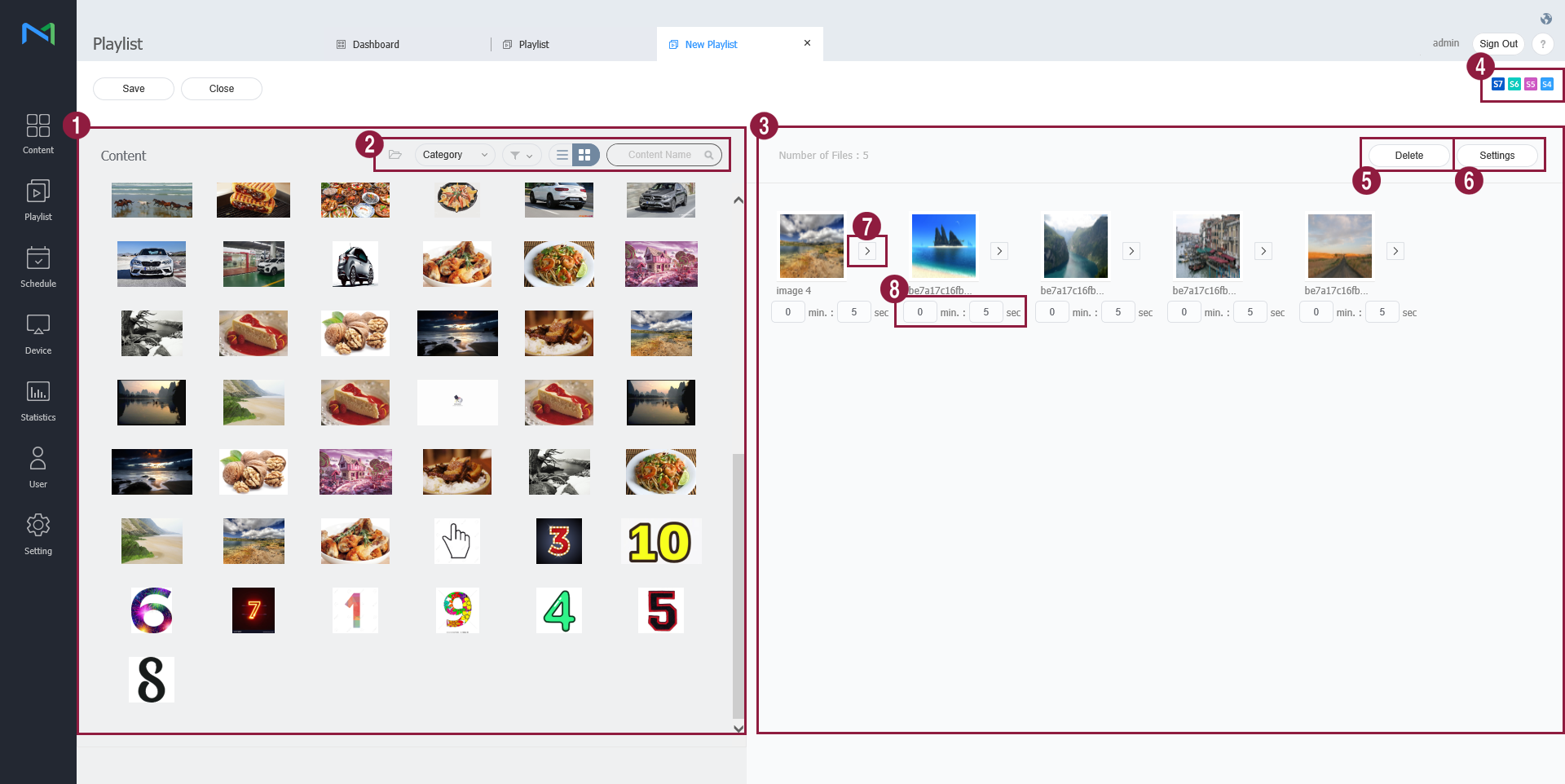
- Content files are displayed as a list. If you click content, the content is added to the Playlist box. The same content can be added multiple times.
- Change the content view mode or search for a content file.
 : View content by the group.
 : Click
 and select the desired categories. Only content items that match the selected categories appear on the screen.
 : Click , and select the desired file types, user IDs, tags, and file sizes. Only files that match the selected conditions appear on the screen.
 : Change the content view mode. Select
 for list view or select
 for thumbnail view.
- Content Name: Search content files by name.
- View content files included in the playlist.
- View device types that can play the playlist currently being created.
- Delete content files from a playlist. Select at least one content file and click this menu.
Alternatively, hover the mouse pointer over a content file in the playlist box to display
 . Click to delete the file.
- Set the playback duration for content files in the playlist.Select at least one content file from the playlist and click this menu. Alternative ways to change the playback duration for content files are as follows:
- Alternatively, hover the mouse pointer over a content file in the playlist box to display
 . Click to change the content playback duration.
- Add effects to the beginning and end of content files in the playlist.Click
 and select effects from the effect list.
- View the playback duration for a content file.
- Configure playlist settings, such as the playlist name, and click Save. Creating a playlist is complete.

| Item | Description |
|---|---|
| Playlist Name | Enter a playlist name. |
| Group | Select a group for the playlist. |
| Share | Choose whether to share the playlist. |
| Description | Enter a description of the playlist. |