Create a Tag Playlist (Content Chosen by Tags)
Create a playlist using content items selected with tags.
- Click New Playlist.
- Configure initial playlist settings and click Create.
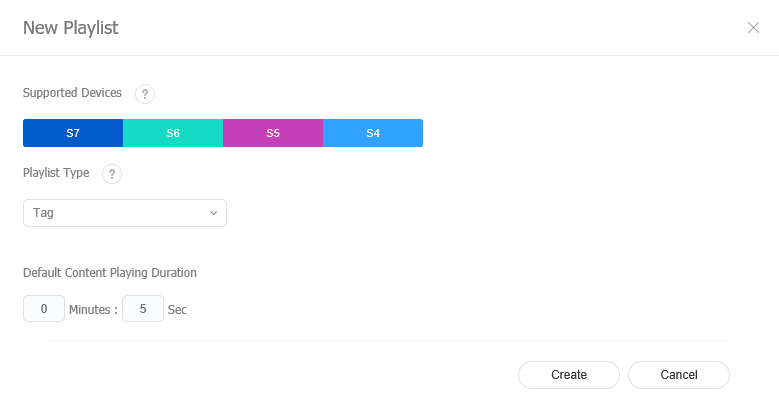
| Item | Description |
|---|---|
| Supported Devices | Select a device type that will play the playlist. - Tag playlist can be generated when I Player S4 Player, S3 Player, and S2 Player have been selected. - Higher-performance devices than the selected device are automatically included in the selection. For example, if you select S2 Player, higher versions, such as S3 Player, I Player, are automatically selected. - Supported Devices only displays device types for the devices that have currently licenses registered on MagicINFO Server. |
| Playlist Type | Select a playlist type. Select Tag. - Available playlist types may vary, depending on the device type selected in the previous step. - For details on each playlist type, hover the mouse pointer over  next to Playlist Type. |
| Default Content's Run Time | Designate the default time when the contents will be played. |
- Configure detailed playlist settings and click Save.
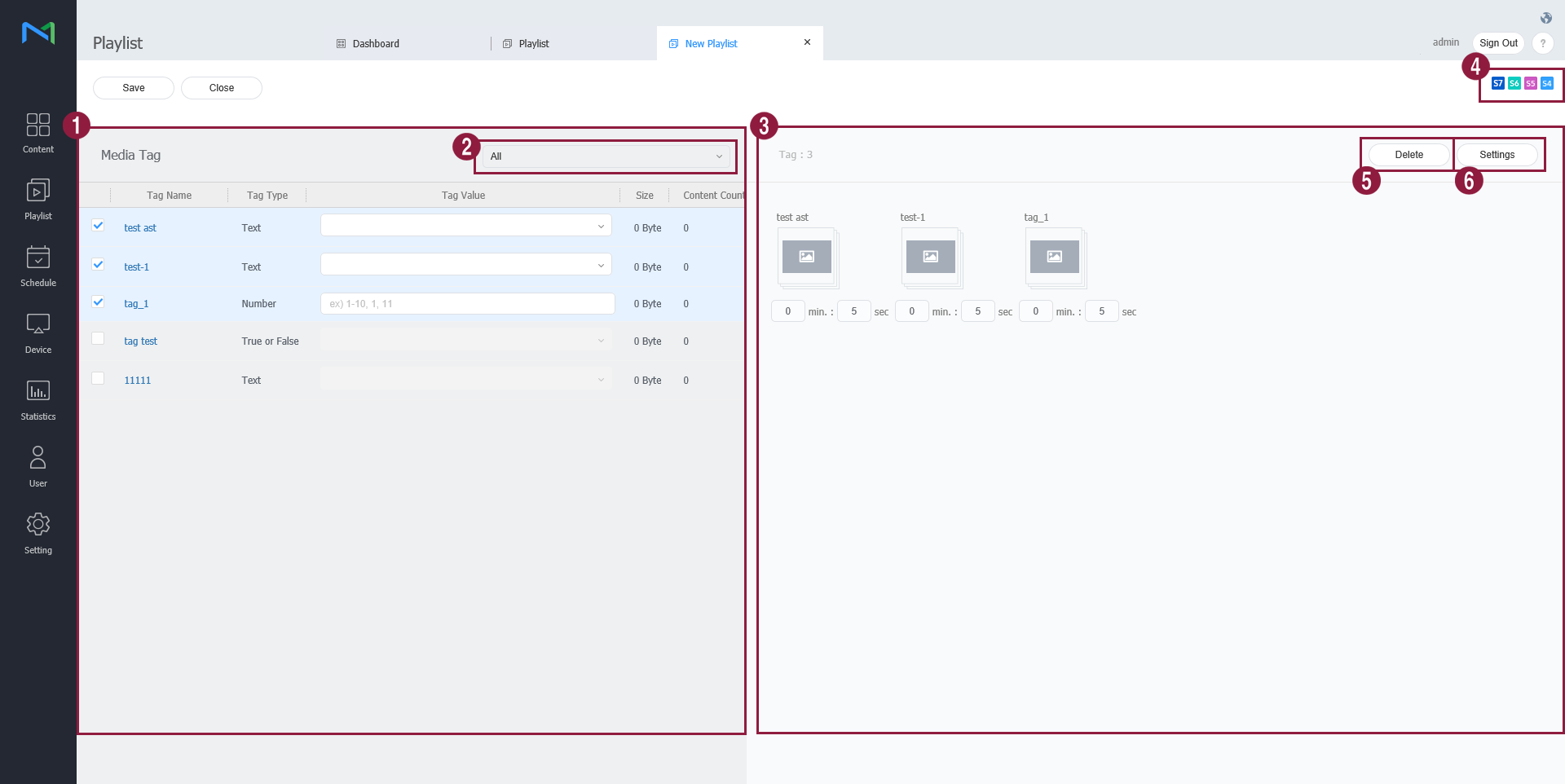
- Content files are displayed as a list. If you click content, the content is added to the Playlist box.
- Select the desired category. Only tags that match the selected category appear on the screen.
- View content files included in the playlist.
- View device types that can play the playlist currently being created.
- Delete content files from a playlist. Select at least one content file and click this menu.
Alternatively, hover the mouse pointer over a content file in the playlist box to display
 . Click to delete the file.
- Set playback options for content files included in the playlist. Select at least one content file from the playlist and click this menu.
- Duration: Set the playback duration for a content file.
- Playback Date: Set the period to play content. The content only plays for a specified period. To loop playback of content, select Everyday.
- Alternatively, hover the mouse pointer over a content file in the playlist box to display
 . Click to set the content file playback options.
- It is not possible to change the playback duration for content files that have a pre-defined duration, such as video files.
- The option to change the playback duration can be found under a content file name in the playlist box. Use the option to change the playback duration for a content file.
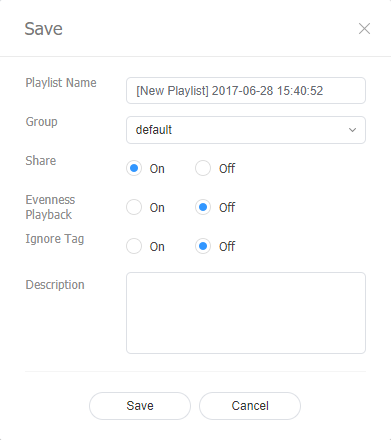
- Configure playlist settings, such as the playlist name, and click Save. Creating a playlist is complete.
| Item | Description |
|---|---|
| Playlist Name | Enter a playlist name. |
| Group | Select a group for the playlist. |
| Share | Choose whether to share the playlist. |
| Uniform Playback | Turn on or off Uniform Playback mode. |
| Tag Negligence | Turn on or off Tag Negligence mode. |
| Description | Enter a description of the playlist. |