Viewing playlist details
View and edit playlist information.
Click  (Playlist) on the main menu bar. Click a playlist name from the playlist name.
The playlist information window appears.
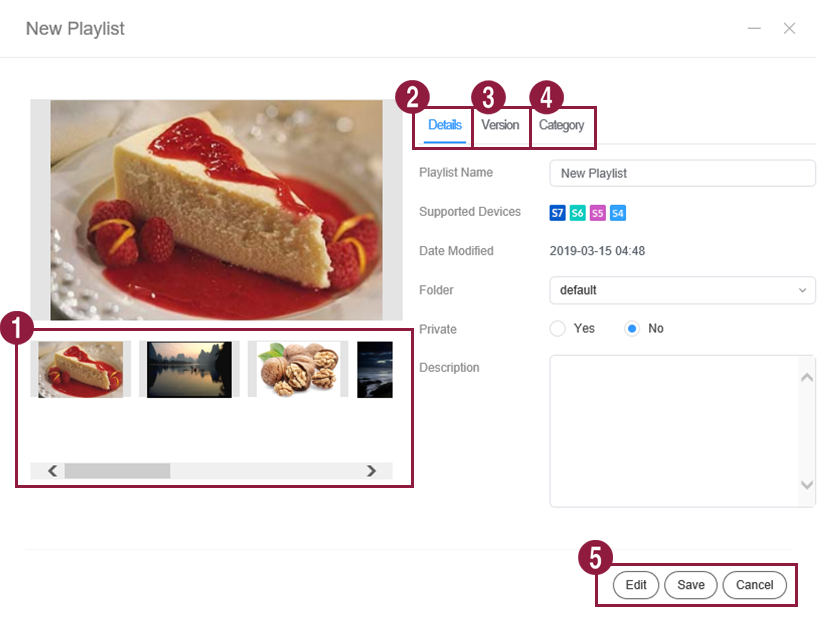
- View content files included in the playlist.
- View detailed information of a playlist. You can also modify the playlist name, storage folder, sharing option, and description.
- View the playlist version and edit the playlist.
- Changing content files in a playlist changes the playlist version.
- Click
 icon next to a version and then click Save. The playlist is changed as a file of the specified version. Use file versions to manage playlists with ease.
- Specify a playlist category. For details on how to manage playlists by category, see Managing playlists by category.
- Edit: Edit the configuration of the playlist. Modification of the playlist is the same as in creation of a playlist. For details, see Creating a playlist.
- Save: Save changes made in the details window.
- Cancel: Close the details window without saving changes made in the window.
- Only allowed files for sharing can be shared with other users within the same organization.
- It is not possible to change the device and playlist types set for a created playlist.