Add a Remote Control Server
The remote control server is a network-based management solution designed to enable easy and efficient control for devices registered in MagicINFO Server.
Click  (Setting) > External Server Management > Remote Server on the main menu bar.
Adding a remote server
- Click Add from the list of remote servers.
- When the remote server window appears, enter data for the remote server.
- After configuration, click OK. You can view the servers added in the list. The data that can be entered is as follows.
- Server Name Enter the remote server’s name. The name of the remote server running is unavailable. Click OK next to the server name to check availability.
- IP Enter the IP address of the remote server.
- Web Port Enter the web port number of the remote server.
- SSL Set whether or not to enable SSL.
- Private Mode Set whether or not to use the private mode for the remote server.
Modifying a remote server
- Click the name of the server to modify in the remote server list.
- When the remote server modification window appears, modify items sequentially.
- After modification, click OK.
Deleting remote servers
Select servers from the remote server list and then click Delete.
Installing the Remote Control Server
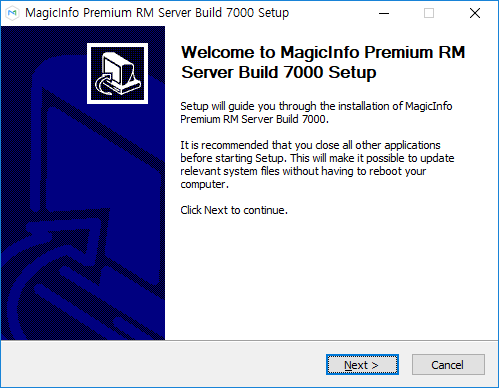
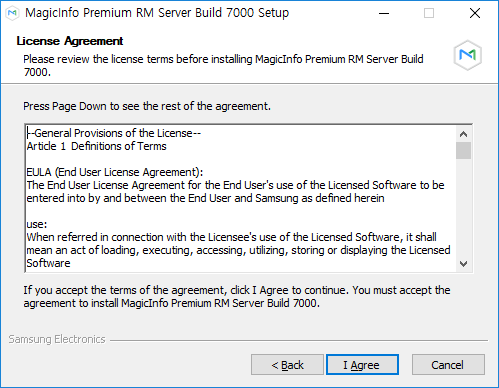
The Remote Control Server is installed together with the MagicINFO Server package. Its installation package can also be downloaded on its own from SLM. The installer has three screens:

Notes on the remote server settings
- Tick SSL when the Remote Control Server is set up for HTTPS.
- Tick Private Mode when the Remote Control Server sits in a DMZ with separate public and private networks.

- After adding the server, check in the list that its status is On.
