Device List Functions: Edit, Move, Delete
The functions available in the device list are described.
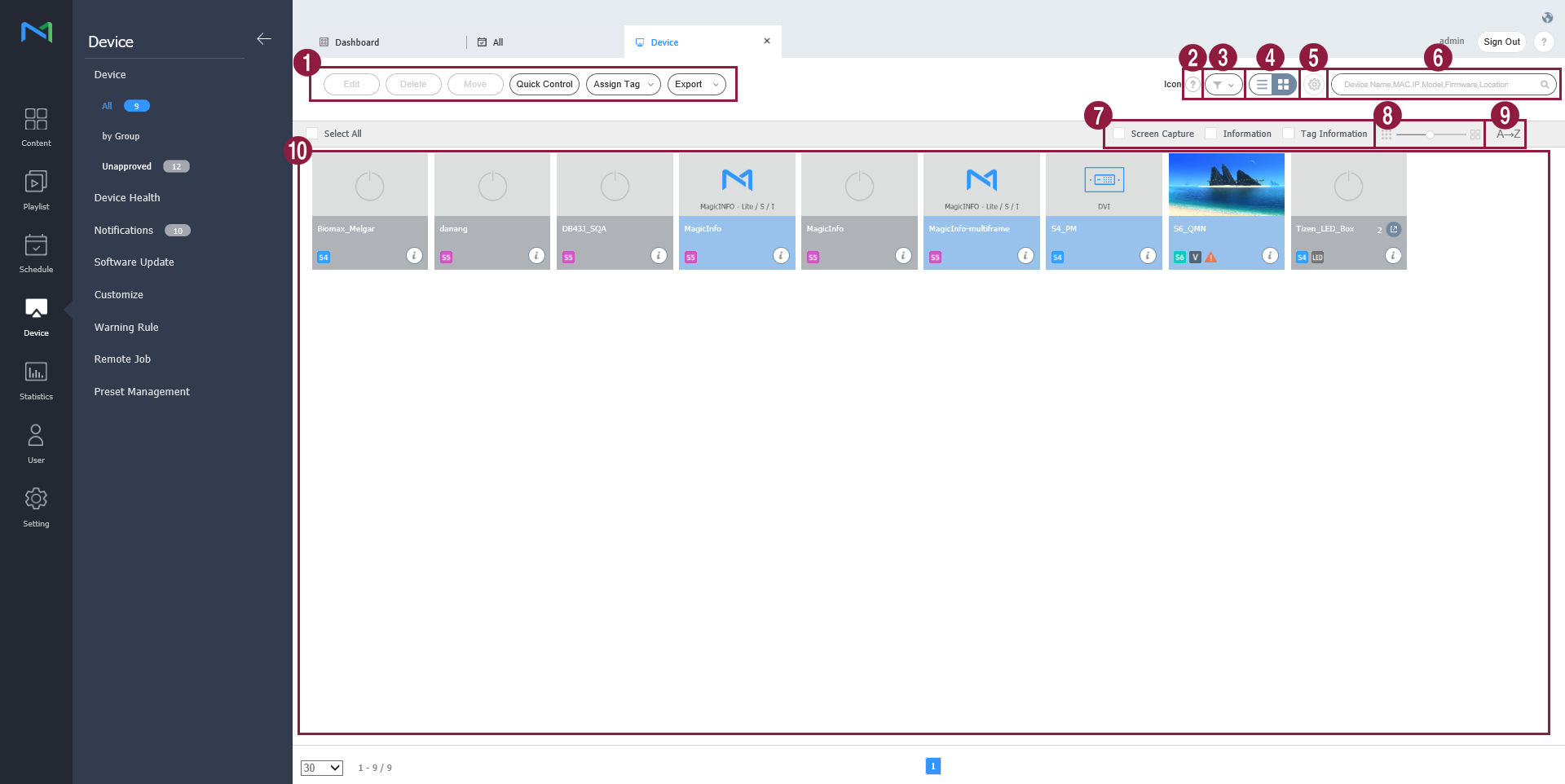
| Item | Description |
|---|---|
| 1 | Edit: Edit information of the selected device. For details, see Managing device information. Delete: Delete the selected device. Move: Move the selected device. Select a group from the "move group" window. Quick Control: View a list of frequently used remote control functions. For details, see Adjusting through Quick Control. Assign Tag: Assign media or variable tags to devices. For details, see Managing devices with tags. Export: Export a list of devices as an Excel or PDF file. |
| 2 | View a description of icons displayed on the device list. |
| 3 | Filter the device list to view specific devices only. Select a condition from the filter settings window and click Save. |
| 4 | Change the view mode for the device list. -  Display devices as thumbnail images. -  Display device names and information in the device list. |
| 5 | Configure device polling settings. |
| 6 | Search devices by using keywords. |
| 7 | Select info items to display in thumbnails. This option appears only when the device view mode is set to thumbnail mode. |
| 8 | Adjust the size of thumbnails. This option appears only when the device view mode is set to thumbnail mode. |
| 9 | Display the device list in alphabetical or reverse alphabetical order. This option appears only when the device view mode is set to thumbnail mode. |
| 10 | View the list of devices. - If thumbnail view mode is in use, click a thumbnail to select a device. To view device details, click a device name. When an LED device is connected, click  icon from thumbnail to manage corresponding LED. - If list view mode is in use, select a checkbox to select a device. To view device details, click a device name. |
In practice
- On build 21.1070 the group tree counts only the devices directly in each group, so a parent group whose displays all sit in subgroups shows 0, and selecting it can list nothing. The group picker in Move shows full counts; select the organization or a lowest-level group to see the displays.
- Move changes the group, not the screen: a display moved to a group without a schedule keeps playing its last schedule until it is sent a new one.
- The connected icon comes from the last check-in time, not from live polling. See Screen online but "Disconnected".