Preview the Event Flow in Premium Author
This allows you to view set events per page and general flow for all events.
- Click
 . The event flow preview window appears. Thumbnails for each event page are shown, along with arrows that represent event flow.
- Drag the page thumbnails to change their location or size.
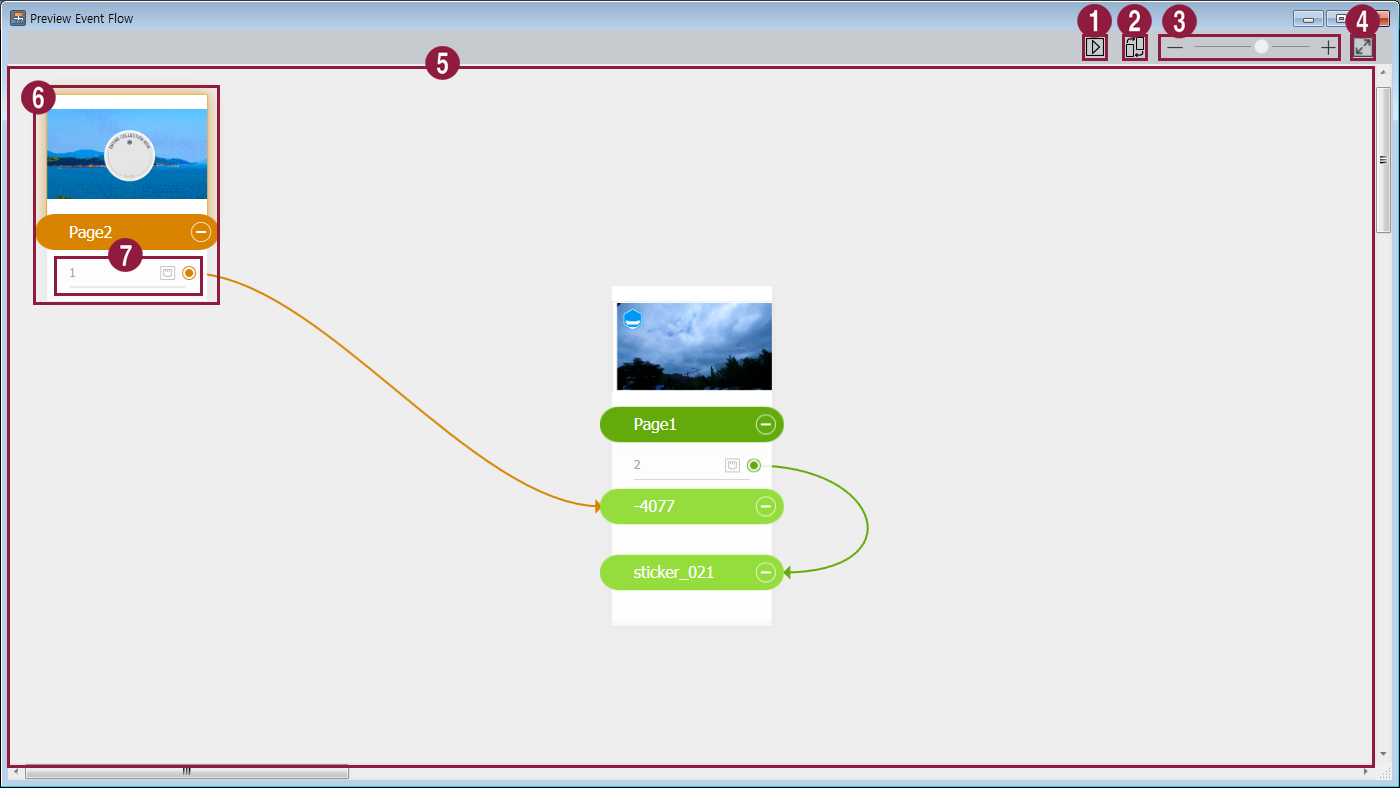
| Item | Description |
|---|---|
| 1 | Test to confirm that each event is triggered in Player as set. |
| 2 | Arrange page thumbnails. |
| 3 | Zoom in or out of the screen. |
| 4 | Fit to screen size. |
| 5 | This allows you to view the general flow for all events set for the page. Right-click on the gray background to add pages. |
| 6 | Displays the thumbnail and element information for the page. - Click the the thumbnail or element information to test and confirm that each event is triggered as intended in the Player. - Right-click on the area to add pages or design elements. |
| 7 | Displays the name of the event. - Click the event name to test and confirm that each event is triggered as intended in the Player. - Right-click on the event name to delete or edit the event. |
- Close the event flow preview window when complete. Return to Premium Author.
The screen will show a prompt if there have been changes. To save the changes, click Yes.