RuleSet Example: Play by Time of Day
Creating a RuleSet based on the time
Let us create a RuleSet to play content on the 49” model between 9 and 13 O’clock. The example image in this user guide may vary depending on the computer environment.
| Item | Description |
|---|---|
Click  (RuleSet) > New RuleSet on the main menu bar. | |
| When the New RuleSet window appears, select a device type to apply the RuleSet. - Devices with specifications higher than those of the selected device are automatically selected. For example, if you select S2 Player, higher versions such as S3 Player and I Player are automatically selected. - Select the devices that have been licensed in MagicINFO Server. | |
| In the RuleSet addition screen, click icon next to Start |  |
| When the Condition Rule window appears, enter its name. Select Time in Type and then as in the figure, enter times like 09:00:00 and 13:00:00. Enter the description in Description and then click Save. | 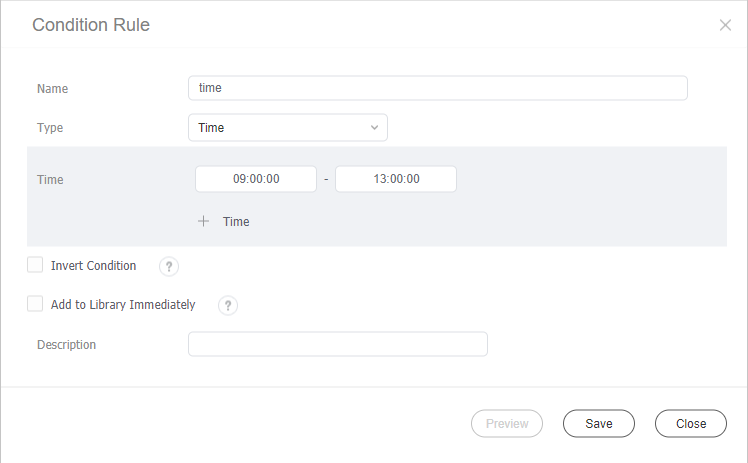 |
| Click in Condition Rule. Click [AND] Add Condition Rule on the pop-up menu. | 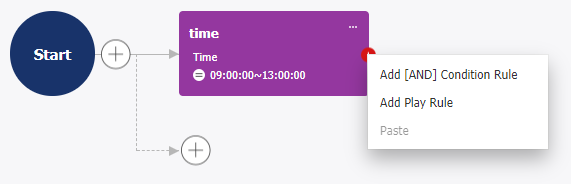 |
When the Condition Rule window appears, enter its name. Select Screen Size in Type and then select Equal to in Operator. Enter “49” in Screen Size. To preview the target device list, click  icon. Enter the description in Description and then click Save. | 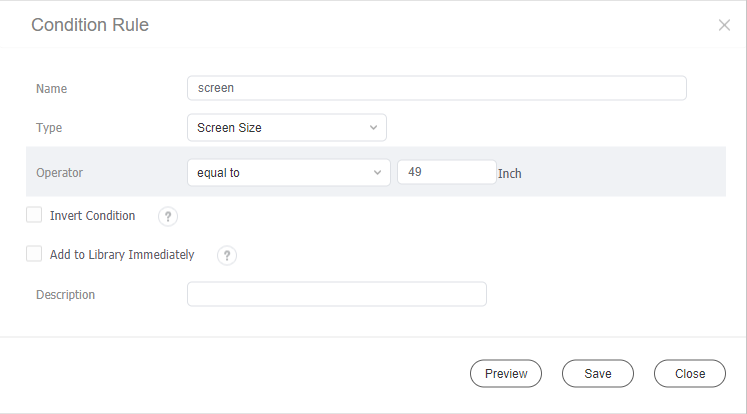 |
| Click in the second Condition Rule box. Click Add Play Rule on the pop-up menu. | 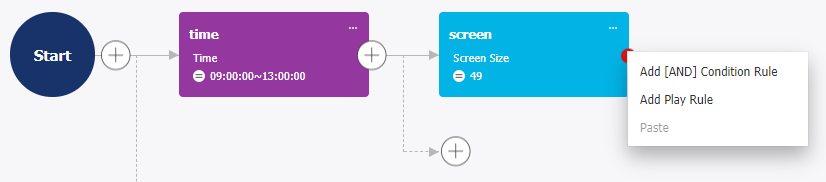 |
When the Play Rule window appears, enter its name. In Type, select Content. Click  icon. When the content selection window appears, select a content file and then click Select. Enter time in Image Duration. Enter the description in Description and then click Save. | 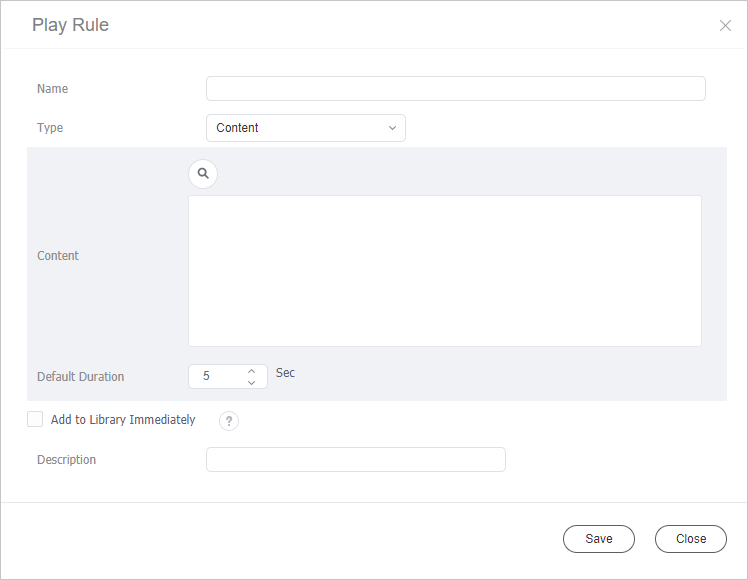 |
| Click Save at the top of the screen. When a pop-up window appears, set values for RuleSet name, group, and default content, and then click Save. |
Adding conditions
In the above-mentioned RuleSet, let us add a rule to play other content between 10 and 11 O’clock.
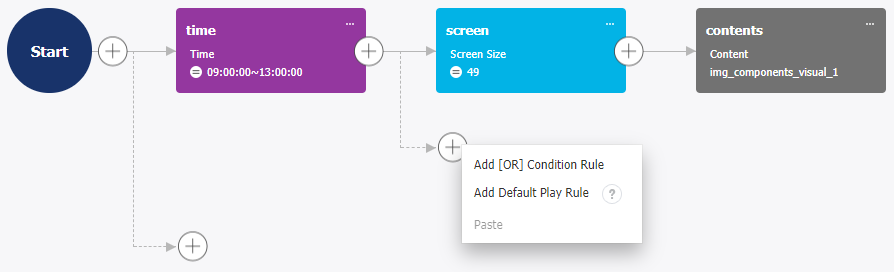
- As in the figure above, click
 under the rule box with the created time condition (09:00:00-13:00:00).
- Click [AND] Add Condition Rule on the pop-up menu.
- When the condition rule window appears, enter its name.
- In Type, select Time.
- In Time, enter 10:00:00 and 11:00:00 sequentially.
- Click Save.
- Click
 in Condition Rule.
- Click Add Play Rule on the pop-up menu.
- In the Play Rule addition window, enter required items and then select content or playlist.
- After configuring required settings, click Save.
- Click Save at the top of the screen.