Create a VideoWall Layout in the VWL Layout Editor
Configure VideoWall layouts using VWL Layout Editor.
- Click By Group and then select a group to configure a VideoWall layout.
- Click VWL Layout Manage > Setup > Create. VWL Layout Editor will launch. Configure a VideoWall layout in the following order.
Setting layout type and number of devices
Set the layout type and number of horizontal and vertical display devices. Enter the items below and then click Create.

- Layout types
- Formal: Arrange devices in a square shape such as 2x2 and 3x4 to form a fixed video wall.
- Informal: Customize the arrangement of devices to suit your preferences.
- Number of Display Devices in the Horizontal Direction: Enter the number of horizontal devices to form a VideoWall layout.
- Number of Display Devices in the Vertical Direction: Enter the number of vertical devices to form a VideoWall layout.
Arranging display devices
- Select devices from the list and drag them into the editor section.
- Enter device IDs for each device and then click Next to proceed with the next step.
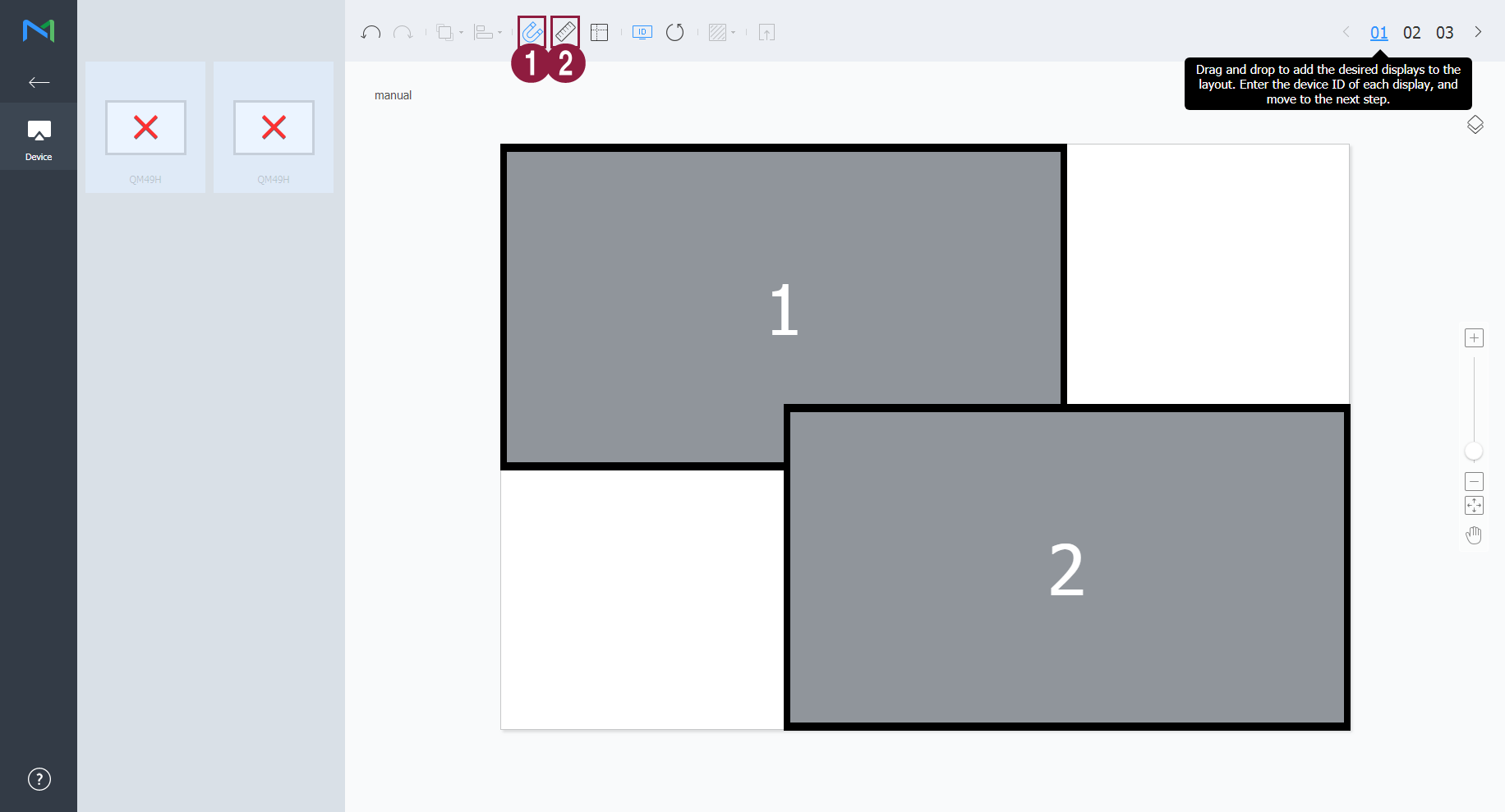
| Item | Description |
|---|---|
| 1 | Display the device ID on the relevant device screen. |
| 2 | Initialize the device ID for that device. |
Adjusting device position
The device position can be finely adjusted using the tools on the screen. After position adjustment in detail, click Next to proceed with the next step. Click Yes to save the VideoWall layout.
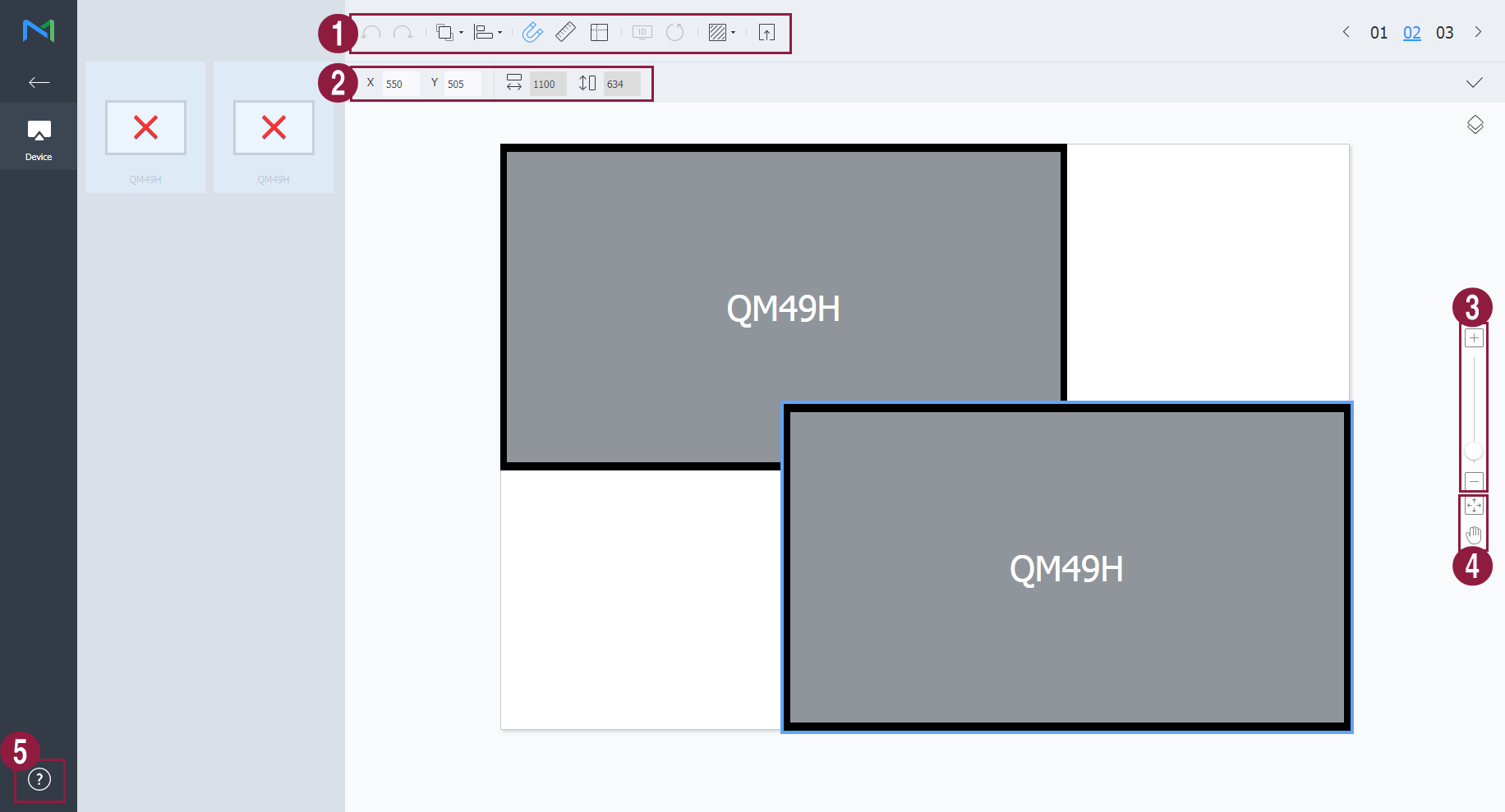 Available tools are as follows:
| Area | Description |
|---|---|
| Toolbar |  Undo,  Redo,  Align,  Auto-grid,  Ruler,  Guides,  Test pattern, and  Layout preview functions. |
| Position controls | Adjust the device position more precisely. |
| Zoom controls | Zoom in or out the editor screen view. Use the slide bar to adjust the zoom level. |
| View controls |  Adjust the aspect ratio and position of the editor to fit the window to overview devices.  Move the selected device. |
| Version info | Review the VWL Layout Editor version and the open source license information. |