Dashboard Overview and What Each Role Sees
If you sign in after product license activation, the MagicINFO Server Dashboard appears as the main page.
- MagicINFO Server administrators (general administrator and organization administrators) can assign a role to each user. Available MagicINFO Server functions depend on the user role. For details on user roles, see Managing Users.
- Displayed menu items vary, depending on the privileges of the user account signed into MagicINFO Server. The instructions provided below regarding the main page assume that you are signed in with general administrator privileges and can access any menu.
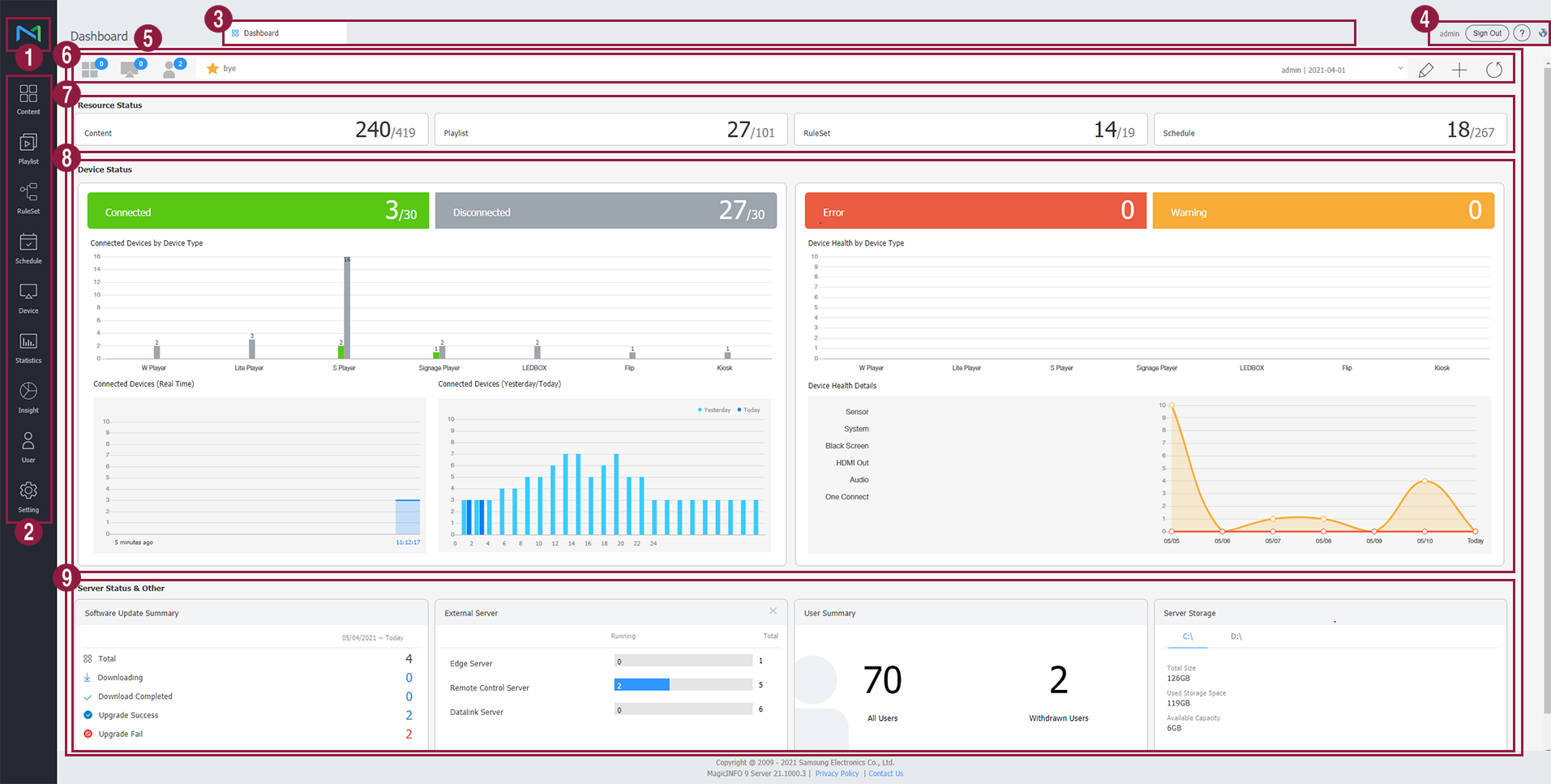
- Display the MagicINFO Server’s main page.
- MagicINFO Server’s main menu bar Click a menu item to display the related menu page. Refer to each chapter for details on each menu.
- Access main menu in tabs. Clicking on a different menu opens a new tab. This allows you to work with multiple menus at the same time.
- To close a tab, click
 .
- It is not possible to close the Dashboard tab.
- Currently logged in user ID appears. To view the user information, click Sign Out and then click My Account.
- To sign out from MagicINFO Server, click Sign Out and then click Sign Out on the pop-up window.
- To view help video, click the question mark icon.
- To change the user interface language, click the earth-shaped icon.
- Dashboard allows you to easily view information managed in MagicINFO Server by customizing the arrangement of notices, content summaries and other information. The dashboard layout can be customized by the user. Available settings differ depending on the user privileges. For details, see Customizing dashboard layout.
-
- Click each icon to view information about unapproved content, devices or users. The icons are hidden if you are not authorized to access the information or the icons are left idle for a certain period of time.
- You can create a notice or see the notice details. To create a notice, click
 . Enter details and click Save.
When entering a notice, you can select the following options:
- To add or delete a widget, click
 .
- To refresh the dashboard screen, click
 .
- The displayed screen may differ depending on the user privileges to access content.
- View content, playlist and/or ruleset information used in a schedule.
- The information includes the total number of schedules and the number of schedules mapped to devices.
- If you are authorized to access devices, you can check what devices are connected to the server.
- Server status and others If you place the mouse cursor on a widget, the [X button] appears. To delete the widget, press the button. A widget can be rearranged by dragging and dropping the top bar. A widget can also be deleted or added using the [+ button] in the notifications section.
In practice
- The dashboard's count of connected devices comes from each display's last check-in time (an 11-minute window by default), not from whether the screen is playing, so it can be lower than the number of screens you can see working. See Screen online but "Disconnected".
- After the MagicINFO service restarts, the console can take several minutes to answer; wait before you decide a restart or upgrade failed.
- MagicINFO tells browsers to use HTTPS for a year, even on plain HTTP. Once a browser has opened the console over HTTPS, an
http://address on that name fails with "This site can't be reached". Use the HTTPS address consistently.