Connect MagicINFO to LDAP or Active Directory
This document covers how to use users on the LDAP Server in MagicINFO Server. You must have the following information to connect to the LDAP server.
- Host LDAP Server address. IP or domain.
- Root DN (Base) ex) If the domain is "example.com", the Root DN is "dc=example, dc=com".
- Manager DN (administrator account) ex) When the administrator account is "Administrator", "CN=Administrator,CN=Users,DC=example,DC=com"
- Manager Password The above example was written based on Windows Server Active Directory.
LDAP Server Settings in MagicINFO Server
- Log in with admin account
- After entering Setting> Server management> Server Settings, scroll down and find the LDAP Server item.
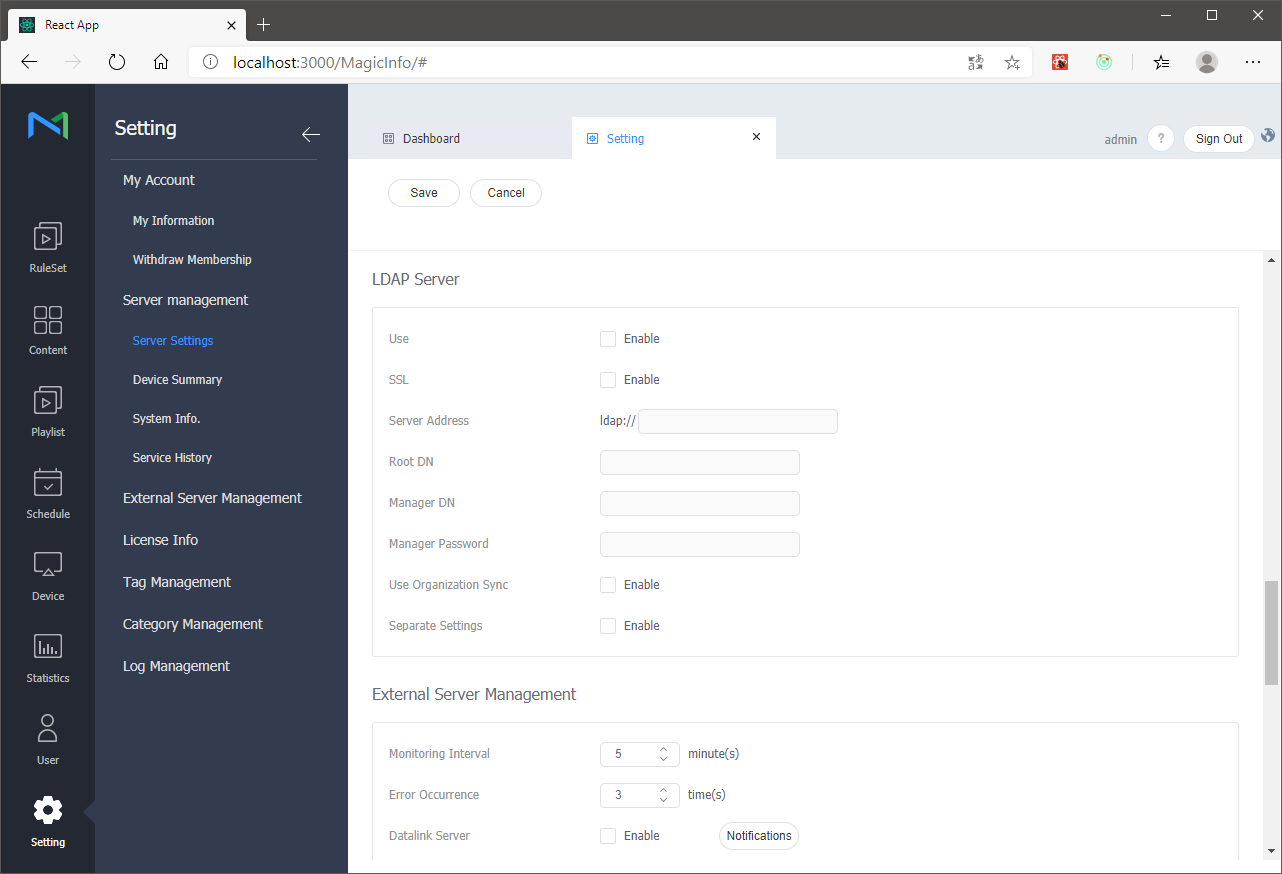
- Description of each item
Use: Whether to use LDAP Server. LDAP Server is used when checking Enable.
SSL: Whether to use SSL when connecting to the LDAP server. When checked, SSL is used when connecting to the LDAP server. The address changes from ldap:// to ldaps://.
Server Address: (Mandatory) LDAP Server address. Enter IP or domain.
Root DN: (Mandatory) Enter the LDAP Base.
Manager DN: (Mandatory) Enter the administrator account of the LDAP Server.
Manager Password: (Mandatory) Enter the password for the administrator account of the LDAP Server.
Use Organization Sync: If Enable is checked, the function to synchronize the OU of LDAP and the Group of MagicINFO Server is used.
Separate Settings: LDAP Server settings can be set for each organization. If Enable is checked, LDAP Server can be set for each organization. If Enable is unchecked, LDAP Server cannot be set for each organization and one setting is shared. - After checking Use, enter all Mandatory items and click the Save button. At this time, it tries to connect to the LDAP server and log in, and if it fails, an error message is displayed.
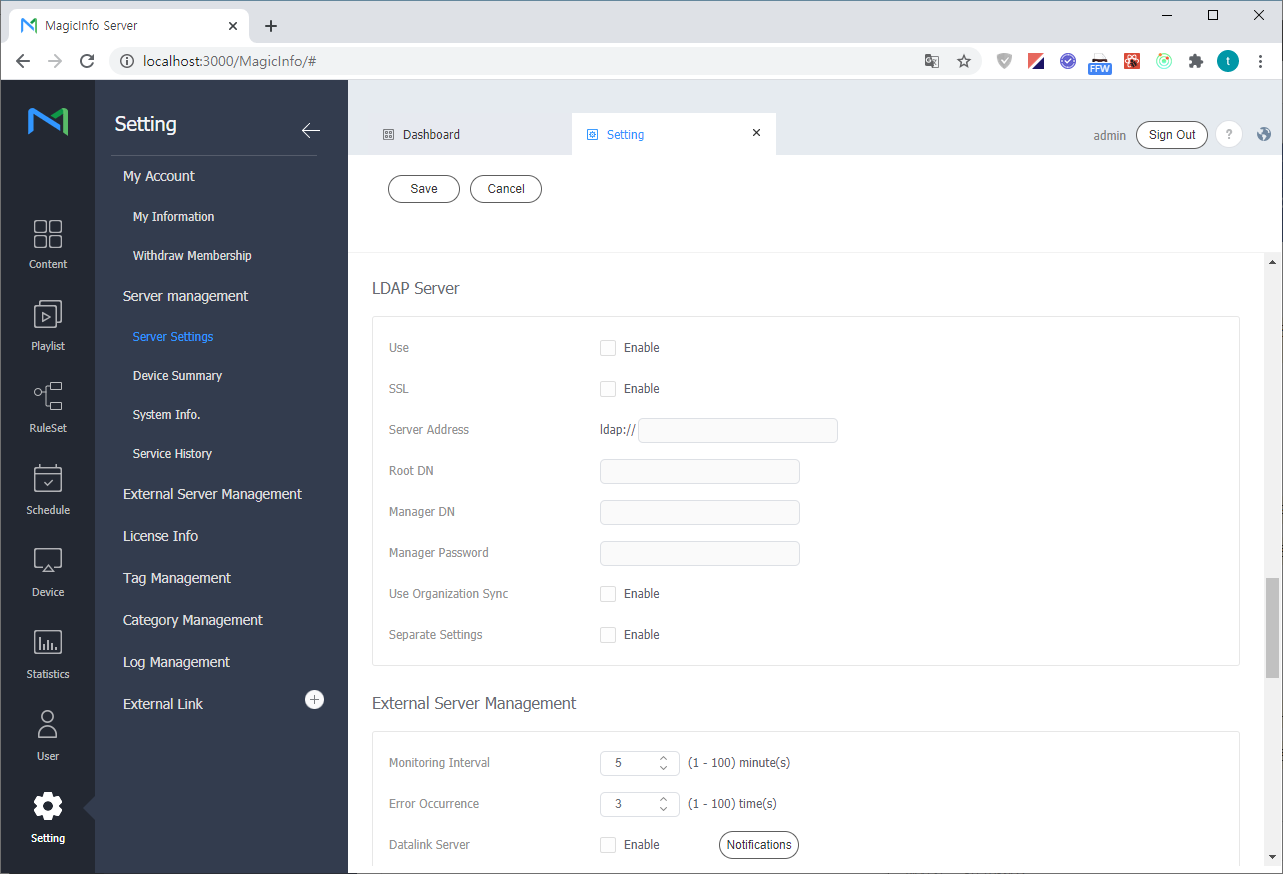
If successful, it is saved normally, and you can see a message saying that it has been saved.
LDAP server setting by organization
If Separate Settings is enabled in the LDAP Server setting, you can set the LDAP Server for each organization.
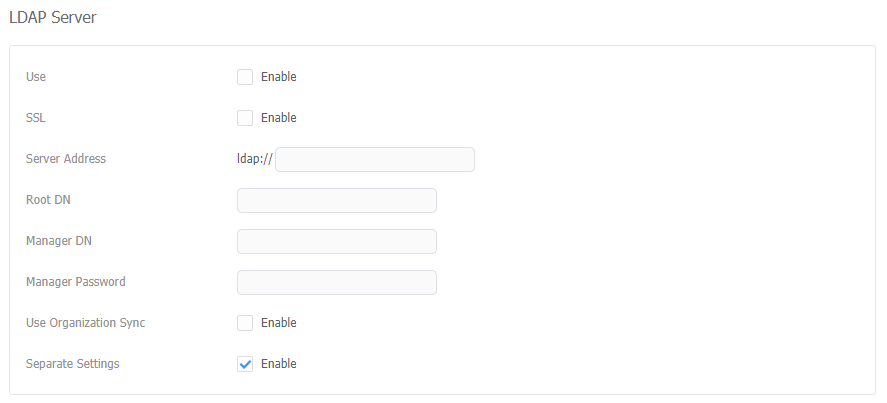
- When using the admin account, go to Settings> Server management> Server Settings, click Server management, and select the organization to be set.
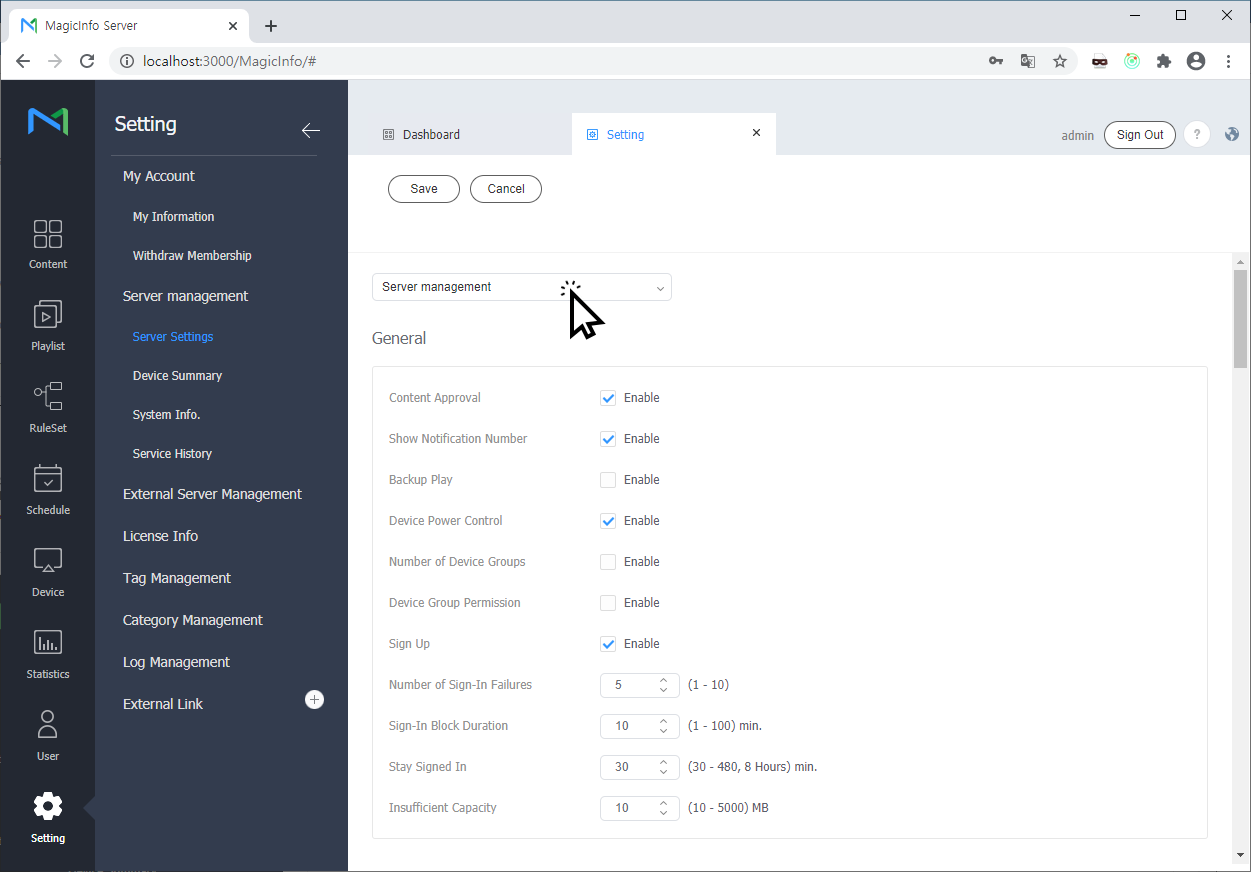
When using your own administrator account, enter Settings> Server management> Server Settings - Scroll down and find the LDAP Server entry.
- For other items, refer to the LDAP Server item in MagicINFO Server configuration.
- Apply Server Management Settings is an option to use the server management settings as they are. If Enable is checked, the server management value is automatically filled and cannot be modified. If LDAP Server is not configured in Server Management, an error message is displayed.
LDAP detailed settings in config.properties
When the installation path of MagicINFO Server is "C:\MagicInfo Premium"
- Search for "# LDAP Setting".
- The values that can be set are as follows. Search settings
| Key | What it does |
|---|---|
ldap.user.search.attributes | The LDAP attributes searched when you look up a user. Separate several with commas. |
ldap.user.search.option | How the search word is matched: 0 = contains it, 1 = starts with it (default), 2 = matches it exactly. |
Mapping LDAP attributes to MagicINFO user fields
When a directory user is added, MagicINFO fills the user's fields from the attributes named in these keys:
| Key | MagicINFO field |
|---|---|
ldap.user.attribute.id | User ID |
ldap.user.attribute.username | User name |
ldap.user.attribute.mobile | Mobile phone number |
ldap.user.attribute.phone | Telephone |
ldap.user.attribute.email |
If these keys are not set, the user ID is taken from the CN attribute and personal details such as the user name and e-mail stay empty:
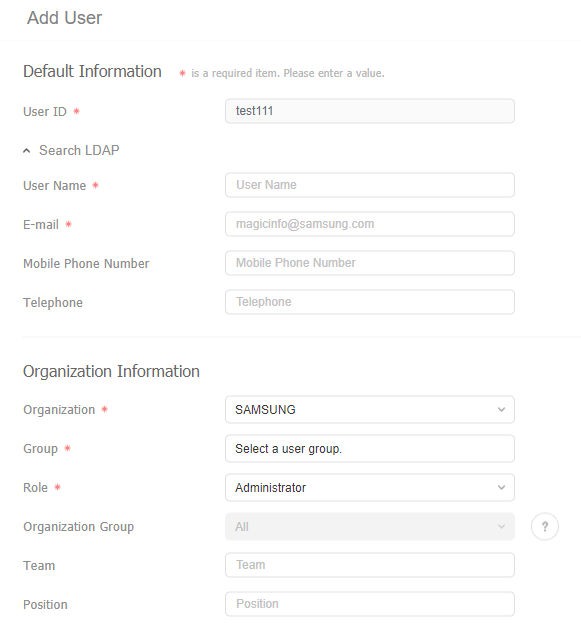
For Active Directory, for example:
ldap.user.attribute.id = sAMAccountName
ldap.user.attribute.username = displayName
ldap.user.attribute.mobile = mobile
ldap.user.attribute.phone = telephoneNumber
ldap.user.attribute.email = mail
config.properties is read once when the service starts, so restart the MagicINFO service after editing it. Users added after that get every field filled:
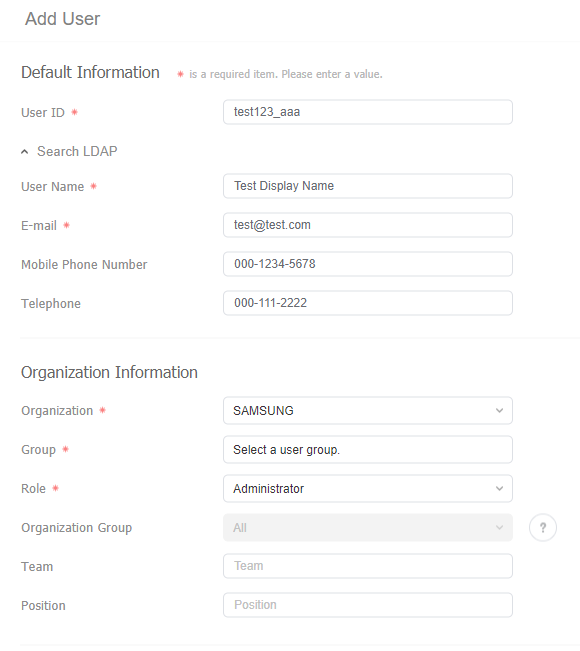 In Windows Server, the Windows account ID is included in the "CN" attribute,
User logon name can be modified in "Active Directory Users and Computers" in Windows Server.
Checking LDAP details with 3rd Party Application
You can search and modify various information with the LDAP Admin program (http://www.ldapadmin.org/).
- Download (http://www.ldapadmin.org/download/ldapadmin.html) and run
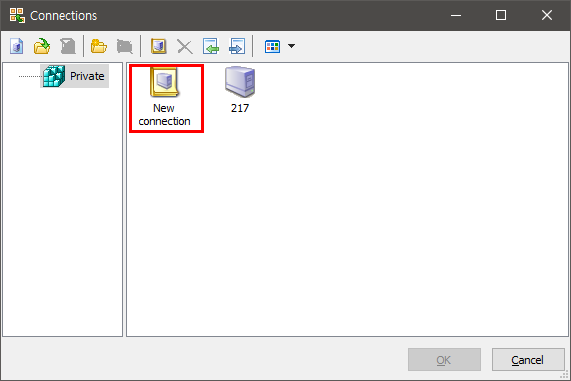
- Click the connection icon
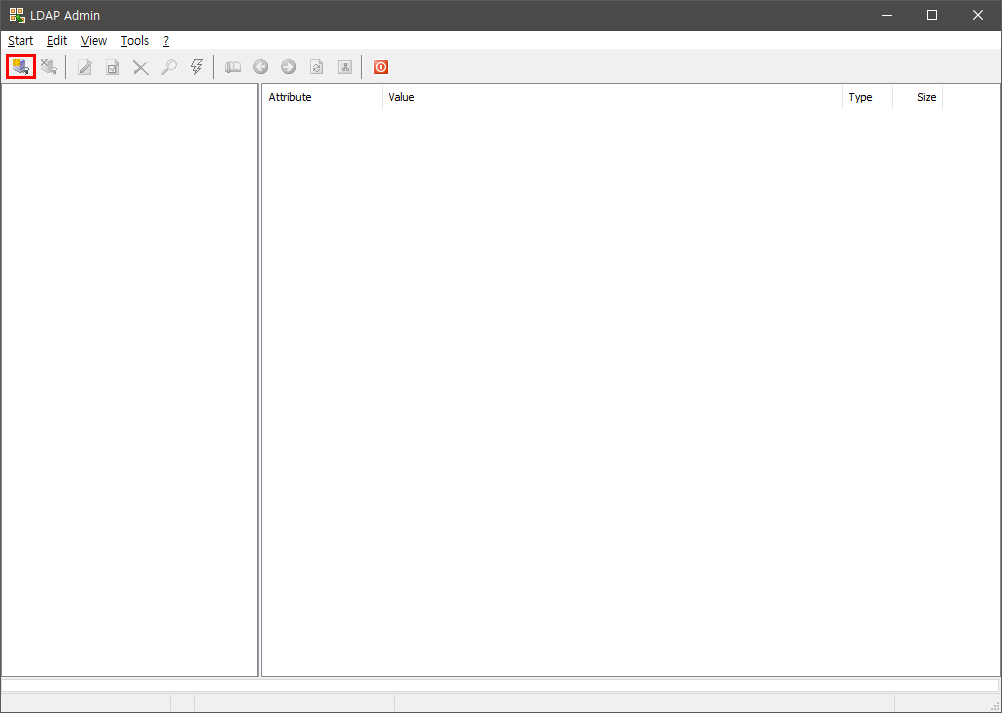
- Click New Connection
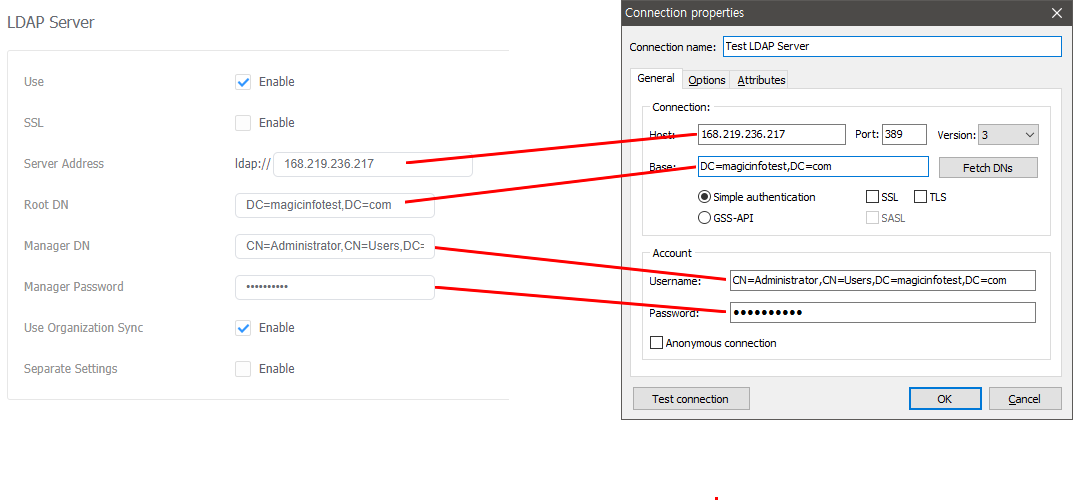
- Input each item. The MagicINFO Server LDAP setting item is shown on the left, and the LDAP Admin New Connection setting window is shown on the right. Enter each item by referring to the MagicINFO Server's LDAP setting.
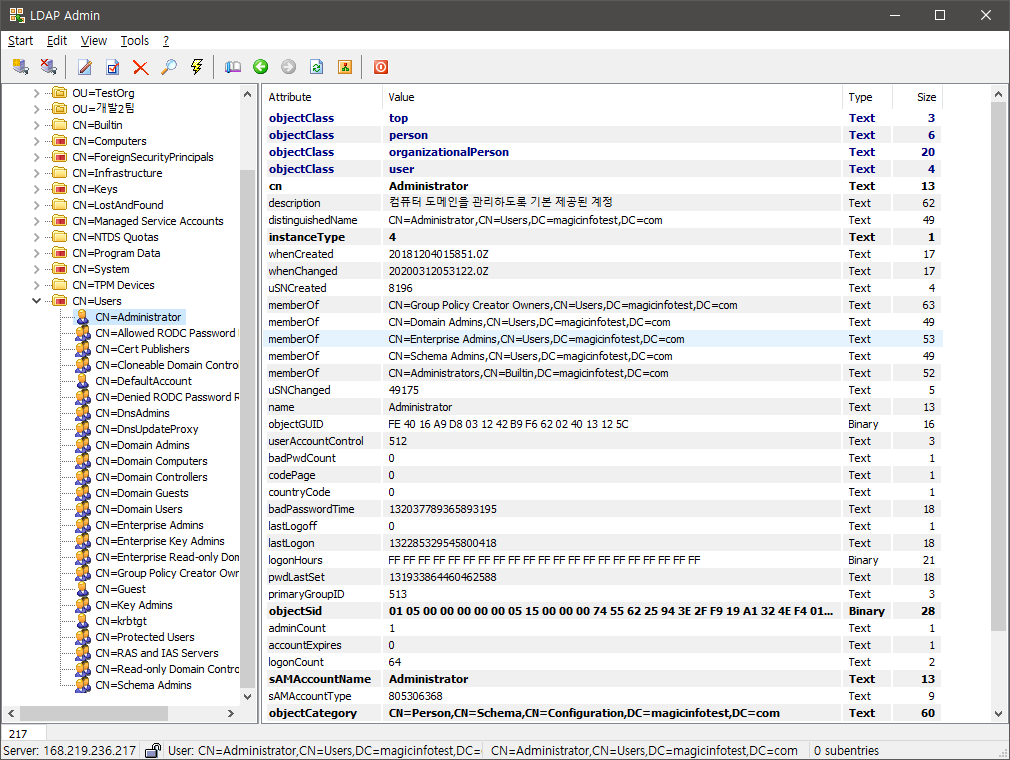
- When connected, you can check detailed information about each object.